How to Load an APK Onto a Meta Quest
Someone sends you a VR build as an .apk file: a festival piece, a prototype, a friend's game. It isn't in the Meta store, so you install it from your computer. This is called sideloading.
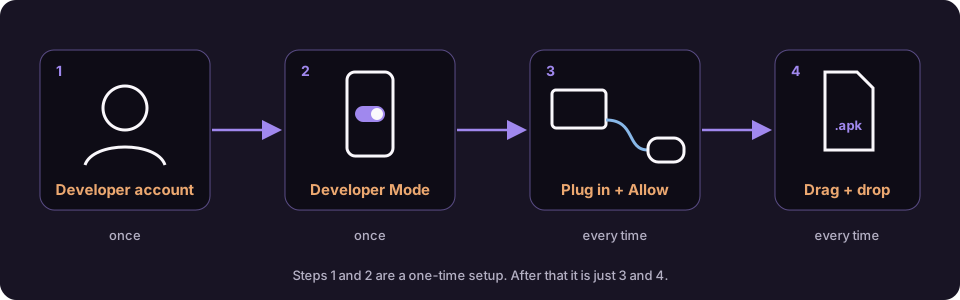
What you need
- Your Quest headset (Quest 2, 3, 3S or Pro), charged
- A USB-C cable that carries data. The one in the box works. Some cheap cables only charge.
- A Windows or Mac computer
- Your phone, with the Meta Horizon app signed in to the same account as the headset
- The
.apkfile, saved somewhere easy to find, like your Desktop
Step 1: Make a developer account (once)
Meta only lets developers install outside apps, but anyone can sign up. It's free.
- Go to developers.meta.com/horizon and log in with your Meta account.
- When asked, create an organisation. Any name works, for example your own name.
- Accept the developer agreement.
Meta may ask you to confirm your account with a phone number or two-factor login first. If so, do that and come back.
Step 2: Turn on Developer Mode (once)
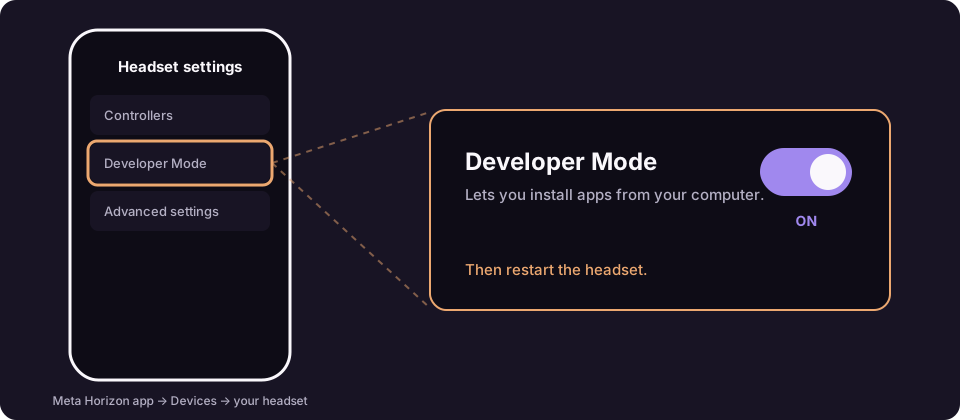
- Open the Meta Horizon app on your phone.
- Tap Devices and pick your headset.
- Tap Headset settings, then Developer Mode.
- Turn the switch on.
- Restart the headset: hold the power button, then choose Restart.
If you don't see Developer Mode, step 1 isn't finished yet. Check that the organisation was created, then close and reopen the app.
Step 3: Install SideQuest on your computer (once)
SideQuest is a free desktop app that sends files to your headset. Download the Advanced Installer for your computer and install it like any other app.
Step 4: Plug in and allow the computer
- Turn on the headset and connect it to the computer with the cable.
- Put the headset on. A box appears asking Allow USB debugging?
- Tick Always allow from this computer, then select Allow.
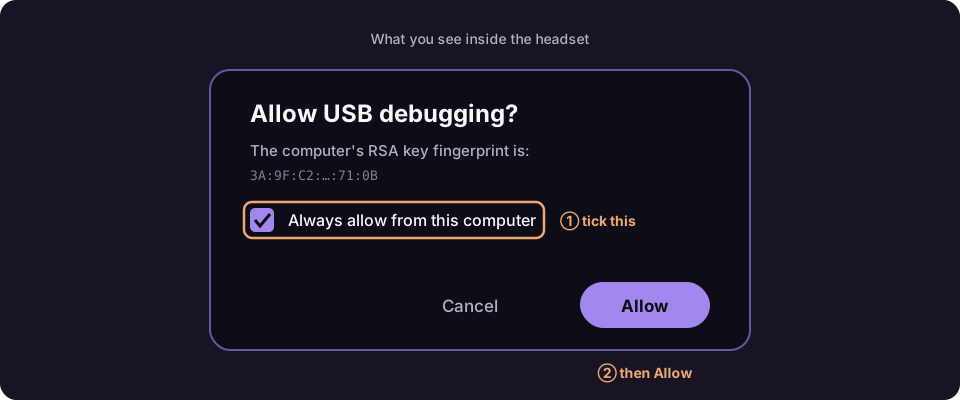
Take the headset off and look at SideQuest. The dot in the top-left corner should be green.
If you missed the box, unplug the cable, plug it back in and put the headset on again. It shows up again.
Step 5: Drag the APK into SideQuest
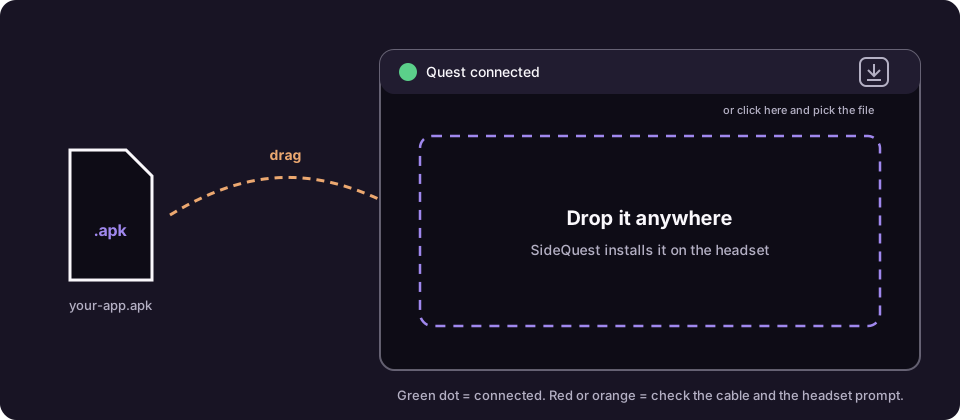
Drag the .apk file onto the SideQuest window and let go. SideQuest installs it.
You can also click the Install APK button in the top bar (a box with a down arrow) and pick the file.
To check progress, click the tasks number at the top of SideQuest. When it says Success, unplug the headset.
Step 6: Open it in the headset
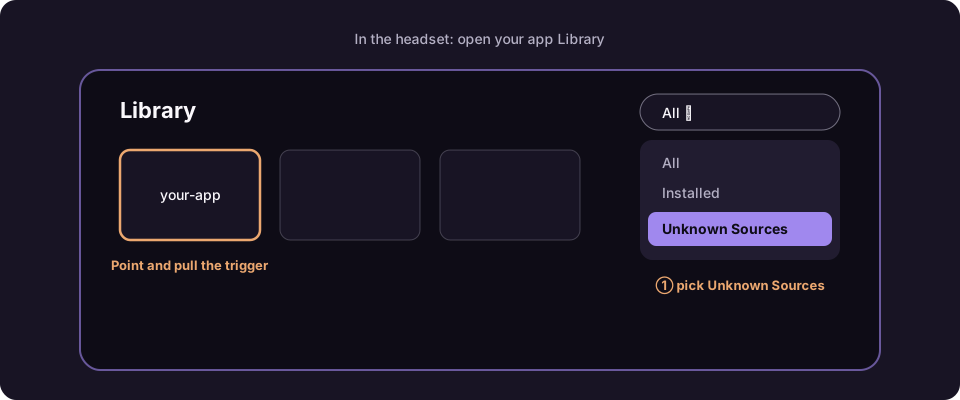
Apps you install yourself don't appear with your store apps.
- Open your Library.
- Open the filter menu at the top right (it usually says All).
- Choose Unknown Sources.
- Point at your app and pull the trigger.
Done. Next time, skip straight to step 4.
Looking for an app in the SideQuest catalogue rather than a file someone sent you? See How to Install an App From SideQuest.
If something goes wrong
The SideQuest dot stays red or orange
Swap the cable or the USB port, then look for the Allow box in the headset again.
SideQuest says "Unauthorised"
You missed or cancelled the Allow box. Unplug, plug back in, and allow it.
There's no Developer Mode option in the phone app
Finish step 1, then close and reopen the phone app.
The install fails with an error ending in UPDATE_INCOMPATIBLE
An older copy is already on the headset. Uninstall it from Unknown Sources, then install again.
The install fails with an error ending in INSUFFICIENT_STORAGE
The headset is full. Delete a few games or videos and try again.
The app installed but you can't find it
Look in Unknown Sources, not All.
One word on safety
An APK can do anything an app can do. Only install files from people you trust, such as the studio or artist who made the piece.