How to Install an App From SideQuest
SideQuest is a free catalogue of VR apps, demos and experiments that aren't in the official headset stores. You pick an app, click one button, and SideQuest installs it on your headset.
Covers: Meta Quest 2, 3, 3S and Pro. Steps that depend on your headset are in notes marked with its name. Everything else is the same for any headset.
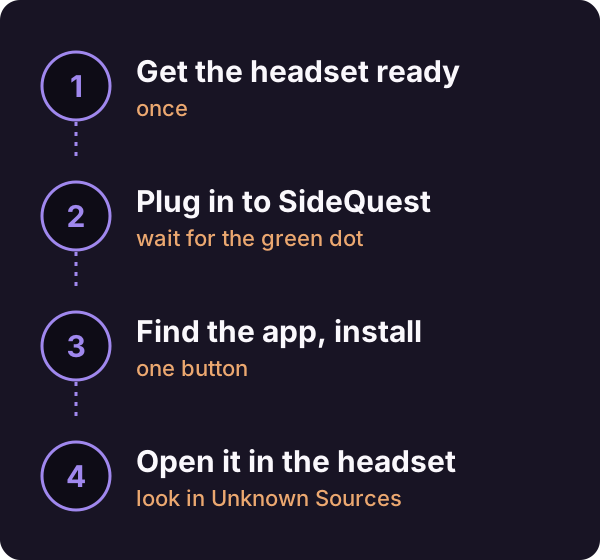
What you need
- Your headset, charged
- A USB-C cable that carries data. The one in the box works. Some cheap cables only charge.
- A Windows, Mac or Linux computer
Step 1: Get your headset ready (once)
Headsets only accept apps from outside their store once you switch that on.
On a Meta Quest: create a free Meta developer account and turn on Developer Mode in the Meta Horizon phone app. It takes about ten minutes, once. Follow steps 1 and 2 of How to Load an APK Onto a Meta Quest, then come back.
Step 2: Install SideQuest on your computer (once)
Download the Advanced Installer from sidequestvr.com/setup-howto and install it like any other app.
Sign in or make a free SideQuest account if you like. You don't need one to install apps.
Step 3: Plug in
- Turn on the headset and connect it to the computer with the cable.
- Open SideQuest.
- Put the headset on and accept the prompt that asks to trust this computer.
On a Meta Quest: the prompt says Allow USB debugging? Tick Always allow from this computer, then select Allow.
Take the headset off. The dot in the top-left corner of SideQuest should be green. If it isn't, unplug, plug back in and look for the prompt again.
Step 4: Find the app
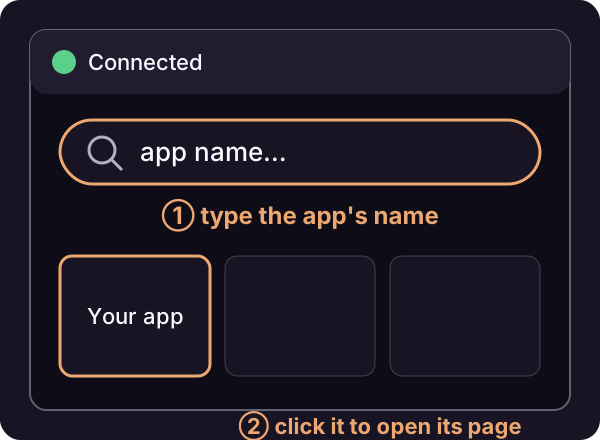
- Click the search bar at the top of SideQuest.
- Type the app's name.
- Click the app to open its page.
Read the page before you install. It shows which headsets the app supports, how big it is and when it was last updated.
Step 5: Install it
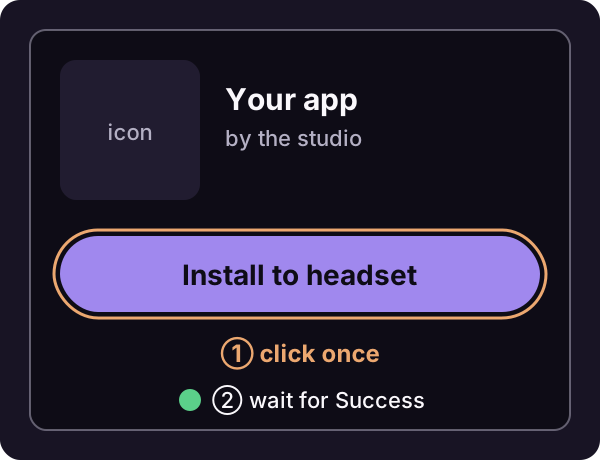
- Click Install to headset. On some pages the button is a down arrow or just Install.
- Leave the cable plugged in. Big apps can take a few minutes.
- Click the tasks number at the top of SideQuest. When it says Success, you're done and can unplug.
Found the app on the SideQuest website instead? Click its install button there and it opens in the SideQuest app on your computer. Carry on from here.
Step 6: Open it in the headset
Apps from SideQuest don't sit with your store apps.
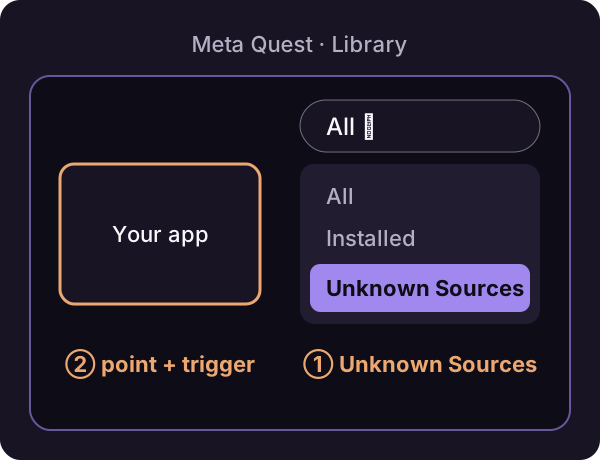
On a Meta Quest: open your Library, open the filter menu at the top right (it usually says All), and choose Unknown Sources. Point at your app and pull the trigger.
Updating or removing an app
To update: plug in, open the app's page in SideQuest and install again. Your progress normally stays.
To remove: uninstall it from the headset like any other app.
On a Meta Quest: in Unknown Sources, select the three dots on the app, then Uninstall.
If something goes wrong
The SideQuest dot stays red or orange
Swap the cable or the USB port, then look for the prompt in the headset again.
SideQuest says "Unauthorised"
You missed or cancelled the prompt in the headset. Unplug, plug back in and accept it.
The install button is greyed out
SideQuest can't see the headset. Check that the dot is green.
The install fails with an error ending in UPDATE_INCOMPATIBLE
An older copy from somewhere else is on the headset. Uninstall it, then install again.
The install fails with an error ending in INSUFFICIENT_STORAGE
The headset is full. Delete a few games or videos and try again.
The app installed but you can't find it
Check step 6. It's in a different place from your store apps.
One word on safety
SideQuest checks its listings, but these apps haven't been through a headset store's review. Stick to apps with recent updates and real reviews, or ones from people you know.