The Basics of VRChat Worldbuilding
Welcome! You’ve found my tutorial on VRChat worldbuilding.
This is a pretty lengthy one since it covers the basics of Unity and the VRChat Creator Companion (VCC), but there are plenty of tricks and tips for experienced creators too. I hope you enjoy, and I’ll see you in the metaverse. — Deac.
Table of Contents
- Some Context
- Part 1: Enjoying VRChat Experiences
- Part 2: Creating VRChat Experiences in Unity
- Part 3: Insider Tips & Tricks
Background
My name is Dale P. Deacon (aka deaconline or “Deac” for short). I make immersive VR experiences. To date, I’ve welcomed hundreds of thousands of visitors to my VR worlds, many of which are nature-themed relaxation experiences as you’ll see from some of the photos below.
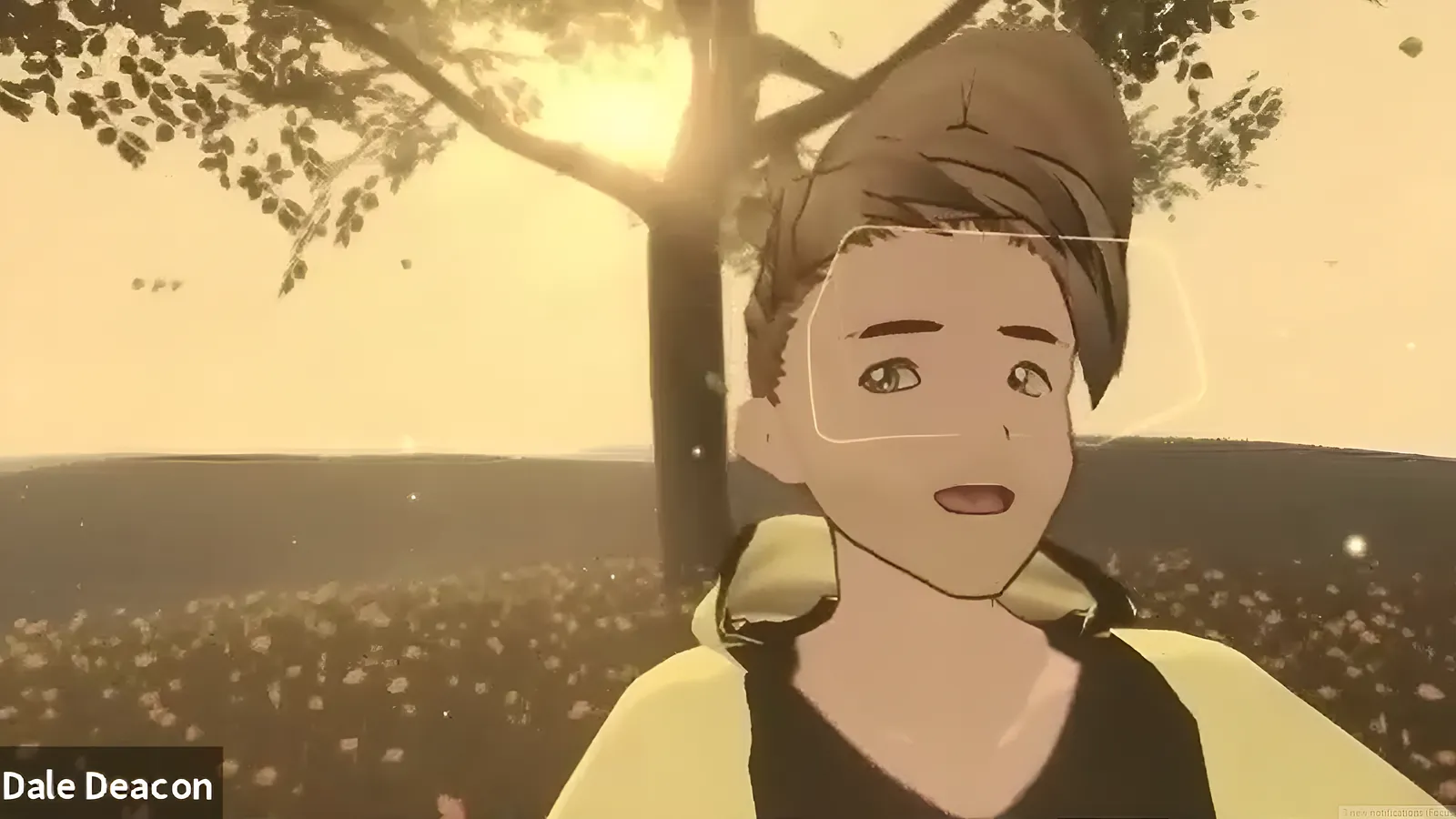 I used a free Steam app called VROID to make this avatar. That, and lots of patience and tweaking.
I run Worldbuild Studios, and I play the role of director-producer in the immersive storytelling genre. I’ve worked on XR collaborations with The New Yorker Magazine, UNESCO, Venice Immersive (Venice Intl. Film Festival), Jean-Michel Jarre, Red Sea Immersive Film Festival, Felix & Paul Studio, and many more. I also like to organise community initiatives in the digital arts in my hometown of Johannesburg, South Africa, such as the WE ARE VR meetups and the Africa XR Report.
In this tutorial, I’m gonna share some tricks and tips I’ve picked up over the years that make my life easier as a VR worldbuilder. I specialise in worldbuilding, so avatars won’t be a focus of this tut, but I’m sure some of the links I provide below will help anyone on that journey.
What is VRChat?
VRChat is an online social platform that allows users to interact with each other with user-created 3D avatars and worlds.
VRChat is designed primarily for use with virtual reality headsets, being available for Microsoft Windows PCs and as an app for Android-based VR headsets such as Meta Quest, Pico 4, and HTC Vive XR Elite. VRChat is also playable without a virtual reality device in a desktop mode designed for a mouse and keyboard, gamepad, or mobile app for touchscreen devices.
So why use VRChat?
In a nutshell, it’s the most popular VR platform. It’s still early days, but VRChat is pulling off what the billion-dollar titan Meta couldn’t; Genuine community in VR. Virtual Girl Nem put together a great graph illustrating VRChat’s growth over its lifetime.
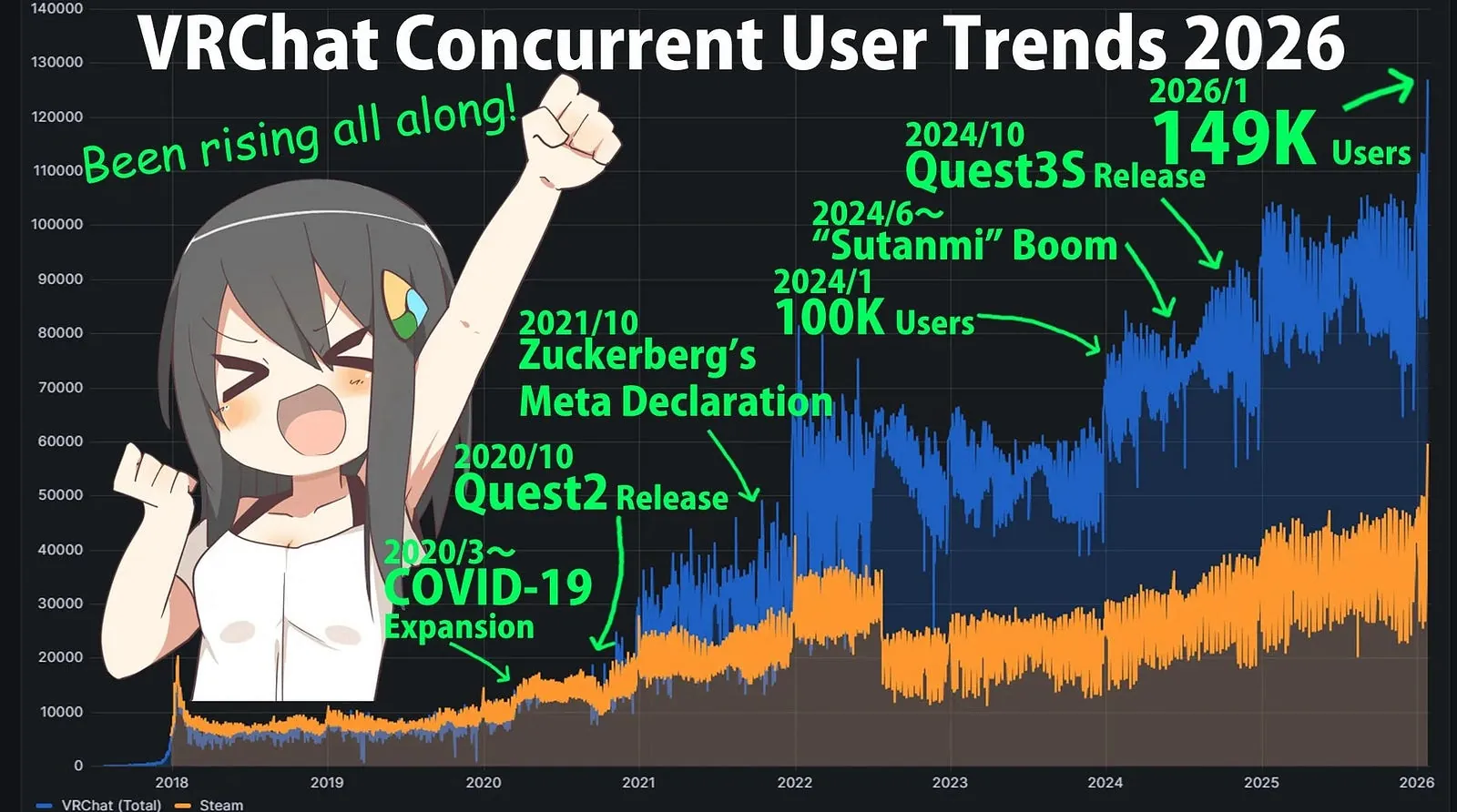 VRChat Concurrent User Trends up to 2026
Tupper, a VRChat staff member, claimed that the platform hit almost 150,000 concurrent users on New Years eve/day. While these figures don’t compare to the top PC games, VR is technology with additional expenses and time commitments. The year-on-year growth is the important takeaway here, I think.
More Info:
- https://www.uploadvr.com/vrchat-nye-user-record/
- https://www.roadtovr.com/vrchat-new-record-new-years-eve-2025-2026/
- https://vchavcha.com/en/virtual-news/vrchat-metaverse-demographics-report-2026/
Part 1: Enjoying VRChat Experiences
Installing VRChat
You can play VRChat for free on various devices and platforms, even without a VR headset. Let’s start this guide by reviewing the platforms VRChat is compatible with and providing installation instructions on each.
- Tethered VR + PC: Steam (The best way to experience VRChat)
(https://store.steampowered.com/app/438100/VRChat/) - Stand-Alone VR: Meta Store (https://www.meta.com/experiences/vrchat/1856672347794301/)
- Other VR: Pico, Viveport, Rift
(https://hello.vrchat.com/) - 2D Mobile Experience: iOS & Android (https://hello.vrchat.com/blog/vrchat-mobile-release)
Creating a VRChat Account
The next step is to create your VRChat account.
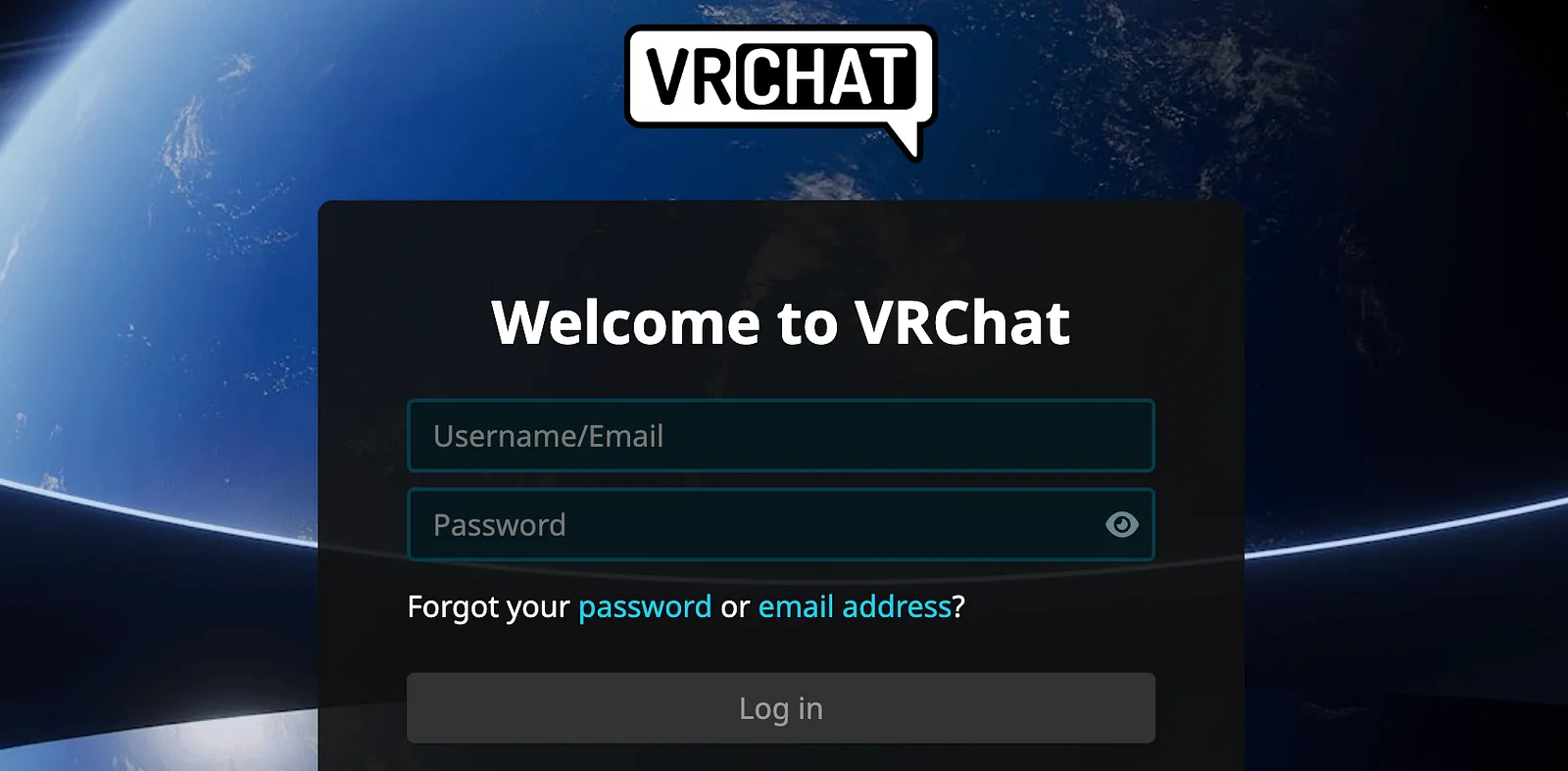
You can set that up here: https://hello.vrchat.com/
- Begin the Registration Process
Click here to start creating your VRChat account - Fill in Your Information
Complete the required fields with your details - Verify Your Email
Check your email for a verification link to finalize your account
My First Avatar
Once you’re in VRChat, you’ll need a body. This is a whole thing.
Some people focus solely on avatars and for good reason. Our identity, both inwardly and outwardly, are tied to how we choose to portray ourselves. This rabbit hole goes deep, but first, lets just get started with a simple avatar and you can take it where you like.
https://hello.vrchat.com/avatar-systems
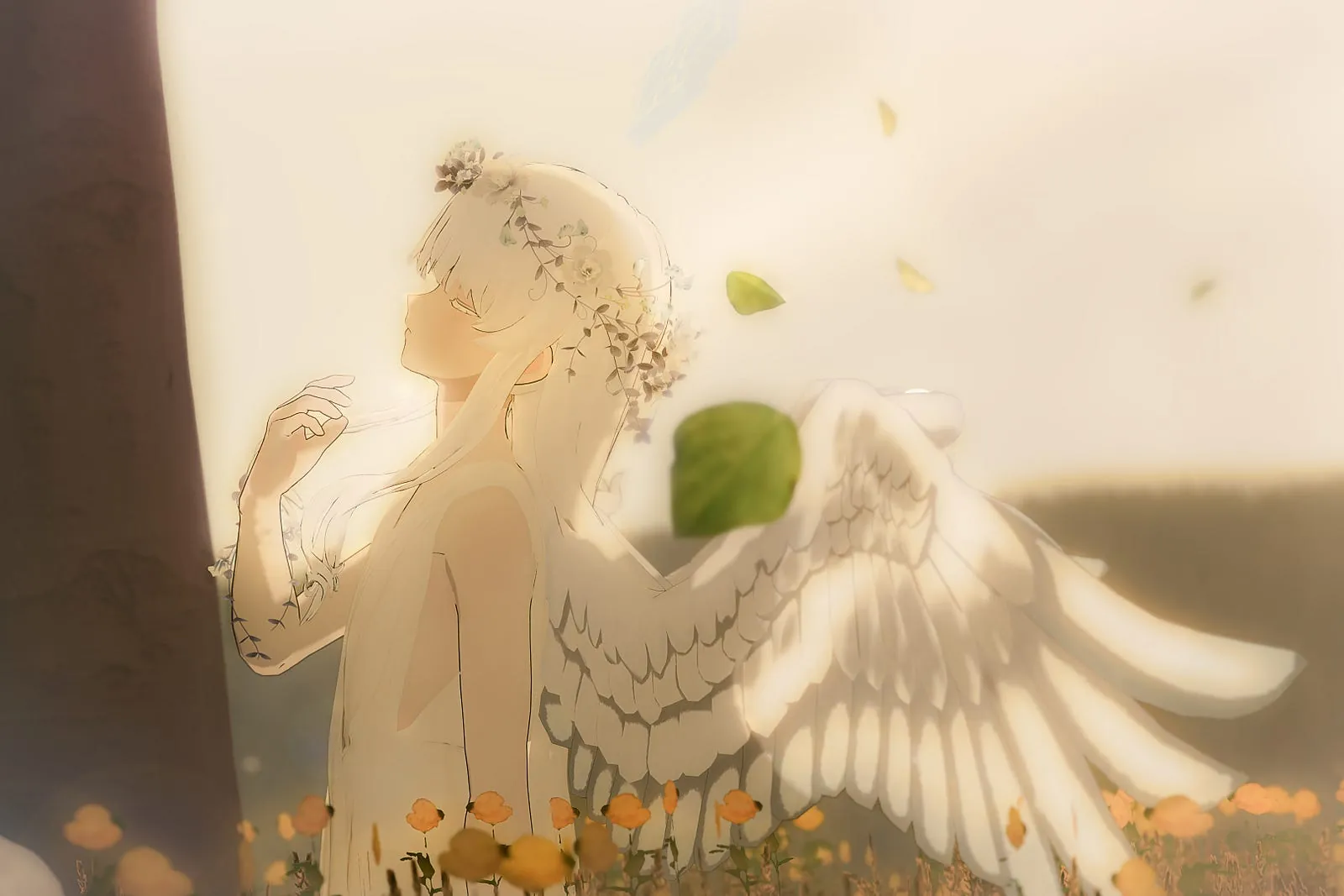 Finding yourself is a life-long journey. We change over time and we’re more complex than we often admit.
1. VRChat’s Avatar Marketplace
Simply open up the Main Menu and click on the Avatars tab. You will automatically be brought to the Explore tab. Here, you can find all the avatars currently available in the Avatar Marketplace.
- Accessing the Avatar Marketplace
https://help.vrchat.com/hc/en-us/articles/41751853117715-How-do-I-find-or-buy-an-avatar-in-VRChat
2. Buy an avatar
If you can’t find something that fits you within VRChat, you can always find something on an external marketplace and upload it to VRChat.
- Gumroad
https://gumroad.com/3d?tags=vrchat+avatar - BOOTH
https://booth.pm/en/search/3d%20avatar%20for%20vrchat
3. Make an avatar
Still can’t find something you’d like? You can always build something yourself.
- MakeAvatar
https://xr-marketplace.com/en/makeavatar\ MakeAvatar offers a set of avatars for direct upload to VRChat! - Avatar Maker
https://avatarmaker.vket.com/en/\ Interactive site to make VRChat avatars in minutes. Modular parts from top creators. Upload directly, or via Unity package.
Adding Friends
Now that you’ve found an Avatar, it’s time to start making friends. One of the greatest benefits of VRChat is the ability to connect with people from all over the World, anytime, without leaving the comfort of your home.
1. Searching for a Friend
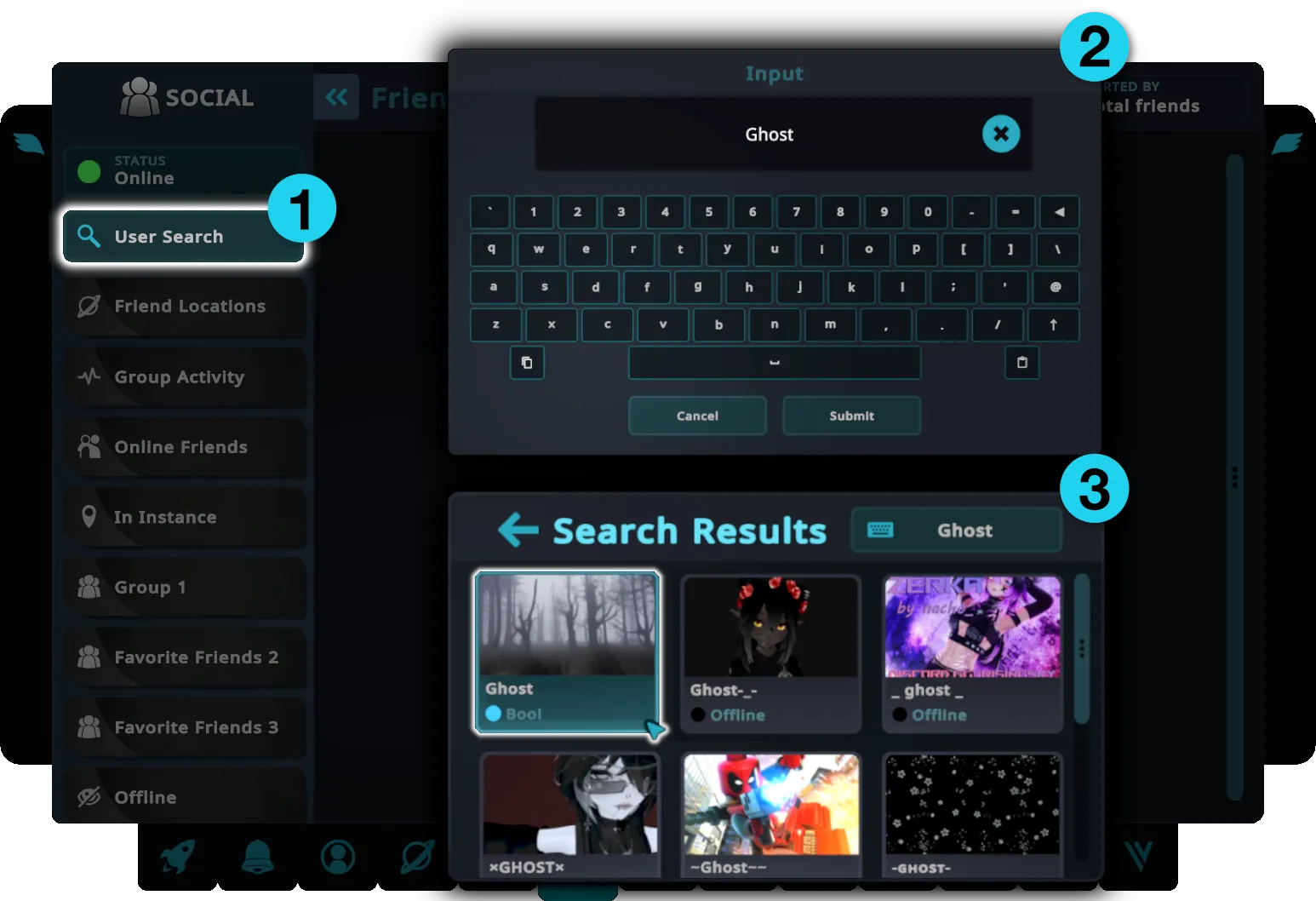
If you know the name of a friend you’d like to add, follow these steps in the Social Menu:
- 1. Select User Search
- 2. Enter their name
- 3. Locate their account and click Friend Request on their profile
2. Adding Friends while in an Instance
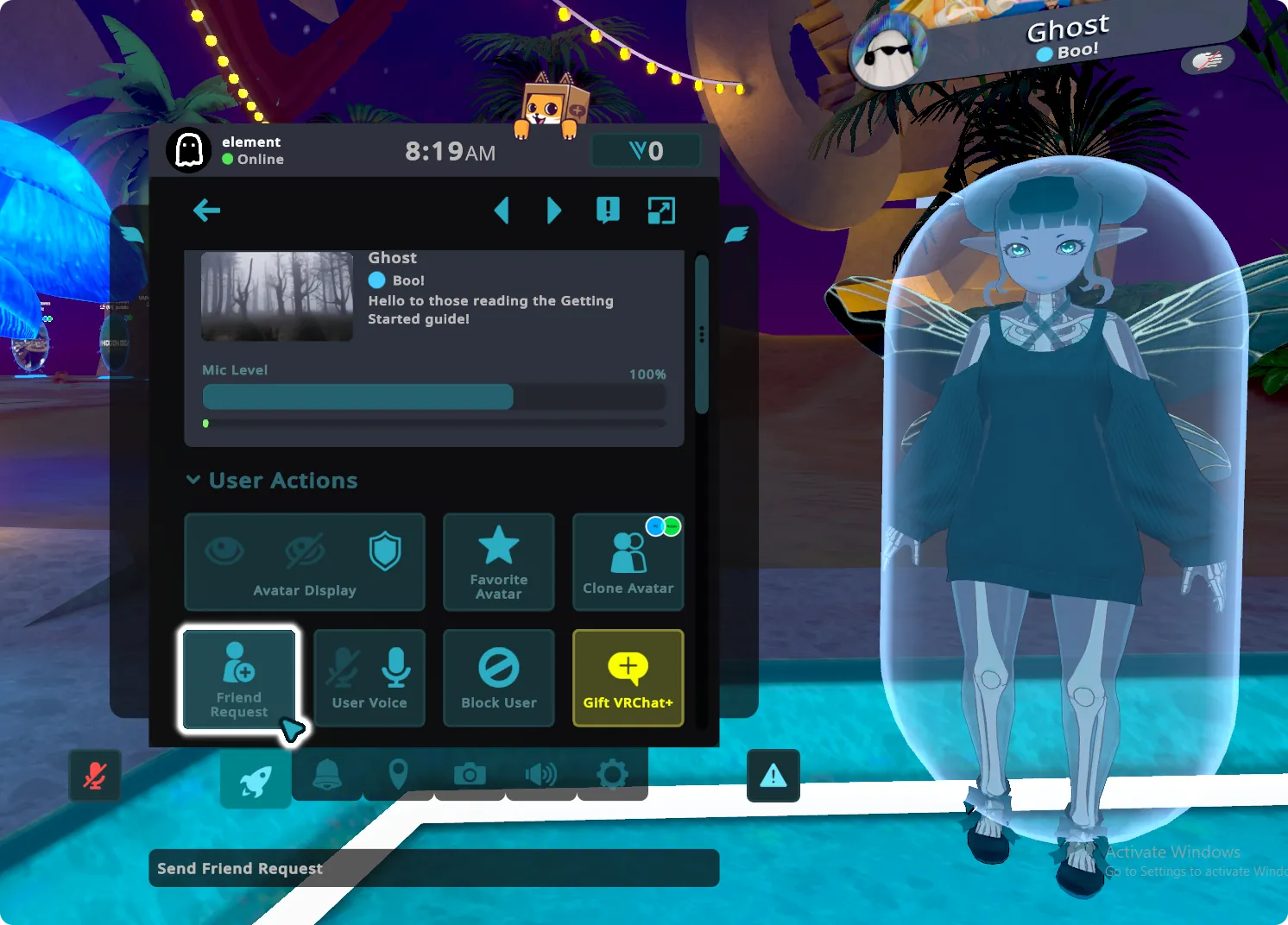
You can easily add people you meet in an instance as friends. Just select them in-game and click Friend Request in the Quick Menu.
Worldhopping
Now that you know how to add friends, let’s meet up with them.
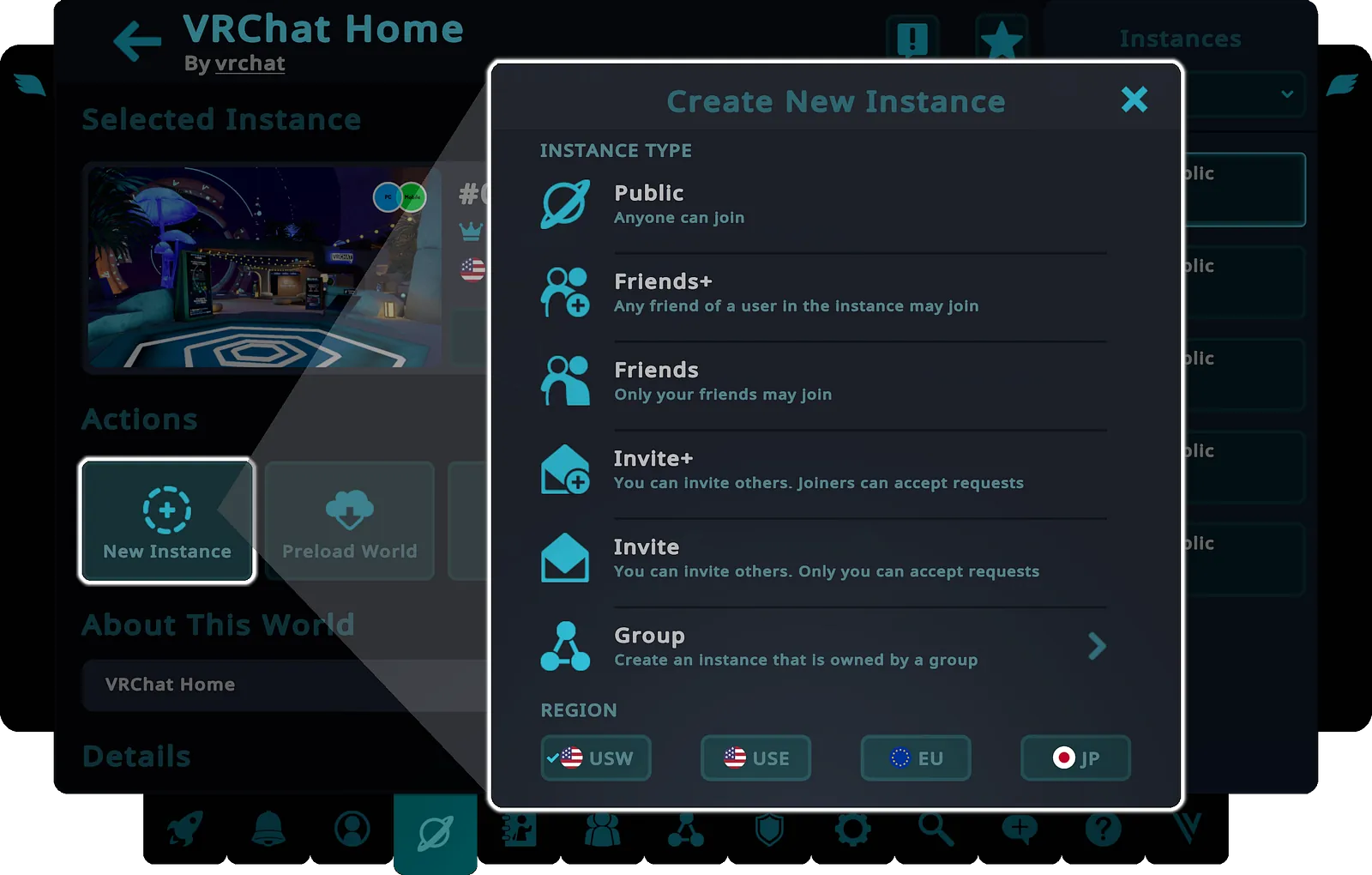
“Instances” are unique sessions of a VRChat World. When you join an instance, you can interact with others in that same session, but not with users in different instances. Instances have settings that control who can join or see the instance, and each instance is connected to a region, which is a server managing the connections between users.
Joining an Instance
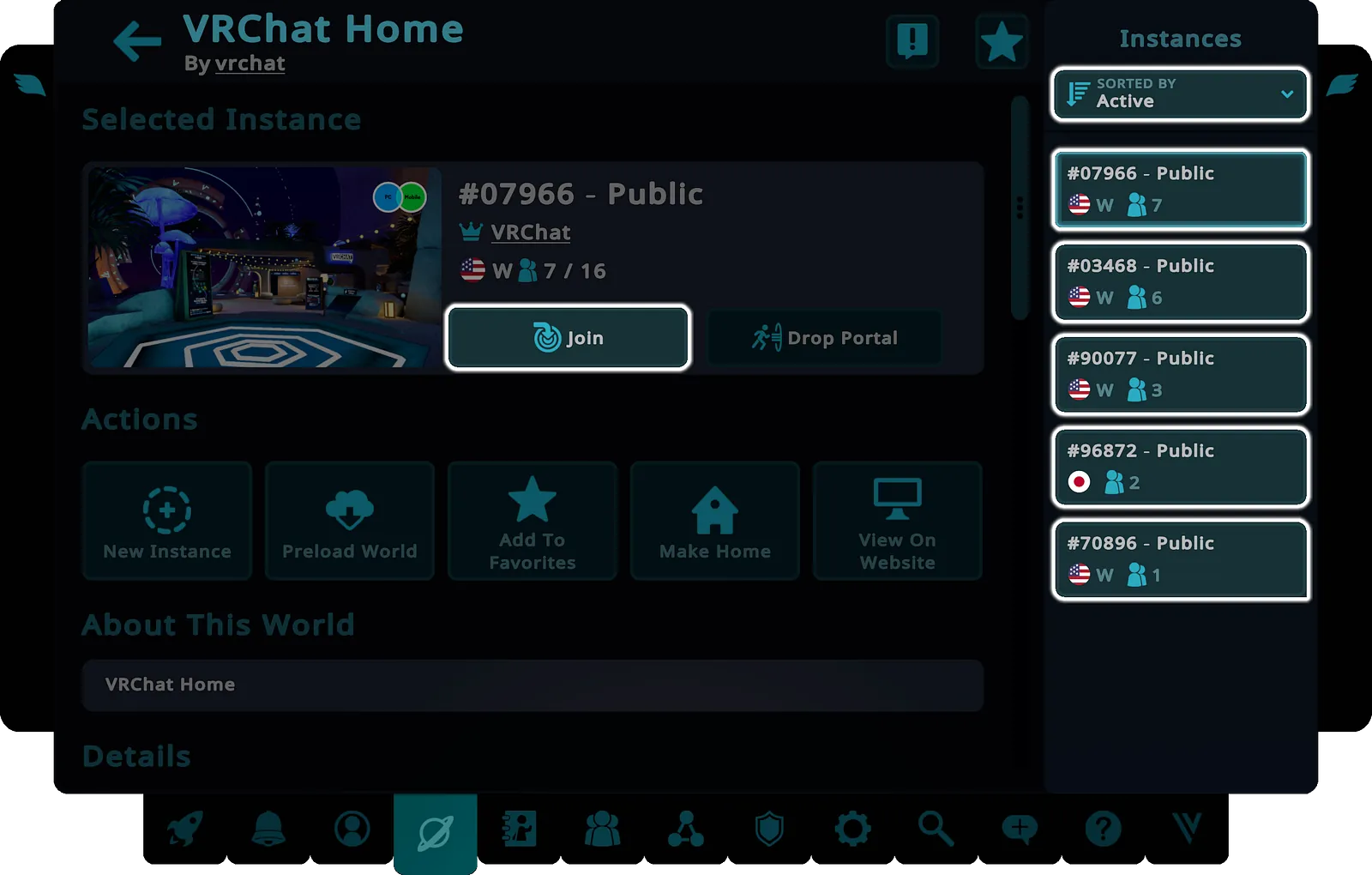
You can join Public instances by selecting a world and looking through the list of Active Instances.
Creating an Instance
You can create an instance by clicking New Instance and selecting the instance type that suits your needs.
Joining a Friends Instance
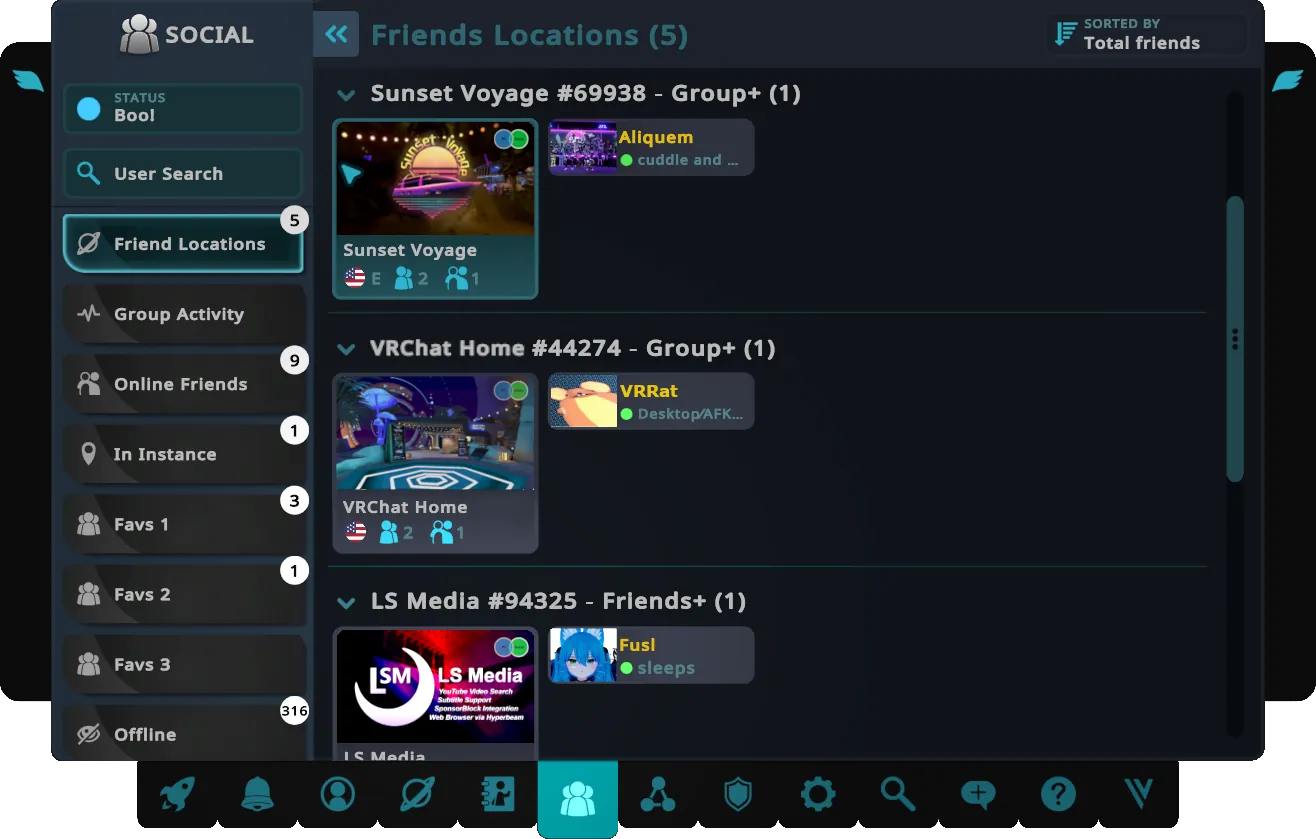
In the Social menu, you can view where your friends are and easily join their instance.
Instance Types and Permissions
You have full control over the privacy level of the instances you create, allowing you to choose who can join and interact in your session. Here’s a breakdown of the available privacy levels:
- Public: A publicly listed instance for anyone to join.
- Friends+: An instance your friends can join and invite their friends to.
- Friends: An instance only your immediate friends are allowed to join; Friends of friends are excluded.
- Invite+: Users and their friends must request to join; however, if you or an invited user’s social status is set to “Join Me”, they can join without approval.
- Invite: Users must send a join request unless their social status is set to “Join Me”. Friends of friends are excluded.
- Group: Restricted to only certain group members or specific roles within that group.
- Group+: An instance hosted by a group, allowing group members, friends of members, and others to join. Membership in the hosting group is not required.
- Group Public: A publicly listed instance hosted by a group and open for anyone to join. Group public instances may have moderators.
Safety Settings
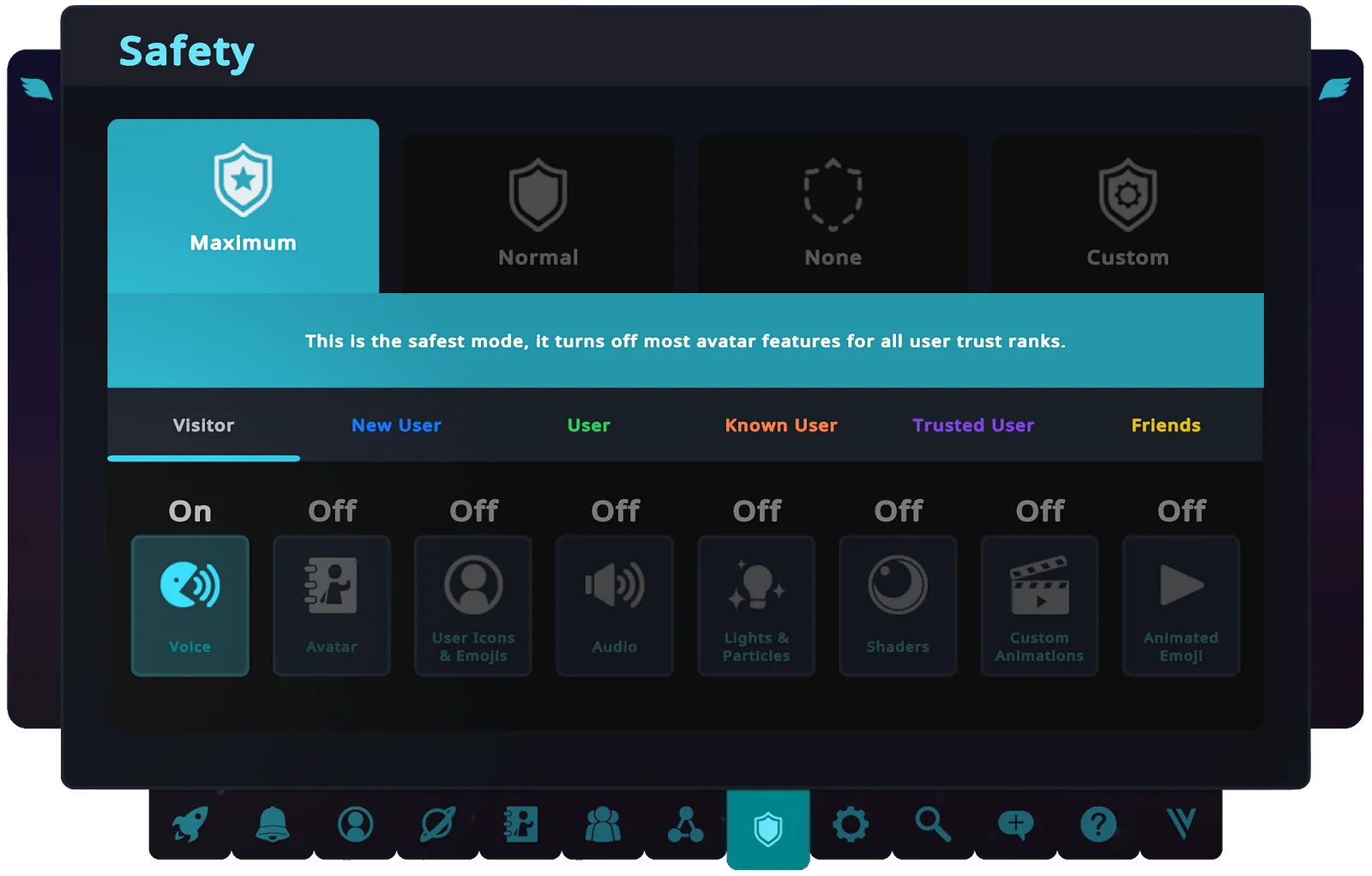
The Safety Shield, which is detailed further in the VRChat Safety and Trust System documentation, is the primary protection when interacting with new users and Avatars, adjusting features based on the user’s Trust Rank and Avatar Performance level.
The Trust Rank
A user’s Trust feeds into something we’ve called a “Trust Rank”, which is an indicator of how much time a user has spent in VRChat, how much content they’ve contributed, the friends they’ve made, and many other factors. These ranks are as follows:
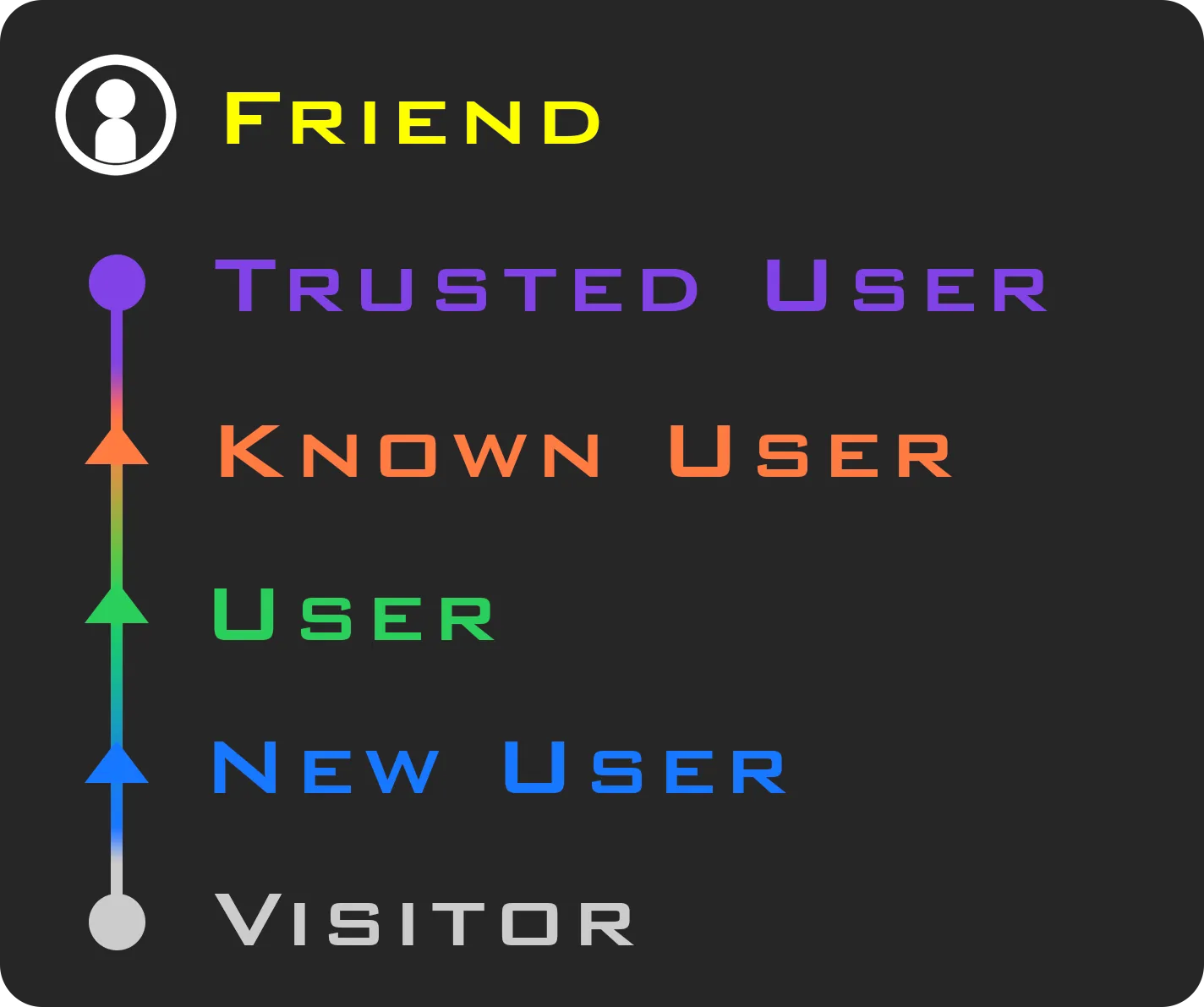
You gain these ranks simply by playing VRChat — as you explore worlds, make friends, and create content, you will gain more Trust, which determines your Trust Rank.
The ranks are displayed on nameplates when you open your Quick Menu. Otherwise, they get out of the way and are not visible during normal play.
Friends are a special Trust Rank. Users that you have Friended have all of their avatar features shown in the Normal Shield Level, and you can customize them just like any other Trust Rank.
NB: The transition between “Visitor” and “New User” is a special one — when a Visitor becomes a New User, they gain the ability to upload content to VRChat as long as they’re using a VRChat account.
Users receive a notification when they have passed this rank, and are directed to the VRChat documentation page to get started with creating content.
All ranks from “Known User” and upward also have the ability to toggle off the display of their rank on their nameplate. They can choose to appear as a “User,” which will change their Trust icon and text to the User Rank, and will also change how the Safety system treats them to match the User Rank settings. This is for users who do not wish to show off their higher rank for whatever reason. You can change your rank display by clicking on your trust rank on the profile page below your status.
More Info: https://docs.vrchat.com/docs/vrchat-safety-and-trust-system
Other Helpful Resources
- User Documentation: https://docs.vrchat.com/docs/welcome-to-vrchat
- Getting Started with VRChat: https://help.vrchat.com/hc/en-us/articles/28526267258515-Getting-Started-with-VRChat
Some of my favourite VRChat worlds
Okay, time to explore.
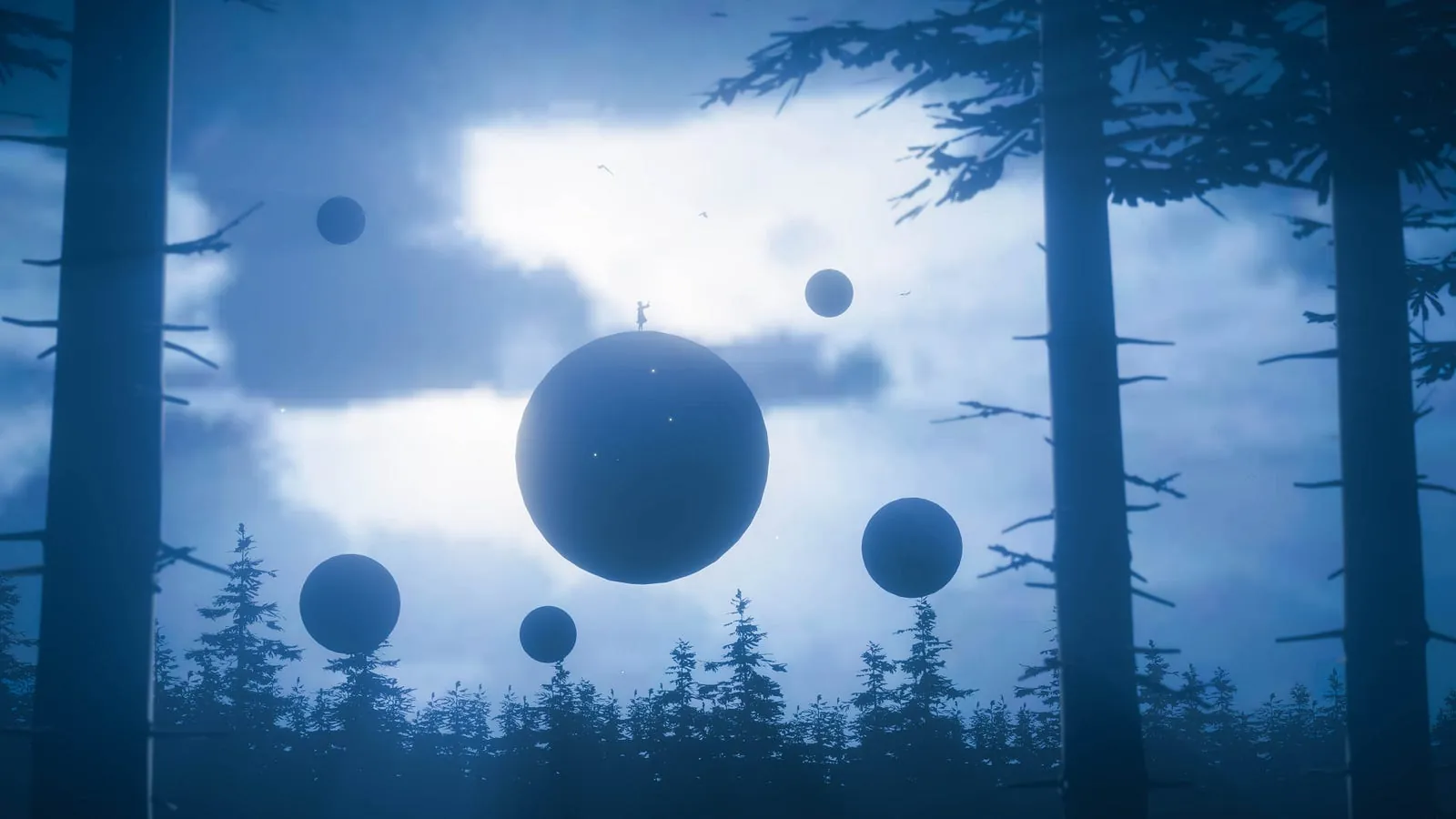 There are some pretty surreal scenes out here.
Check these worlds out when you have some time.
- Sharks Fin Cafe
- Yayoi Summer Nights
- Amebient
- Aquarius
- Namuanki
- Mountains of Madness
- Interplanetary Cruise Ship
- Olympia (v 3․2)
- Treehouse in the Shade
Some of my own VRChat work
- MormoVerse˸ Under the Pillow
- Venice Immersive 2025
- STRANGEWAYS
- Archive˸ Midnight Meadow
- Archive˸ The Grove
- Archive˸ Lakeside Retreat
Non-Technical VRChat Content Creation
There are many people I’ve met who are starting non-technical careers in VRChat. There are photographers, explorers, musicians, dance teachers, sign language teachers, gamers, raves, pilot schools, role-play enthusiasts, book clubs, and much more.
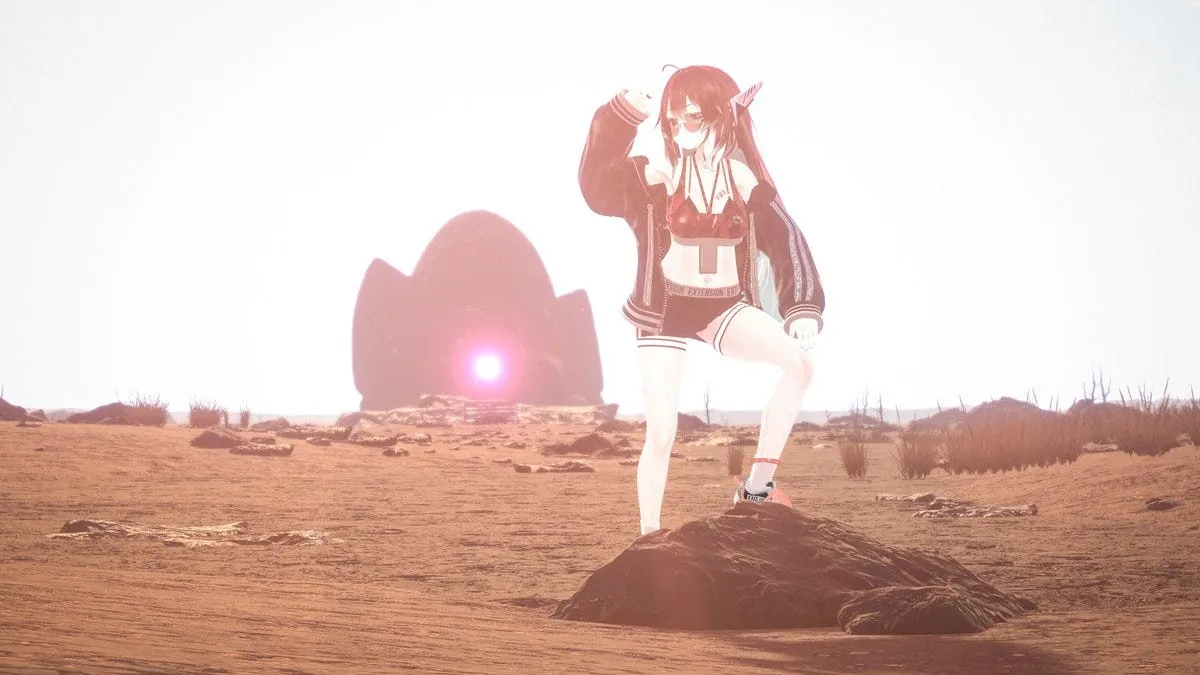 Get ready to explore! This rabbit hole goes deep.
Just like on regular social media platforms, there are new businesses and careers popping up organically. For example, an old acquaintance, Joe Hunting (aka Little Poe), filmed a documentary in VRChat that got bought and streamed by HBO. Here’s the trailer.
So there are many alternate ways to enjoy and explore VR outside of the technical streams of designing and developing VR Worlds and Avatars.
Ok, that said, let’s get our hands dirty with creating content for VRChat via Unity. Once we’re ready to create our own experiences, we need to get our tools ready. https://creators.vrchat.com/getting-started/
Part 2: Creating VRChat Experiences in Unity
Alright, so that covers how to get into VRChat, and how to get around.
It’ll take some time to get used to it, so don’t stress, take your time, enjoy it. Don’t put unnecessary pressure on yourself to get everything perfectly right on the first try. It’s a process, and it can take some getting used to. VRChat is technically still an app in Early Access, so go easy on yourself and your on-boarding. Honestly, it’s not for everyone, and more technically savvy techies and gamers might be a little more used to the friction that comes with adopting a new app. Just try relax and enjoy it.
 Take your time. The metaverse isn’t going anywhere.
Here’s a link to the Official VRChat Content Creation and VRChat SDK Documentation: https://creators.vrchat.com/
TLDR: Technical Quickstart
Follow the steps below to quickly set up the VRChat software development kit (SDK):
- Download & Install the VRChat Creator Companion (VCC). PC only, there’s no Mac VCC as of April 2026. The VCC will be your primary tool for VRChat content creation. The Unity Game Engine does the legwork, but the VCC keeps things organised.
- If the Unity Game Engine (https://unity.com/) is not installed, the Creator Companion will help you download Unity Hub, install Unity version 2022.3.22f1, and create a Unity Account. This versioning changes over time, so use the VCC to ensure you’re using the correct (not necessarily the latest) version of Unity.
- Use the Creator Companion to create a new Worlds or Avatar project, and open it with Unity.
- Build your world or avatar in Unity, and test it in VRChat using the SDK Control Panel.
- Once ready, use the SDK control panel to publish your world or avatar to VRChat!
VRChat Creator Companion (VCC)
I really like this tool from VRChat. I use it to organise all my VRChat SDKs and it helps ensure my plugins and packages are up to date. I can’t recommend this highly enough. https://vcc.docs.vrchat.com/
The Creator Companion makes VRChat world or avatar creation more accessible and faster. It can automatically install the Unity Editor and Hub, download the VRChat SDKs and create and update your projects. Starting in 2023, new VRChat SDK updates will only be available through the Creator Companion. If you’d like to use VRChat’s newest SDK features in new or existing projects, use the VCC.
Note: As of April 2026, the Creator Companion only supports Windows 10 and 11 (64-bit). Other operating systems are not fully supported.
Here’s VRChat’s video summary of how it works.
Alright, open it up, and let’s get started.
VCC Projects
The first tab in the top left of the VCC window is for Projects.
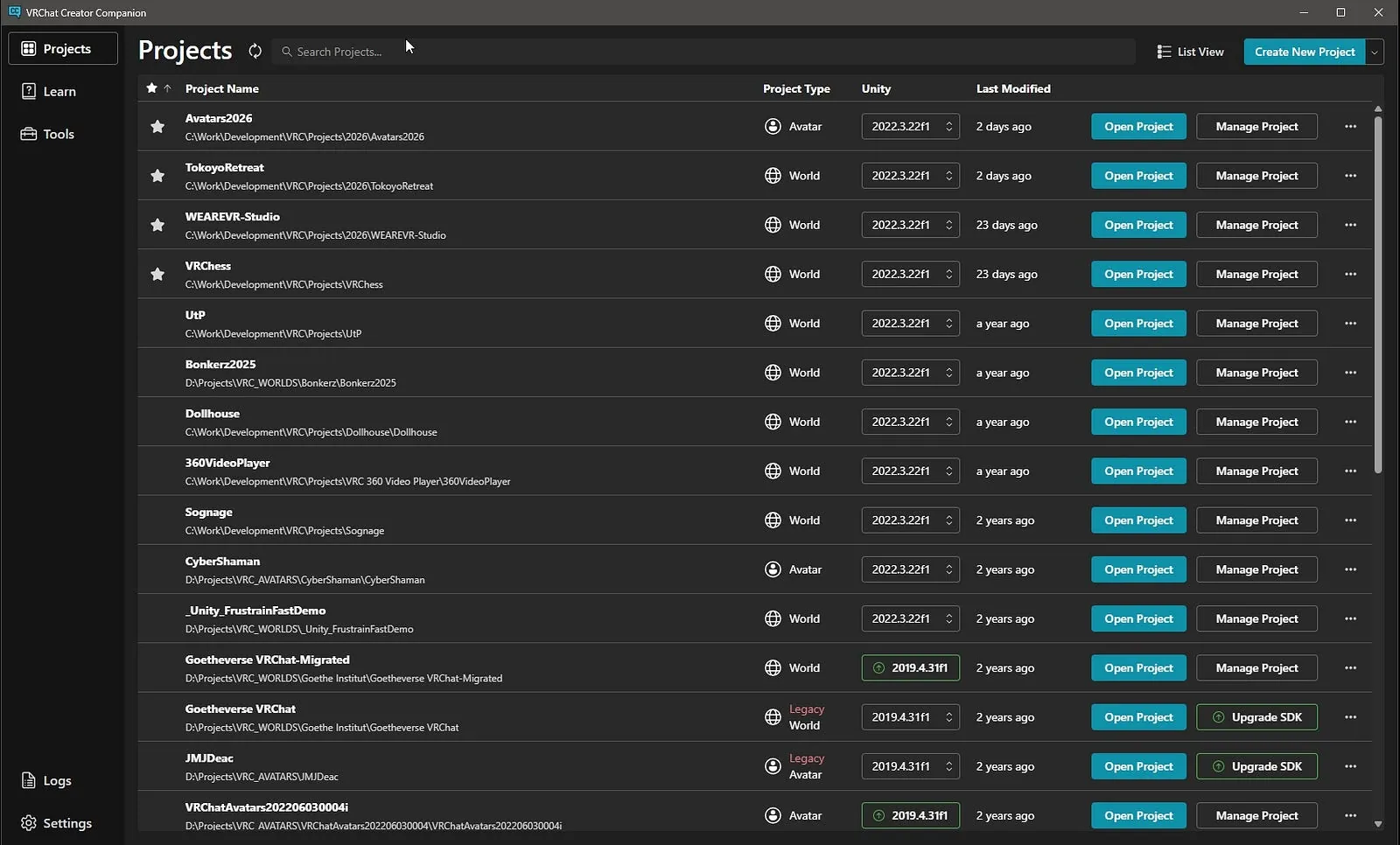 My VCC Project List
A VRChat project is just a folder on your computer. In that folder, there are files and sub-folders that allow Unity to read and compile an application. That application lets you upload content (worlds & avatars) straight to VRChat’s content servers. You can test your VRChat content locally on your computer, or once you’re happy with the quality, you can upload it to be distributed by the VRChat app.
There are two types of VCC Projects:
1. Avatars
To make a VRChat avatar, you must first create or find a 3D character, then ensure that it is rigged to work with VRChat. You can then import your rigged model into Unity and add Expressions and Controls, Avatar Components and much more.
2. Worlds
To make a VRChat world, you construct a scene in Unity using typical 3D models, materials and lighting. You can add interactivity with Udon, our custom scripting system. Udon can be built with the visual Udon Graph or by writing C#-like code using UdonSharp. You can use our Networking system to synchronize experiences between players.
For the rest of this tutorial, I’ll be focusing on worldbuilding specifically.
VCC Manage Project
If we click on a “Manage Project” button, we see a list of packages — folders containing pre-built functionality — that we can just pop straight into our project. These packages handle certain aspects of a VR world.
By default, the VRChat SDK is set up along with some simple stability tools.
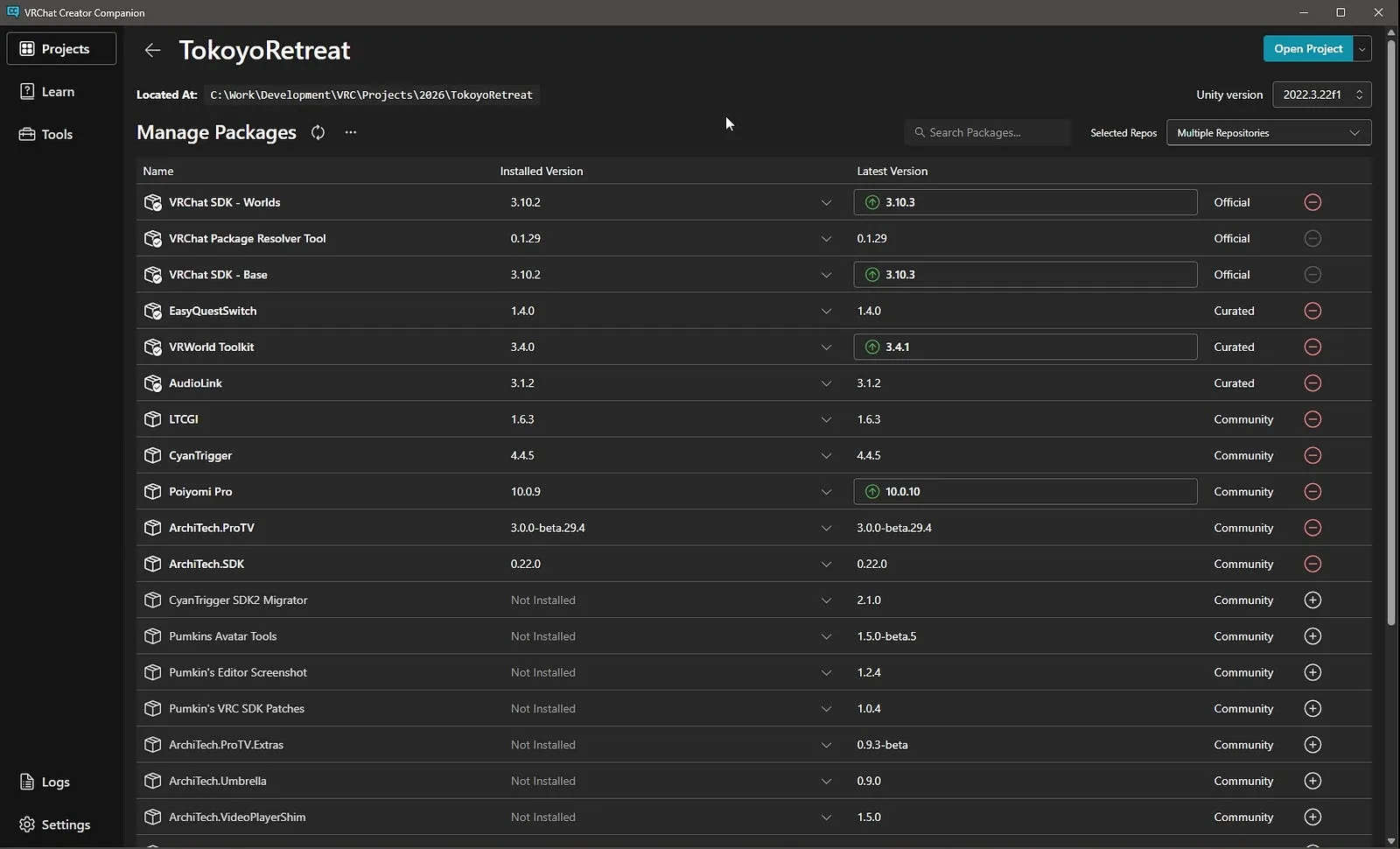 Managing a Project in the VCC — These are my imported packages
I’ve got some favourites that might be worth taking a look at, including:
- VR World Toolkit: This is a really useful tab that points out if there are any common problems in your VR world. Often, they can be fixed with just one click. At the very least, it can help speed up your bug fixing process. https://ask.vrchat.com/t/vrworld-toolkit/1423
- AudioLink: This is a lot of fun. When set up properly, AudioLink can make lights and objects in your VR world react in time to music or an audio file. Lights can flash to the beat of music, or special effects can be tied to audio cues. I have another tutorial on this here: https://medium.com/@deaconline/setting-up-audiolink-for-vrchat-d3209f7b4b2a
- Poiyomi Shaders: Poiyomi is a programmer who’s made a great tool. Poiyomi Shaders is the VRChat community’s favourite shader/material combo. To put it very simply, a 3D model’s mesh is covered by a material. How that material looks and behaves is due to the shader code that defines it. A texture is added to the material to give it colour. Poiyomi handles most of that for us, with some easy to adjust sliders. https://www.poiyomi.com/download/
- Cyan Triggers: Interactivity in any game requires some logic. That logic is handled by little bits of code called scripts. VRChat uses a special programming language called Udon (based on C#) to handle logic. Cyan Triggers is fairly a simple interface that allows us to create scripts without coding it ourselves. https://github.com/CyanLaser/CyanTrigger
- Architech ProTV: Architech ProTV is a video player that just works out the box. VRChat allows the streaming video and audio into VR environments. This keeps the VR world’s download size small. I normally use YouTube for this, since Google balances the quality of the output with your internet connection speed. https://protv.dev/start/
- LTCGI: A really neat lighting tools that renders dynamic reflections of a screen onto the environment. I have a whole other tutorial on that here: https://medium.com/@deaconline/ltcgi-for-vrchat-c6715b2e1333
These are community-created plugins, and there are a lot of them. This is just the tip of the iceberg. If you’re trying to build something, take a second to see if someone else in the scene has done it already and how they achieved their results. It can save a lot of time.
VCC Learn
The second tab on the top left of the VCC Window is home to a bunch of different technical tutorials.
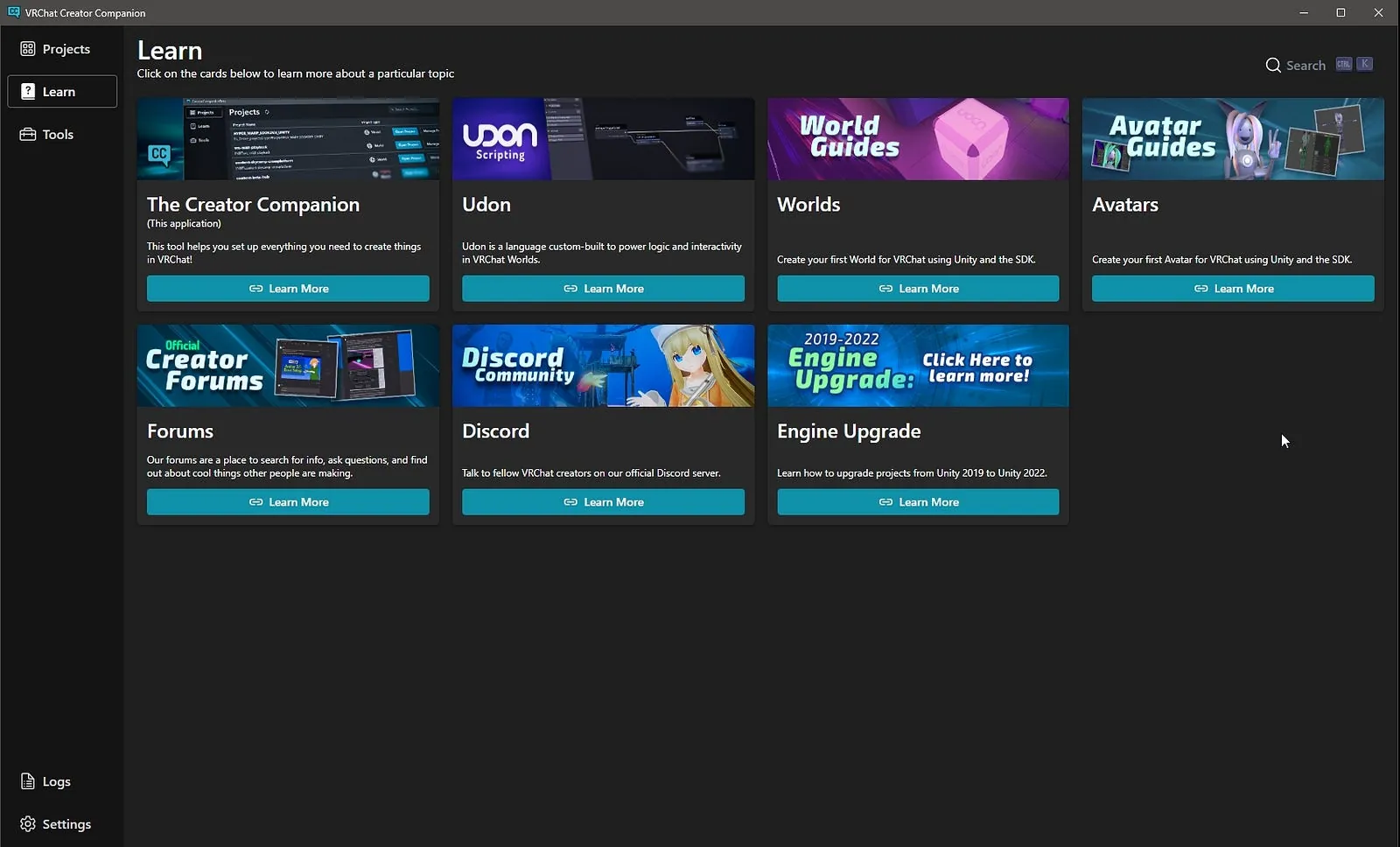 VCC Tutorials and Links
Tutorials on the companion itself, on Udon (VRChat’s programming visual scripting language based on C#), Worldbuilding, and Avatar Creation. There are also links to Creator Forums, The Official VRChat Discord, and The VRChat Update Blog.
This means that the VCC can be your base of operations when building VRChat content. No need to clutter your browser’s bookmarks (in theory).
VCC New Project
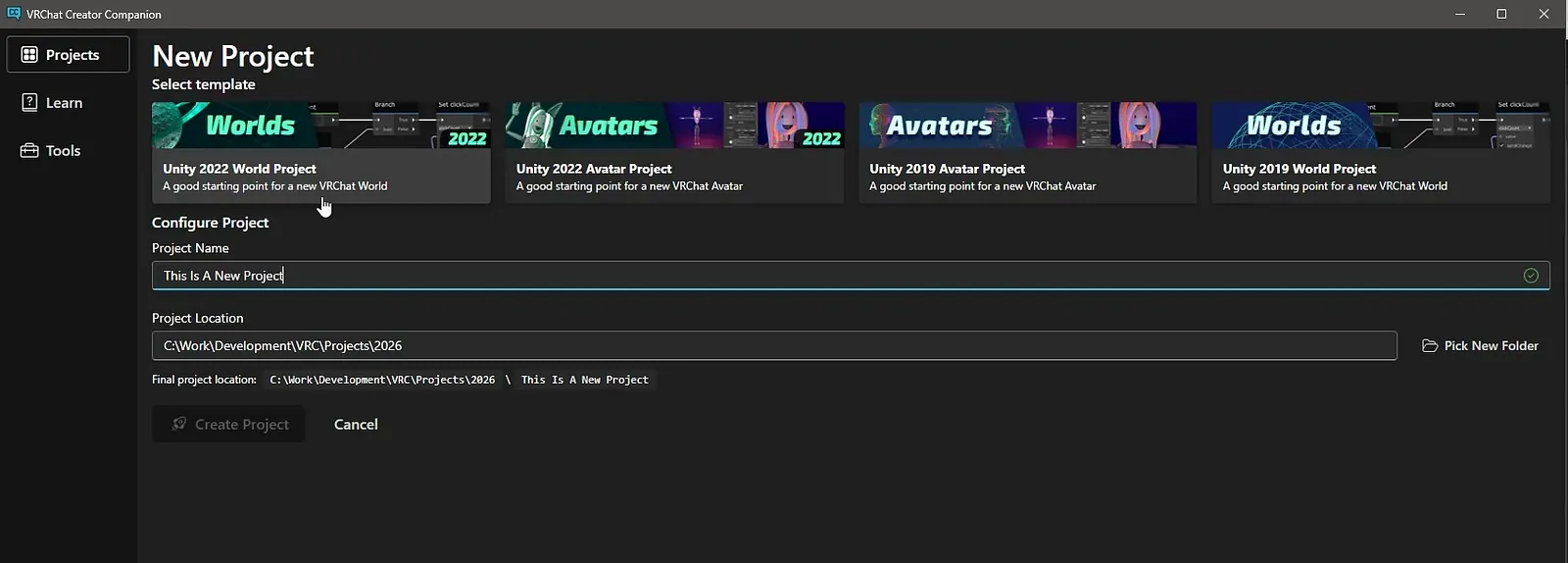 New Projects in the VCC
When you click on New Project, there are two core SDKs for VRChat content creation in Unity:
- Avatars: Designing custom characters
- Worlds: Building immersive environments
Note: The New Project list has some old 2019 SDKs, but they’re there for people maintaining old legacy VR worlds that aren’t compatible with the newer SDK (launched a few years back, now). If you’re picking up VRChat today, you really should avoid the old 2019 stuff. As of April 2026, use the 2022 version (It sounds older than it is, but it just refers to the version of Unity that is being used for that SDK). This changes periodically, but VRChat themselves try to pick Unity versions that last for a long time, also known as long-term stability (LTS) versions.
VCC Open Project
If we click on Open Project, the VCC will open whatever version of Unity is set for that project and open it up so that you can get started or make changes.
 launching Unity… this can take a minute.
NB: I mentioned this before, but it’s worth repeating. Sometimes VRChat changes which version of Unity it recommends. When starting a new project, be sure to verify that you’re using the correct version of Unity. This is never the latest version of Unity, and if you use the latest version of Unity, nothing will work and you’ll have errors all over your screen.
You can check the correct Unity versioning here: https://creators.vrchat.com/sdk/upgrade/current-unity-version/
The Unity Game Engine
When you launch the Creator Companion, it checks whether Unity and Unity Hub are installed. If not, it shows you how to install them.
If you follow these instructions, you will get the latest version of the Unity Hub and a version of Unity compatible with the VRChat SDK.
Unity is the Game Engine that VRChat has chosen to go with and Unity versions are handled by an app called Unity Hub, which is very similar to the VCC.
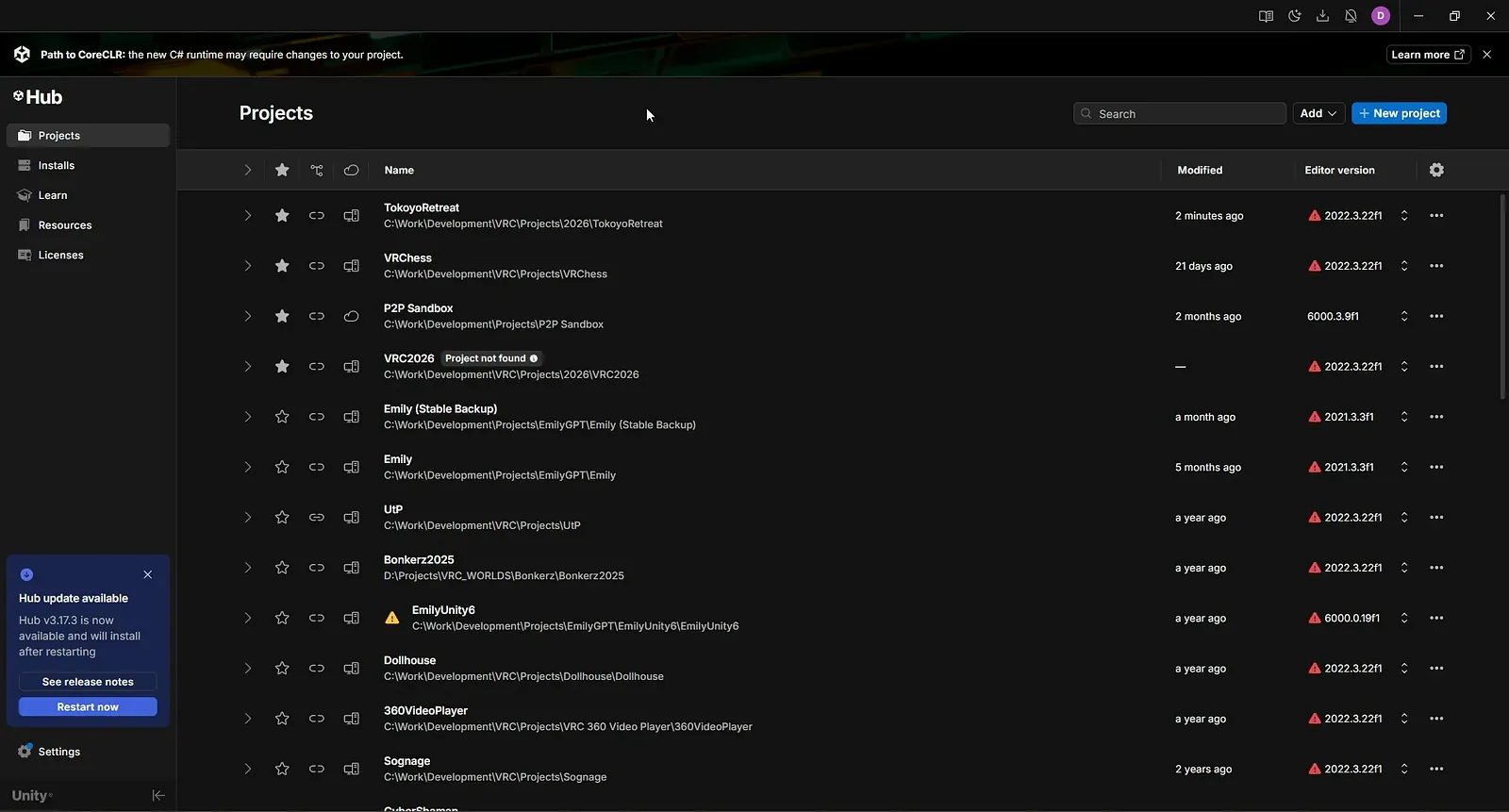
Unity Hub handles your Unity versions, Unity projects, and your Unity license (don’t worry, you can set up a beginner license for free). I tend to use the VCC for VRChat projects, and the Unity Hub for non-VRChat stuff.
The Unity Interface
Working in Unity can take some getting used to, but its really not the most complicated tool in the world. Its designed to let designers and programmers work together in the same sandbox.
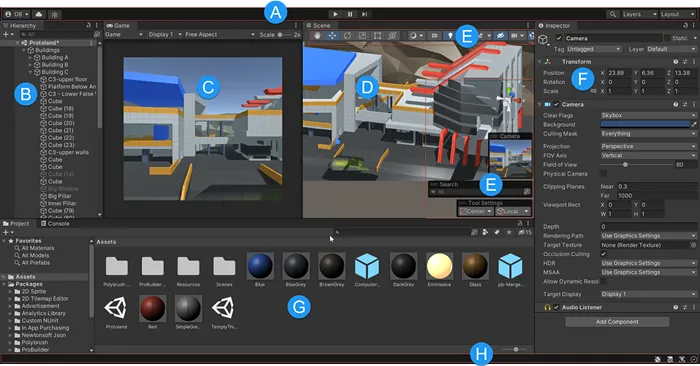
- A: The Toolbar provides access to your Unity Account and Unity Cloud Services. It also contains controls for Play mode; Undo history; Unity Search; a layer visibility menu; and the Editor layout menu.
- B: The Hierarchy window is a hierarchical text representation of every GameObject in the Scene. Each item in the Scene has an entry in the hierarchy, so the two windows are inherently linked. The hierarchy reveals the structure of how GameObjects attach to each other.
- C: The Game view simulates what your final rendered game will look like through your Scene Cameras
- D: The Scene view allows you to visually navigate and edit your Scene. The Scene view
- E: Overlays contain the basic tools for manipulating the Scene view and the GameObjects within it. You can also add custom Overlays to improve your workflow.
- F: The Inspector window allows you to view and edit all the properties of the currently selected GameObject. Because different types of GameObjects have different sets of properties, the layout and contents of the Inspector
- G: The Project window displays your library of Assets that are available to use in your Project. When you import Assets into your Project, they appear here.
- H: The status bar provides notifications about various Unity processes, and quick access to related tools and settings.
Unity have won a lot of awards for making their tutorials easy to follow and super helpful, so I’d suggest checking them out if you get stuck.
Some more helpful links:
- The Unity Interface: https://docs.unity3d.com/2022.3/Documentation/Manual/UsingTheEditor.html
- Unity Overview: https://docs.unity3d.com/2022.3/Documentation/Manual/UnityOverview.html
Unity: The Basics
I always start projects the same way. Here’s my quick and simple technical setup for every project before I get creative.
Unity: Main Camera & Directional Light
Check out the hierarchy on the left hand side of the screen. Every new scene in Unity has a main camera and a directional light pre-placed for us. The camera acts as our eyes in the world. The directional light acts as the sun, beaming light and projecting shadows in the world.

There’s nothing we need to do with that main camera for now, but that directional light will likely see a lot of changes later on in the project. Since most of my VR experiences are outdoors, I love directional lights. You can change the time of day by playing with the rotation of the directional light. We’ll come back to lighting shortly.
Unity: A Simple Plane
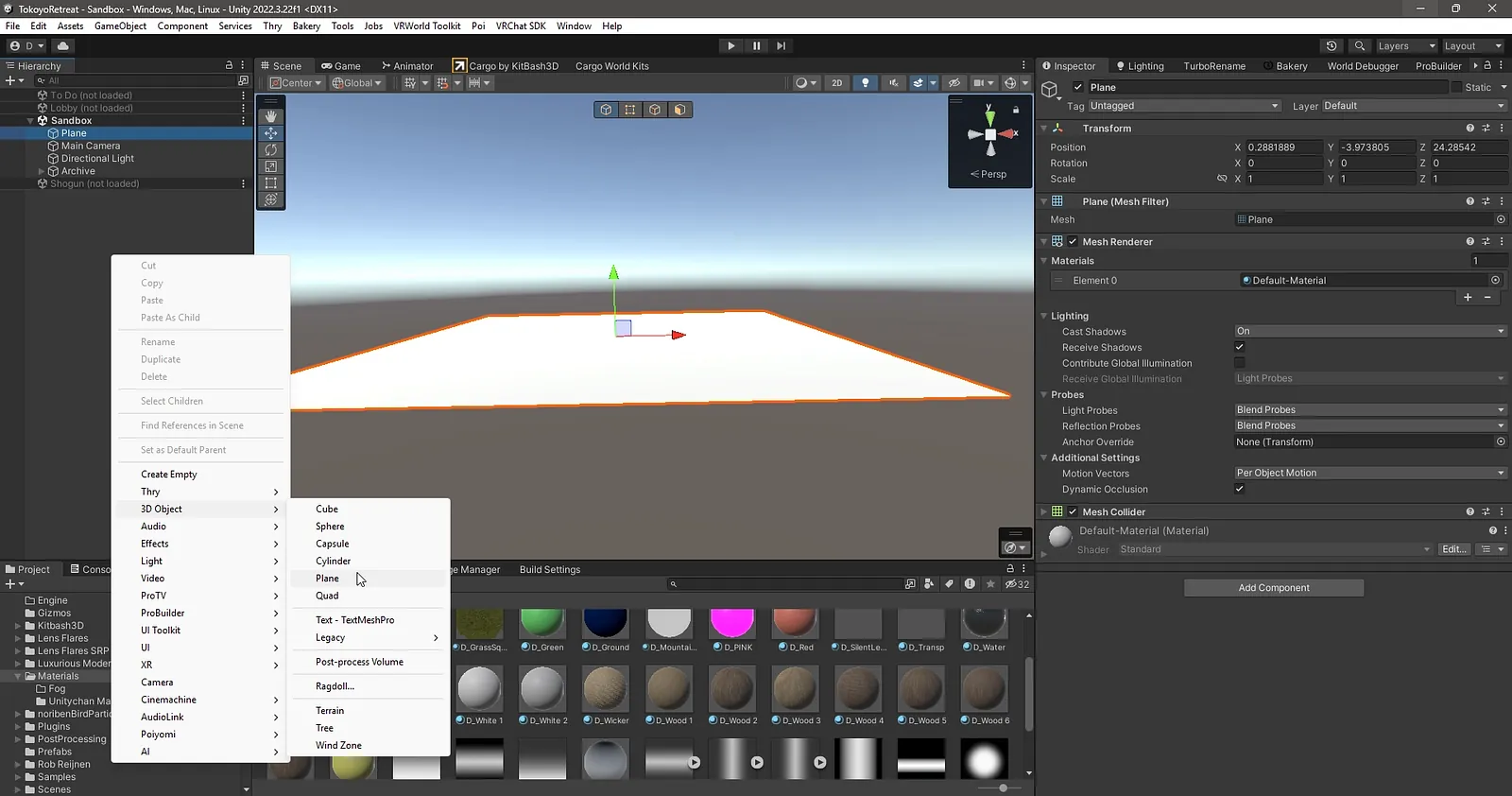
I often start by adding a Plane to my scene. Right click in the Hierarchy (left panel), go to 3D object, and pick Plane. When we load into a VR world, it’s essential that the user has a place to stand.
Unity: An Origin Point
The “Origin” is the point in the scene that is located at 0 on the x-axis, 0 on the y-axis, 0 on the z-axis. It is the literal centre of this simulated universe.
For some long-winded mathematical reasons that I won’t get into, it’s best to orient your VR experience around the Origin point. I also place the VRCWorld Prefab here, and I usually set this point as my spawn point too, although that’s not critical.
Unity: VRCWorld Prefab
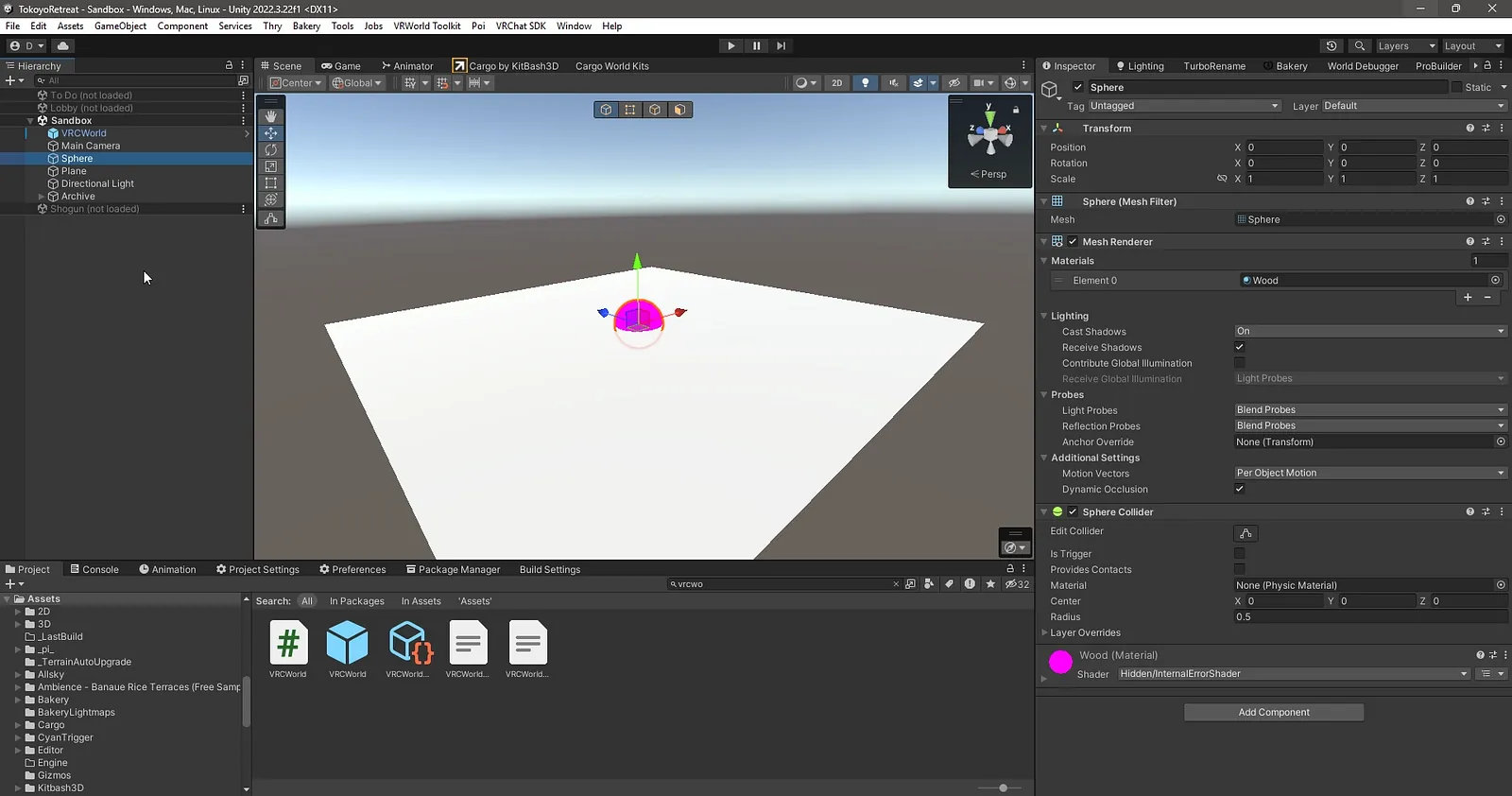
Every VRChat world needs this little bundle of scripts (code). In the Project Manager (bottom panel), search the Packages folder for “VRCWorld” and you’ll see this little blue box symbol.
You can find it in the following folder: Packages/com.vrchat.worlds/Samples/UdonExampleScene/Prefabs/VRCWorld.prefab
It’s a prefab, which means its just a little pre-packaged bundle of code. Drag & drop it in your scene, and you’ll have all the code you need to take a VR world live (technically).
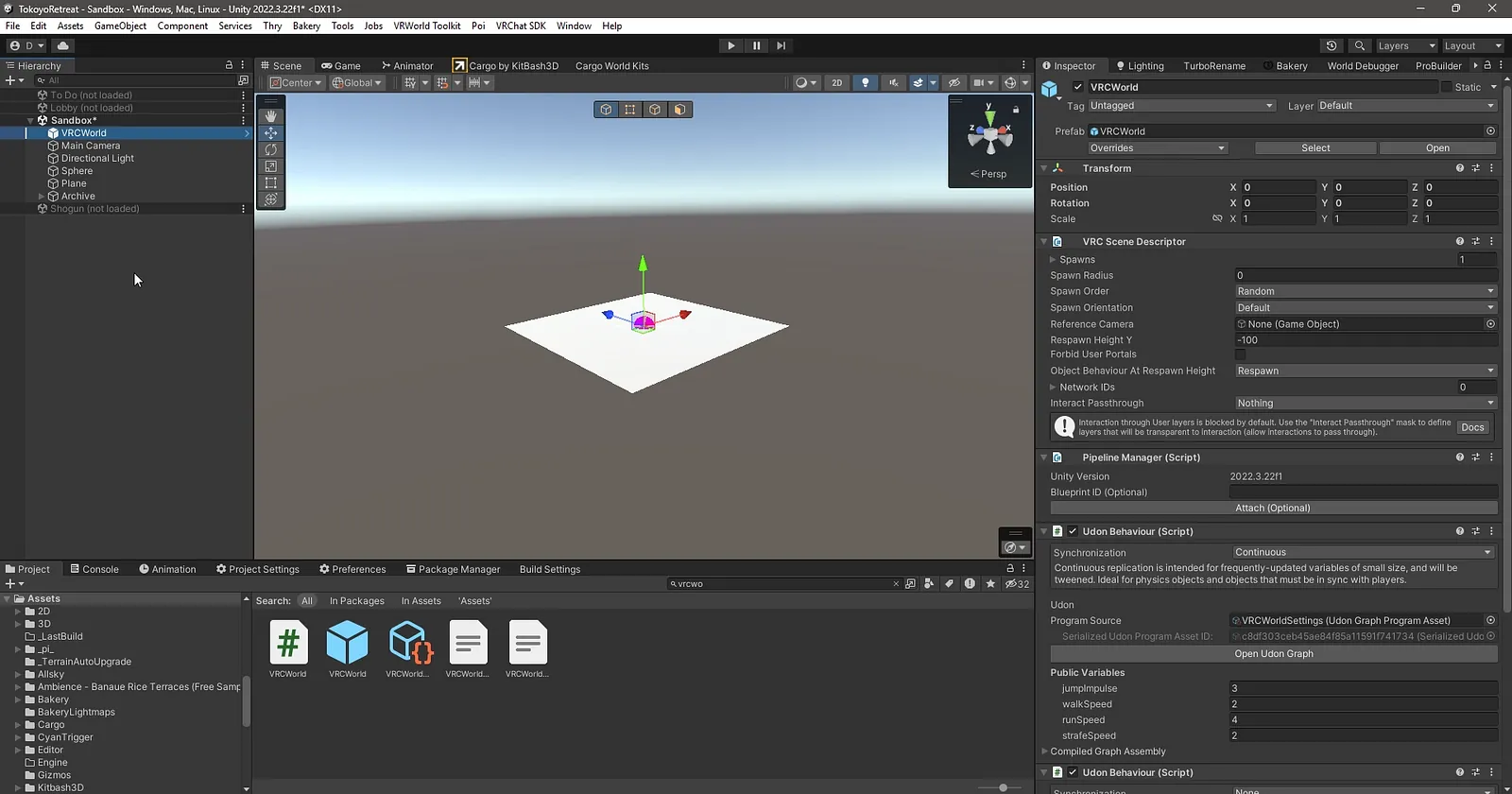
The VRCWorld prefab has four vital scripts:
- Scene Descriptor (which is home to where visitors spawn into a space)
- Pipeline Manager script (which tells VRChat which version of Unity we’re using and gives the world an Identification Number)
- VRC World Settings (which tells visitors how they can move in this space)
- Avatar Scaling Settings (Which specifies how big or small visitors can be in the world)
If you click on the VRCWorld prefab in the Hierarchy (Left hand panel), it’ll come into focus in the inspector (Right hand panel).
Drop your Main Camera into the Reference Camera slot and you’re good to go.
Unity: VRChat SDK Samples
VRChat has provided us with some sample content in the SDK to get our footing. This is a nice way to get to grips with how things work in Unity & VRChat.
The samples for official SDK Packages are now in the “Samples” folder. The quickest way to find and open them is through the new menu items under “VRChat SDK/Samples”, which will show the samples for the packages you have loaded. Each item is a scene that you can choose to load.
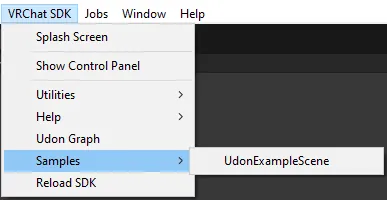
These samples are not allowed to be edited, and will show warnings if you try to save them. You should instead use “File > Save As…” to make a copy of the scene which will not be overwritten by package updates.
Some packages may use the Unity Package Manager’s sample-importing functionality. For these, you can find them from within the “Unity Package Manager” window, within the “In Project” set from the dropdown in the upper-left.
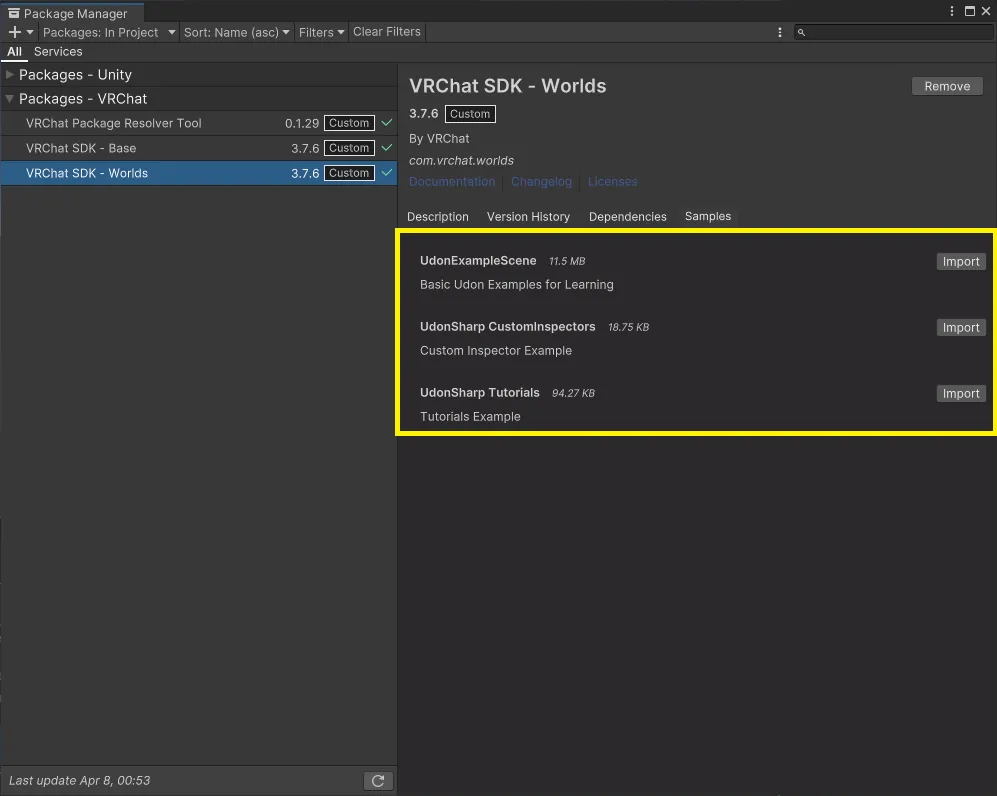
Importing a sample using one of these buttons will unpack it into a folder like Assets/Samples/packageName/1.0.0/SampleName. These can be safely edited and will not be overwritten by importing a sample from a newer version of a package, since it is placed in a version-specific folder.
So take a peek at this folder: Packages/com.vrchat.worlds/Samples/UdonExampleScene/Prefabs/
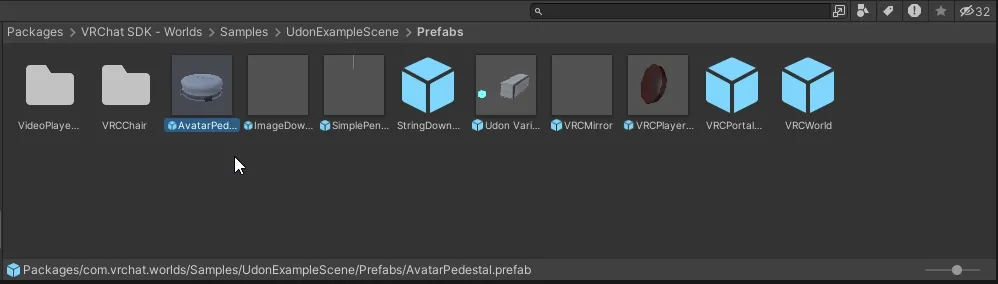
These are some of the basic functions that VRChat has put together for us.
- Avatar Pedestal: Allows visitors of the world to adopt a specific avatar
- Image Downloader: Allows visitors to see an online image
- Simple Pen System: Allows visitors to draw in VR
- String Downloader: Allows users to see some online text
- Udon Variable Sync: A demo of interactive tools in VRChat
- VRC Mirror: A simple realtime mirror so visitors can see themselves
- VRC Player Visual Damage: An example of overlaying information or effects on visitors’ first person view
- VRC Portal Maker: An example of a portal to a specific VR world
- VRC World: A bundle of scripts needed to set up a VR world
Take your time, and play around with these examples. They illustrate how objects work in VRChat, such as using attached scripts to execute the logic that controls interactions.
Unity: Human Scale
Without a human-scale reference, it’s easy to make buildings, objects, furniture way too big or way too small, so I like to drop in some simple reference objects.
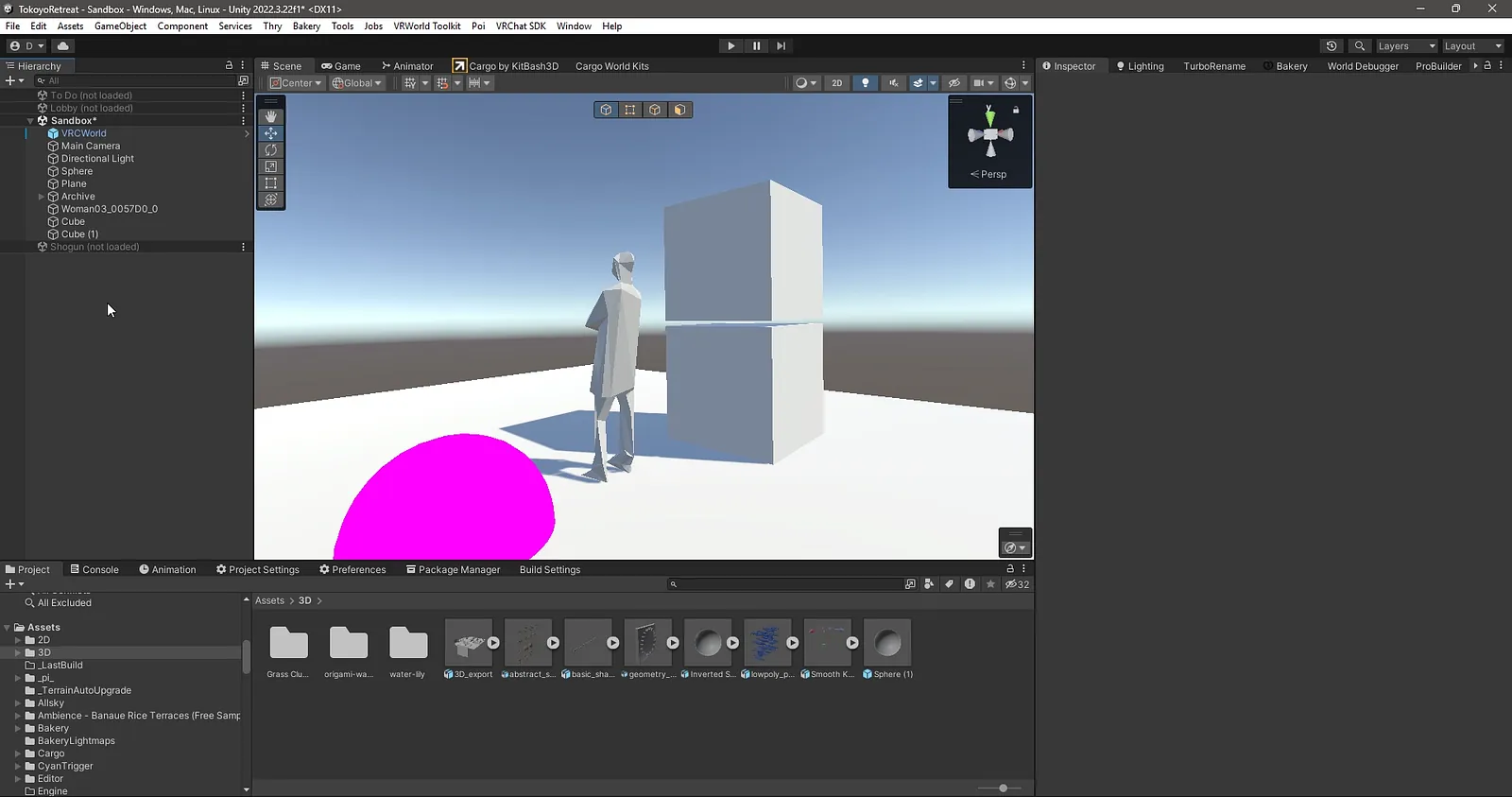
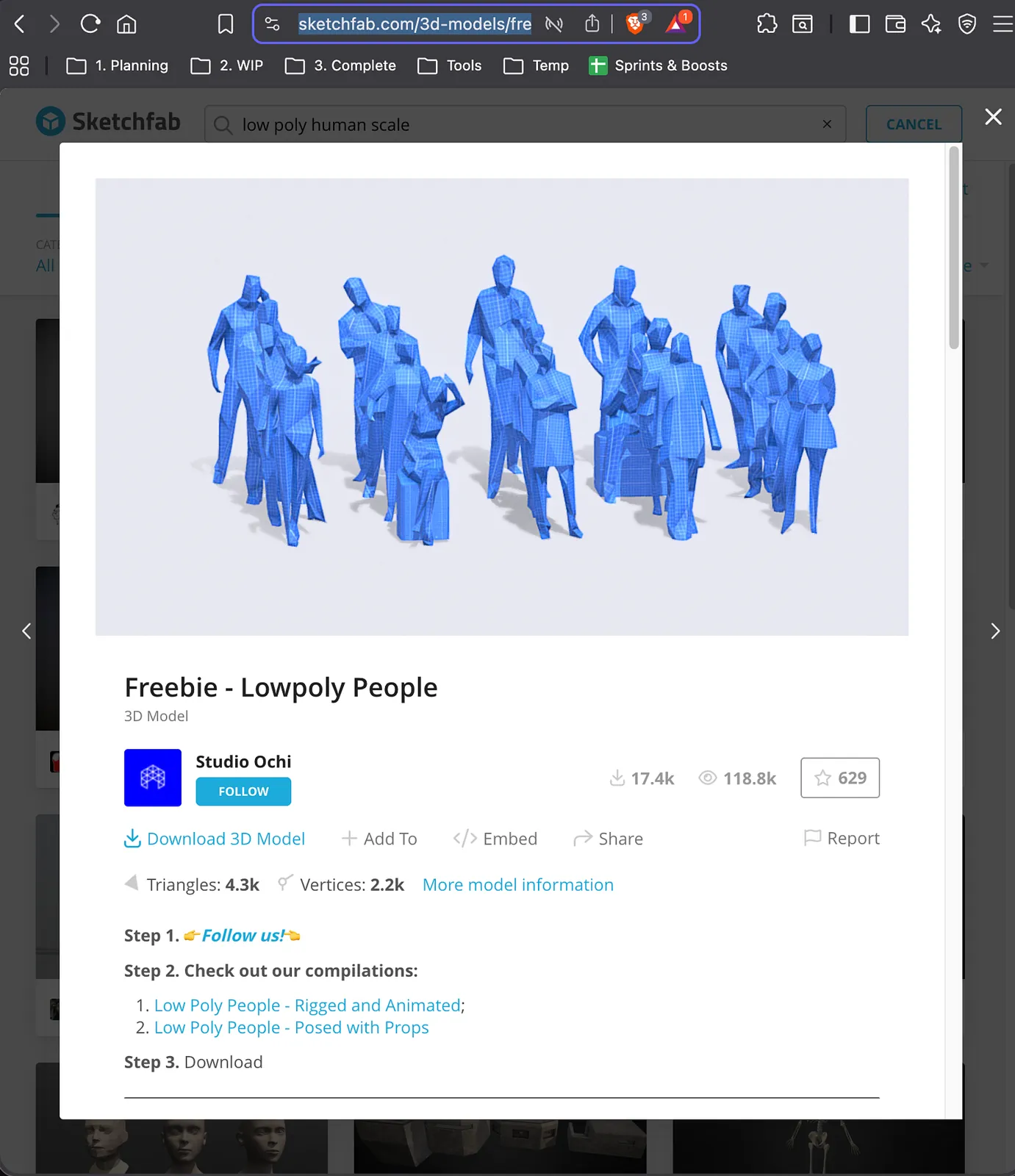
You can grab these human scale models here: https://sketchfab.com/3d-models/freebie-lowpoly-people-3c57a85ef5464aa7973f466383d69c48
Or, if you’d prefer, you can just use the standard Unity Cube which is 1 meter by 1 meter (and the average person is about 1.5 — 1.7 meters tall). Having these visual guides helps us keep a realistic and uniform scale in our environments.
Unity: Importing Assets
Importing assets into Unity can be a simple process.
- 3D files like .fbx format files can be dragged and dropped from your PCs file explorer window straight into the Unity project folder. Many Sketchfab downloads offer .fbx formating. Easy peasy.
- 2D images are also drag & drop, and can be easy to import, depending on the file format. .pngs and .jpgs are pretty seamless. Even .psd’s work well. Some tinkering may be necessary. Compressing 2D assets before packaging and uploading your work is advised to keep the download size reasonable.
- Unity Package (.pkg) files can be double clicked and the import process will install the asset into whichever Unity project is open at the time. Also, easy.
- For Audio, .wav files are Unity’s favourite. For simplicity sake, I’d suggest reformatting your audio files to .wav format rather than working with plugins and workarounds. That said, VRChat’s youtube streaming works well, so you can often stream in ambient audio using one of their supported video players.
- Using Unity’s Package Manager is a little more complicated, but it works well and is very reliable.
- It can get challenging with other file formats such as .glb / .gltf files, which are nice lightweight XR-friendly formats. I use the UniVRM plugin for this: https://github.com/vrm-c/UniVRM
Unity: Skybox
This is one of my favourite things in Unity.
Skyboxes are 2D images that stretch in a 360 sphere around your scene. This is what a skybox (sometimes referred to as High Dynamic Range Image (HDRI)) looks like.
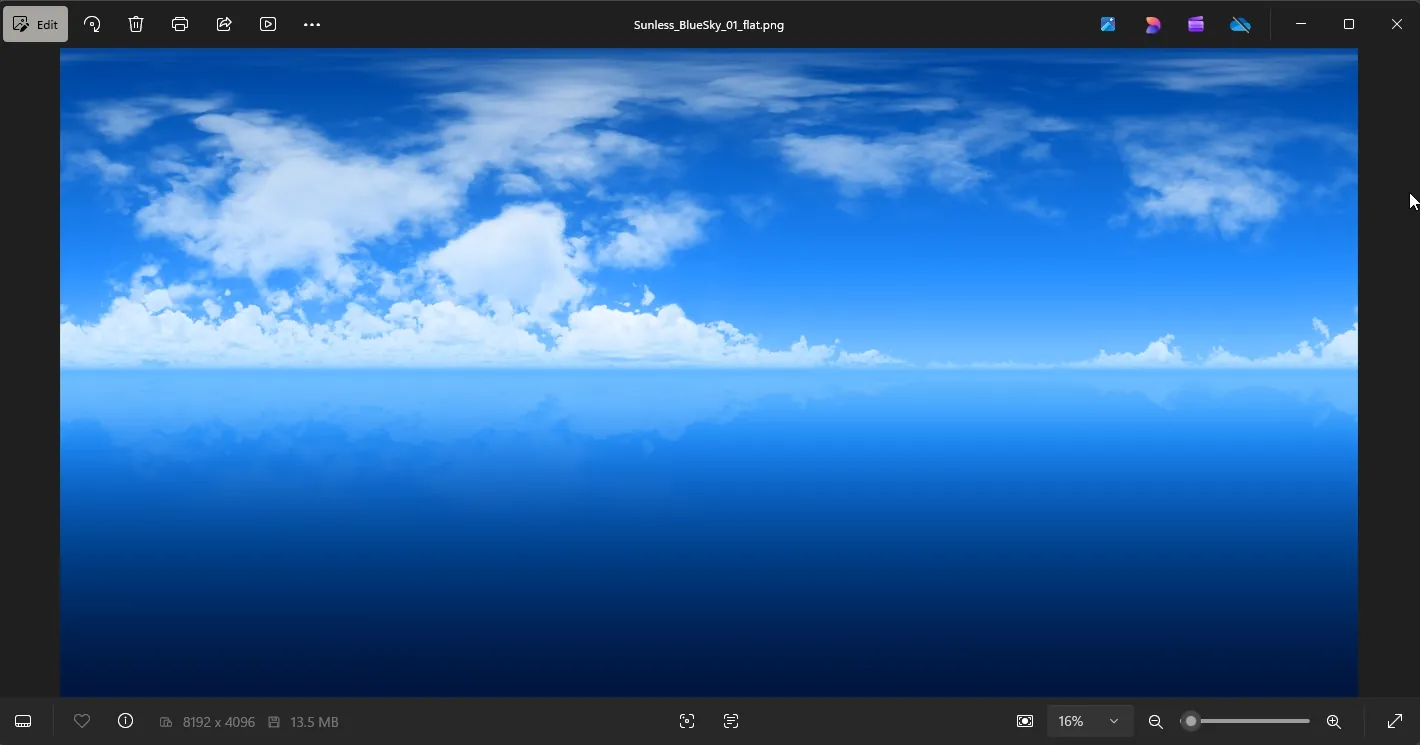
They can provide lighting, clouds, ground, distant foliage, and the horizon in a VR world. You can access them by checking the inspector (right hand panel) under the lighting tab, and under the environments section.
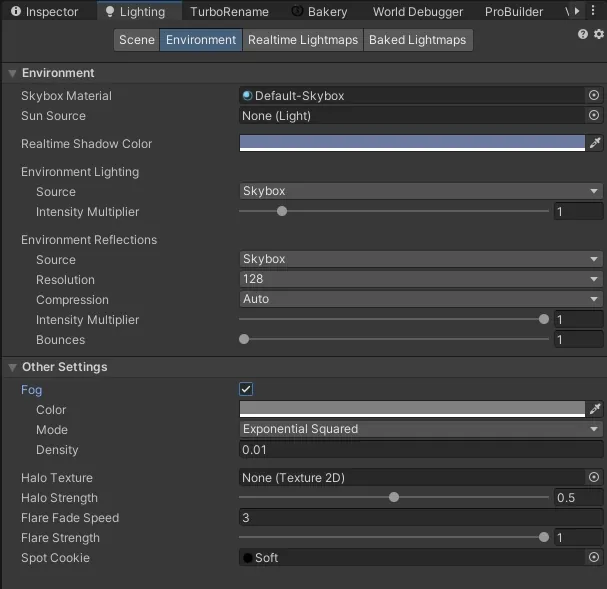
This is what it looks like when applied as a 360 skybox.
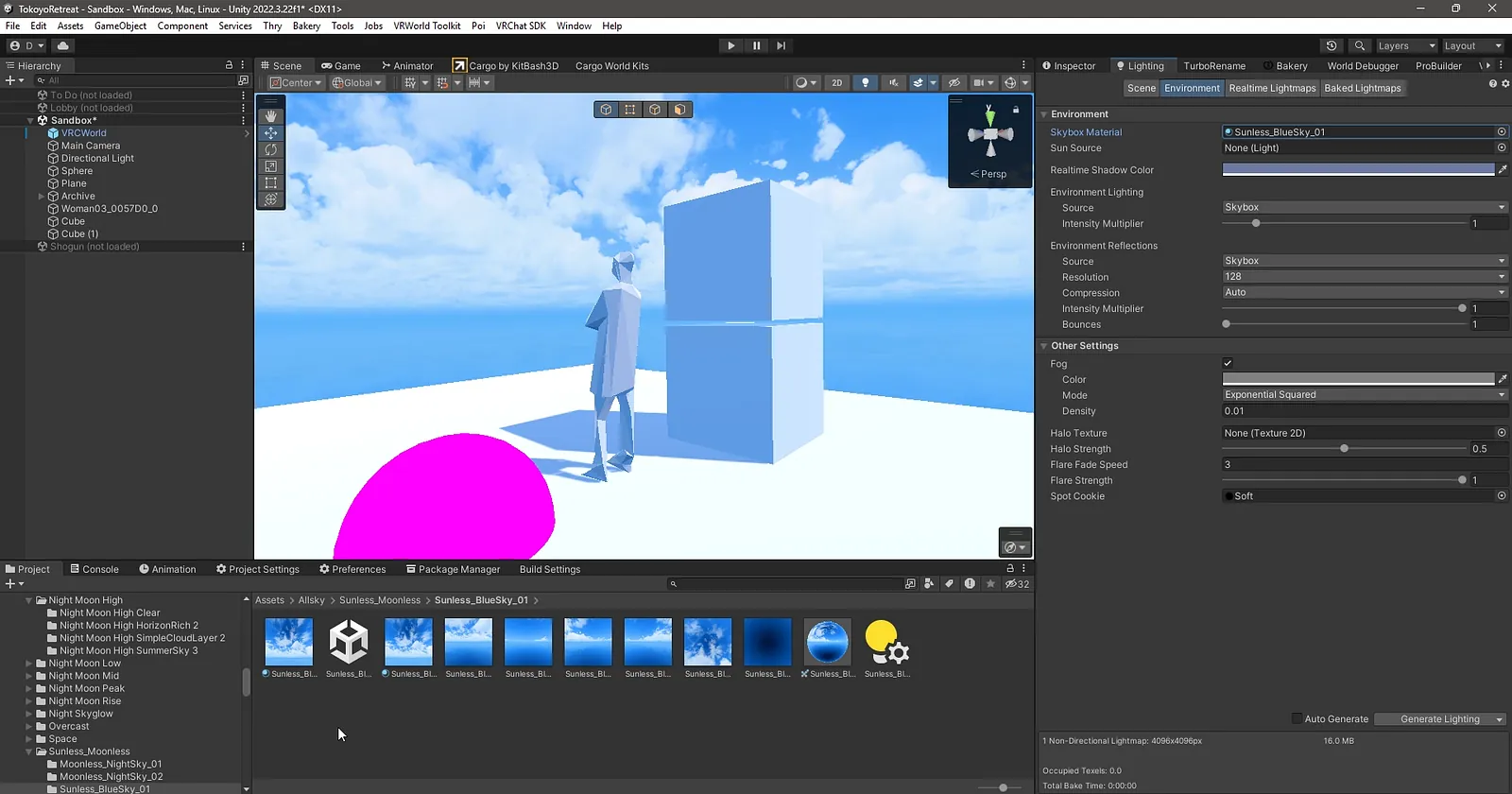
See how it wraps around the entire skyline in a 360 sphere. It acts as the horizon as far as the eye can see is basically projected onto the background. Also note how it effects the ambient lighting of the scene. It’s subtle, but this scene’s shadows and midtones are slightly more blue now.
Allsky is a very popular tool for skyboxes. I’ve got the paid version because I love these so much, but here’s the free example pack: https://assetstore.unity.com/packages/2d/textures-materials/sky/allsky-free-10-sky-skybox-set-146014
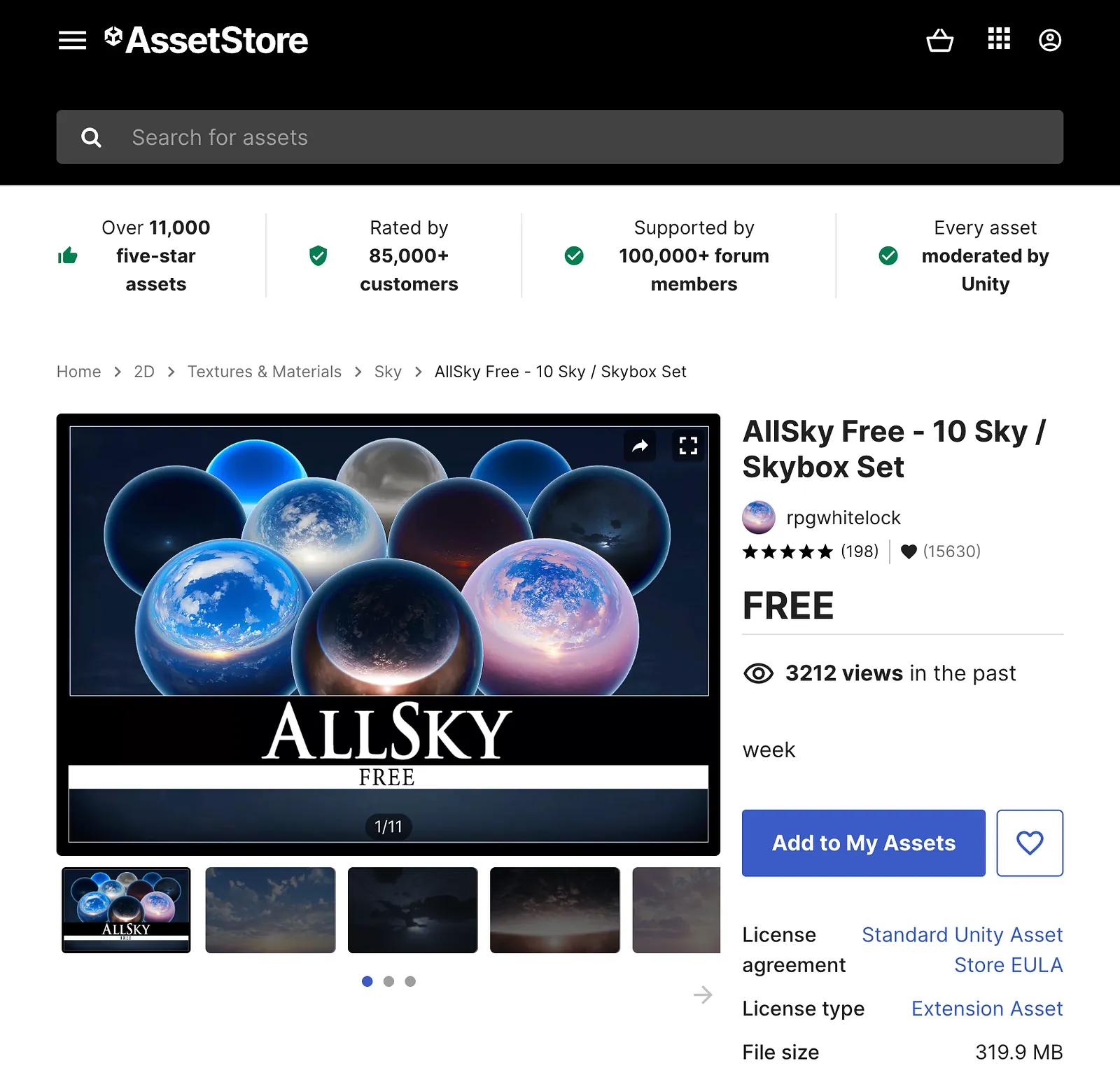
The problem with using these free AllSky skyboxes is that they’re really popular and once you start to use them, you notice them everywhere. For more custom skyboxes, I’ve started using Midjourney to render the skybox I want, then edit it using Gemini’s Nano Banana to edit the edges so that it wraps around neatly. Its not a perfect solution and takes a bit of time, but it creates a very unique look and feel once it’s done.
Unity: Lighting
One more important basic lesson to be learned is on lighting.
By default, the directional light in Unity is what’s called a “Real-Time Light”. That means that every CPU cycle (many times per second), lighting and shadows are calculated on the fly (in real time). This is a computationally expensive process.
This is not good.
(It can cause our VR experience to lag and stutter. That’s a big no-no in VR because of how sensitive people are to motion sickness. It’s an established fact that a single VR-sickness episode can put someone off VR entirely for the rest of their days.)
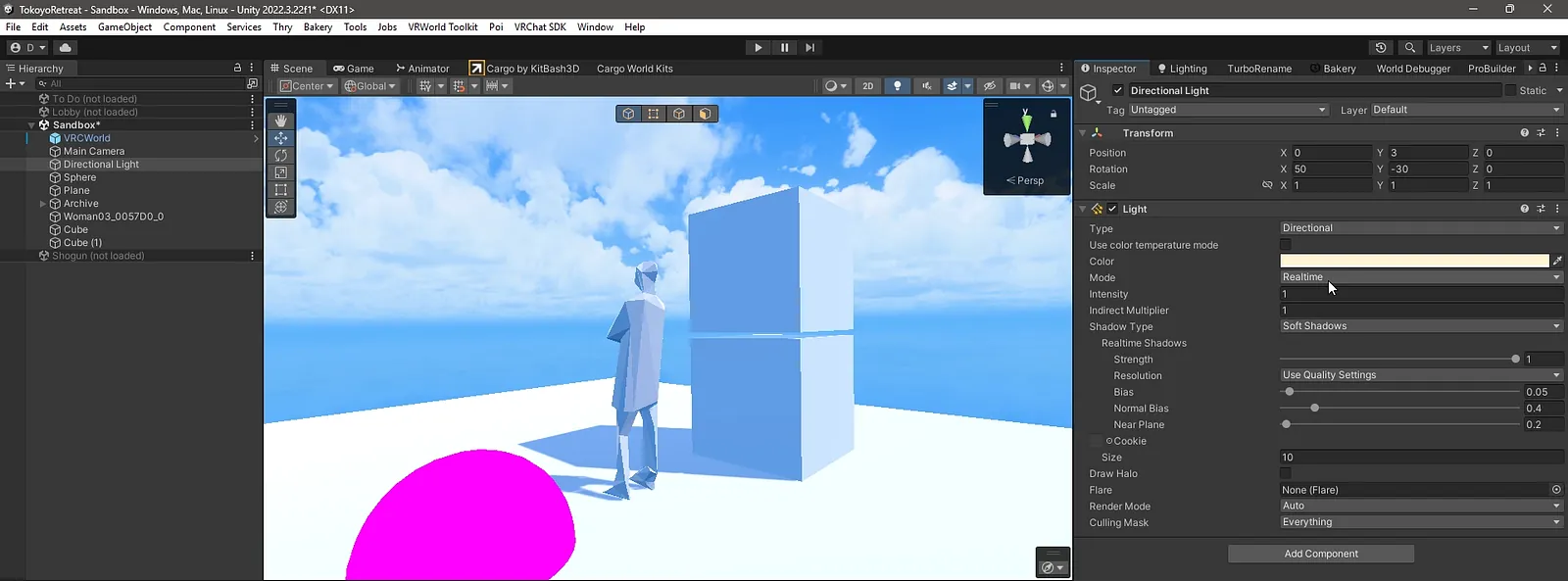
Realtime lights are very easy to use, but they can absolutely wreck a VR experience. This is partly because VR experiences are rendered twice for each person. Once for the left eye, and again for the right eye, at slightly different angles. This creates the illusion of visual depth. So a VR experience, in a sense, is twice as computationally expensive as a standard PC or mobile game.
If your VR experience is laggy, lighting should be your first suspect.
Using Unity’s In-Built Lightmapper, the fix for this takes a few extra steps:
- Select the Directional Light in the Hierarchy (Left Panel), then in the Inspector (Right Panel), change the Directional Light’s Mode from Realtime to Mixed or Baked. (For this example, they do similar things)
- Right click in the Hierarchy (Left Panel) and click Create Empty. This creates a new empty game object. This object will act as a folder containing other objects.
- Rename this new blank object to “Static”, because we want to make all its children objects immovable. Immovable objects will cast a shadow that never moves, which means its lighting data doesnt have to be recalculated every cycle.
- Place everything that doesn’t move (buildings, plants, terrain, etc.) under this new object.
- Select the Static parent object you’ve just created and click the Static checkbox in the top right of the Inspector (Right Panel). A confirmation message will ask if you want all children objects should be static too. Click Yes. Now every static object has been marked as static. They’ll be excluded from realtime lighting calculations now.
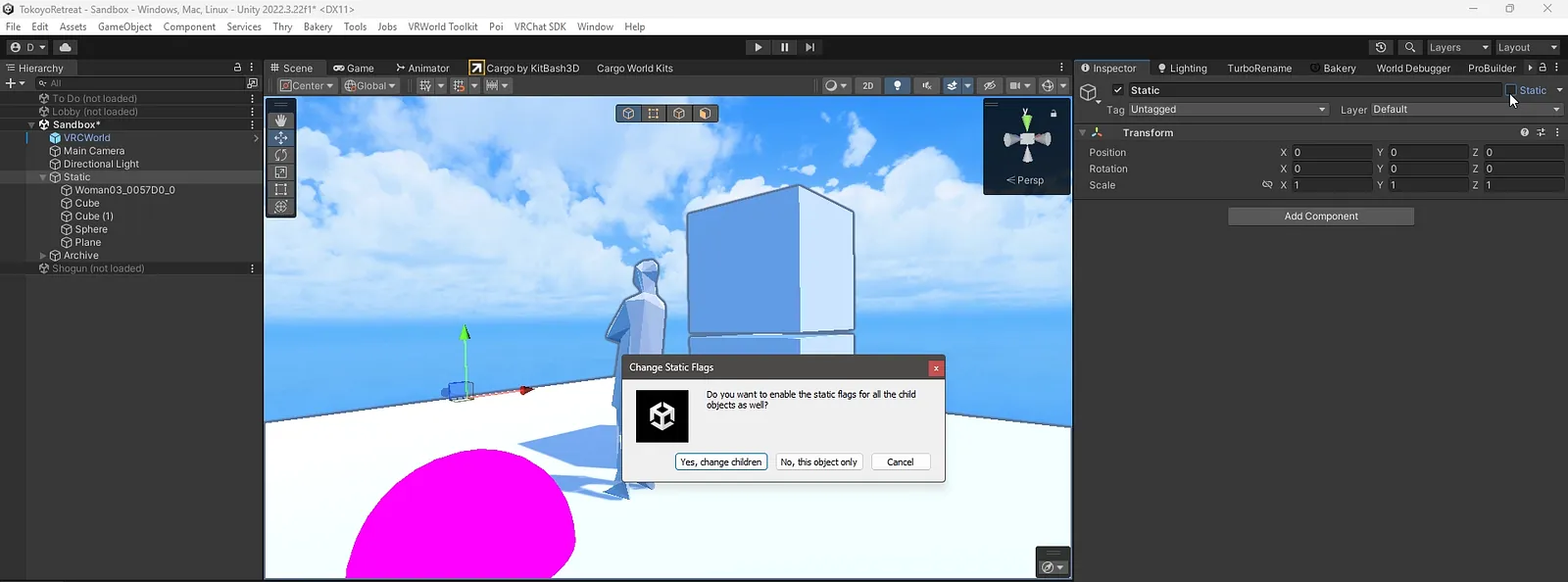
Once that’s done, we can go back to our Lighting tab next to the Inspector (Right panel)…
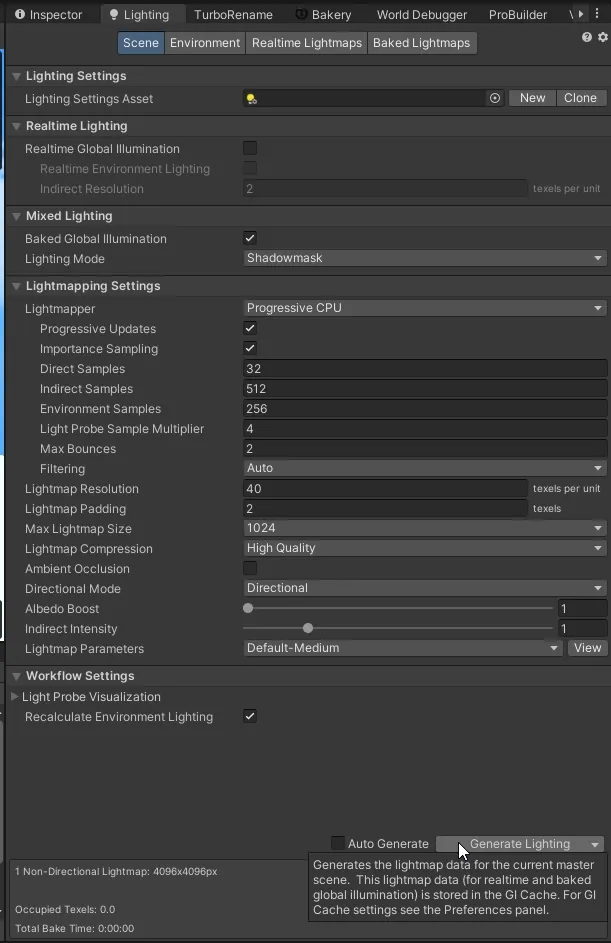
…and click Generate Lighting. This kicks off the “Light Baking” process.
Basically what that means, is now all static objects will have their shadows “baked” into the surface of nearby objects. Their shadows are now static.
This can take a while, and the more complex your scene, the longer this will take. Go grab a cup of coffee. Once its done, the scene should look the same… Except for the fact that it’s gonna run ten times smoother. :)
You can learn A LOT more about this process.
Check out this amazing lighting tutorial by Xiexie: https://gist.github.com/SandroHc/54289b2a5825cefe2fcc48b220bcd733
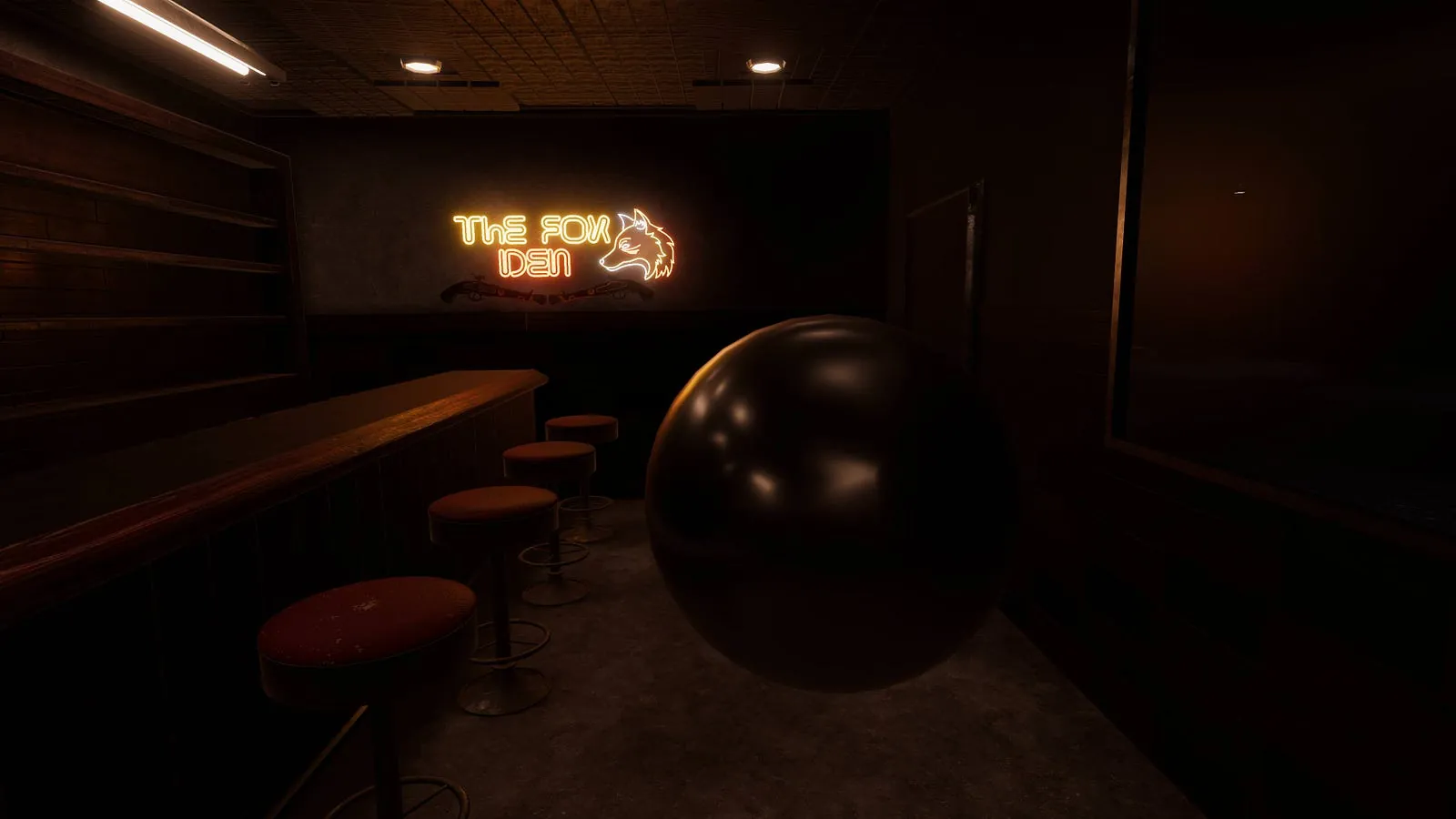
It goes into a lot more detail than I can in this brief overview, but it helped my technical understanding a lot.
Unity: Bakery
An alternative to the Unity Lightmapper is a paid plugin that I think is worth the investment. It’s called Bakery: https://assetstore.unity.com/packages/tools/level-design/bakery-gpu-lightmapper-122218
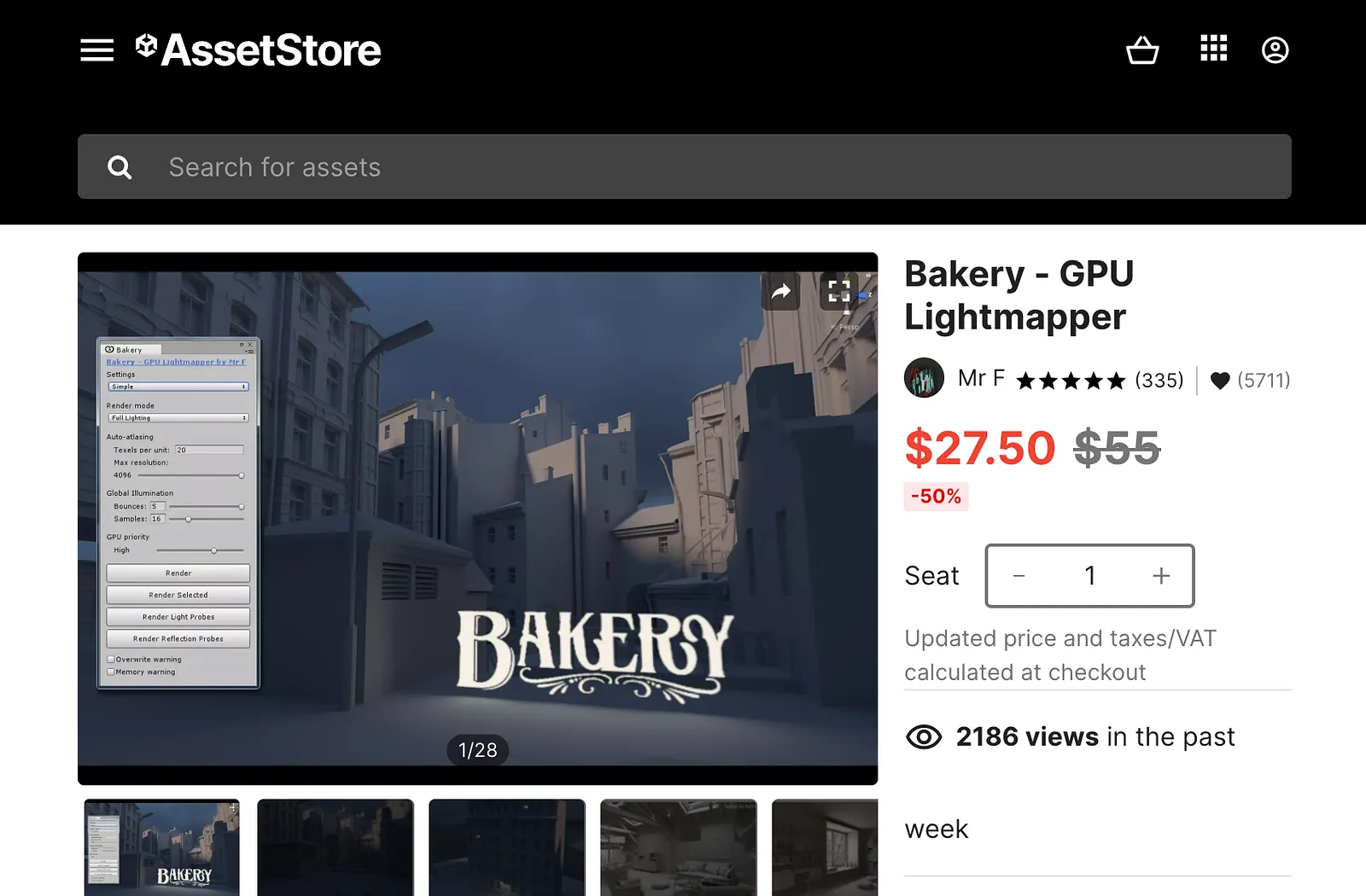
Interestingly, I often see it on sale, so that’s pretty cool. Bakery themselves have some pretty intensive documentation: https://geom.io/bakery/wiki/index.php?title=How_do_I...
This tool essentially does a similar job to the Unity Lightmapper except that it seems to run jobs a bit quicker, and with slightly better quality, if you can configure it just right. I suppose it offers a lot more granular control over your lightmapping process, so it’s possible to get better and faster light bakes with a bit of practice.
Unity: Testing
Testing your VRChat experience is dead easy these days. Just hit the Run button at the top of your screen.
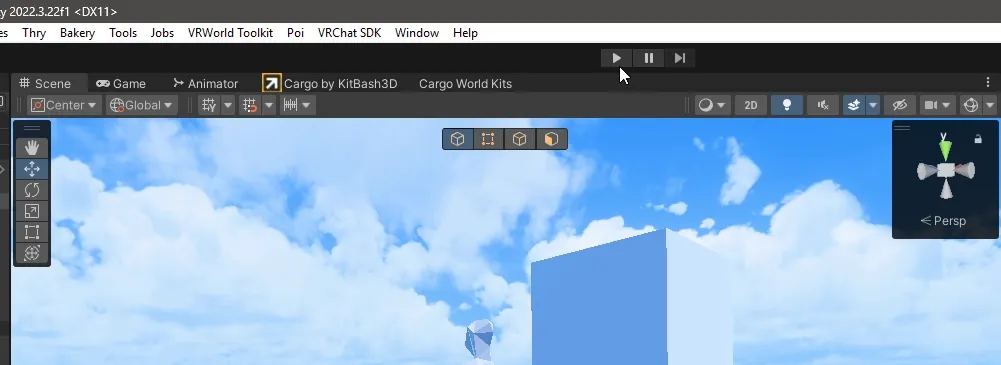
It may take a minute to load up, but once it does, you’ll be switched over to the Game view.
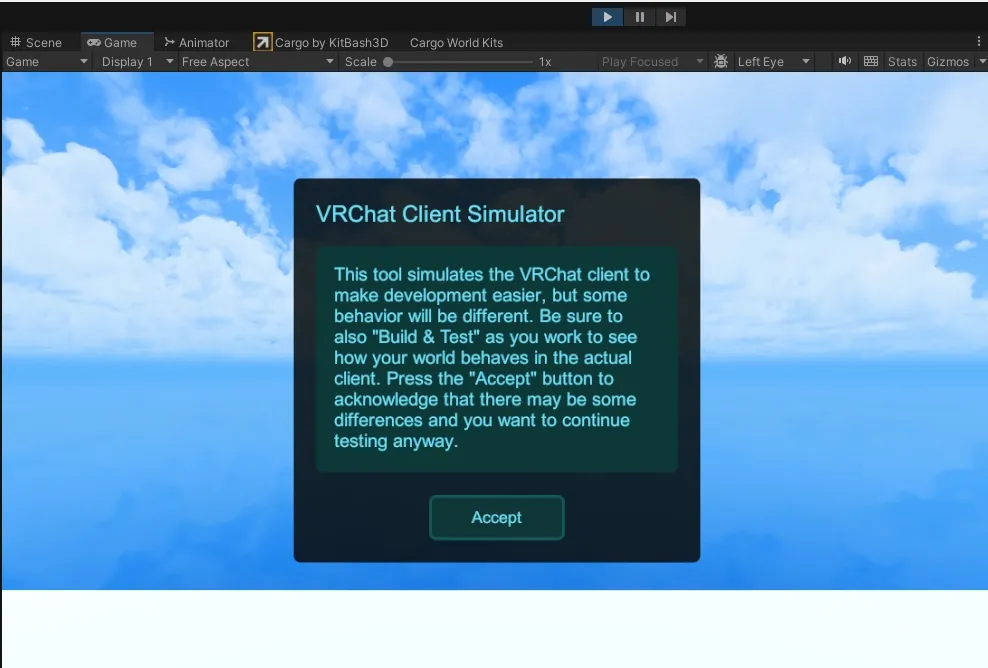
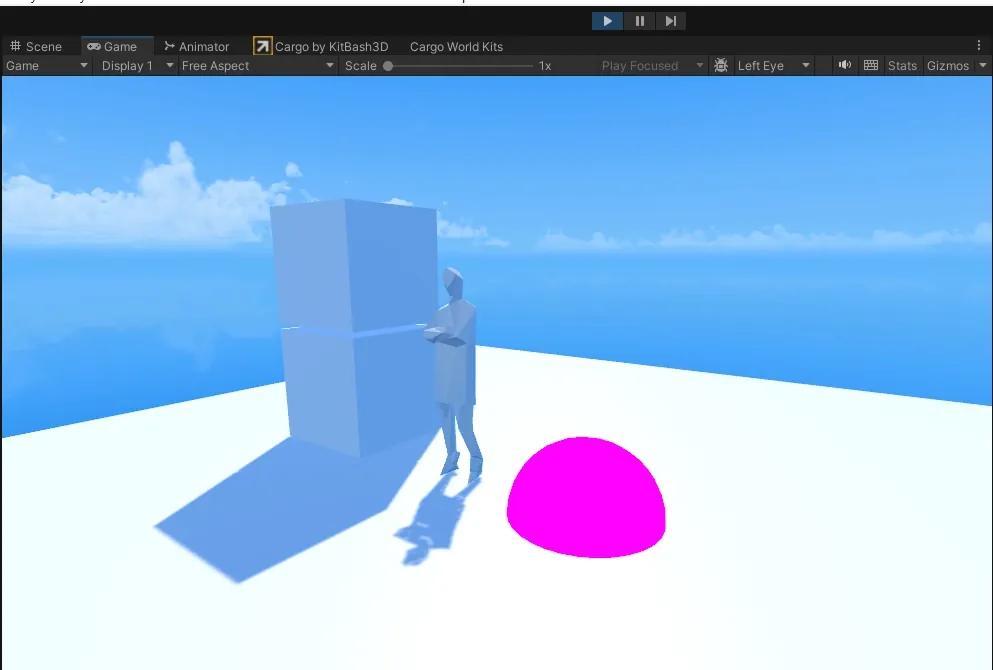
Once you click Accept, you can now look around with your mouse and move using the W (forward), A (left), D (right), and S (back) keys. Clicking the mouse will interact with nearby interactable objects.
Unity: World Debugger
If you’ve added the VR World Toolkit package in the VCC, you’ll see a VRWorld Toolkit option in your toolbar menu. From here, you can click World Debugger. This opens the World Debugger window in the Inspector (right panel).
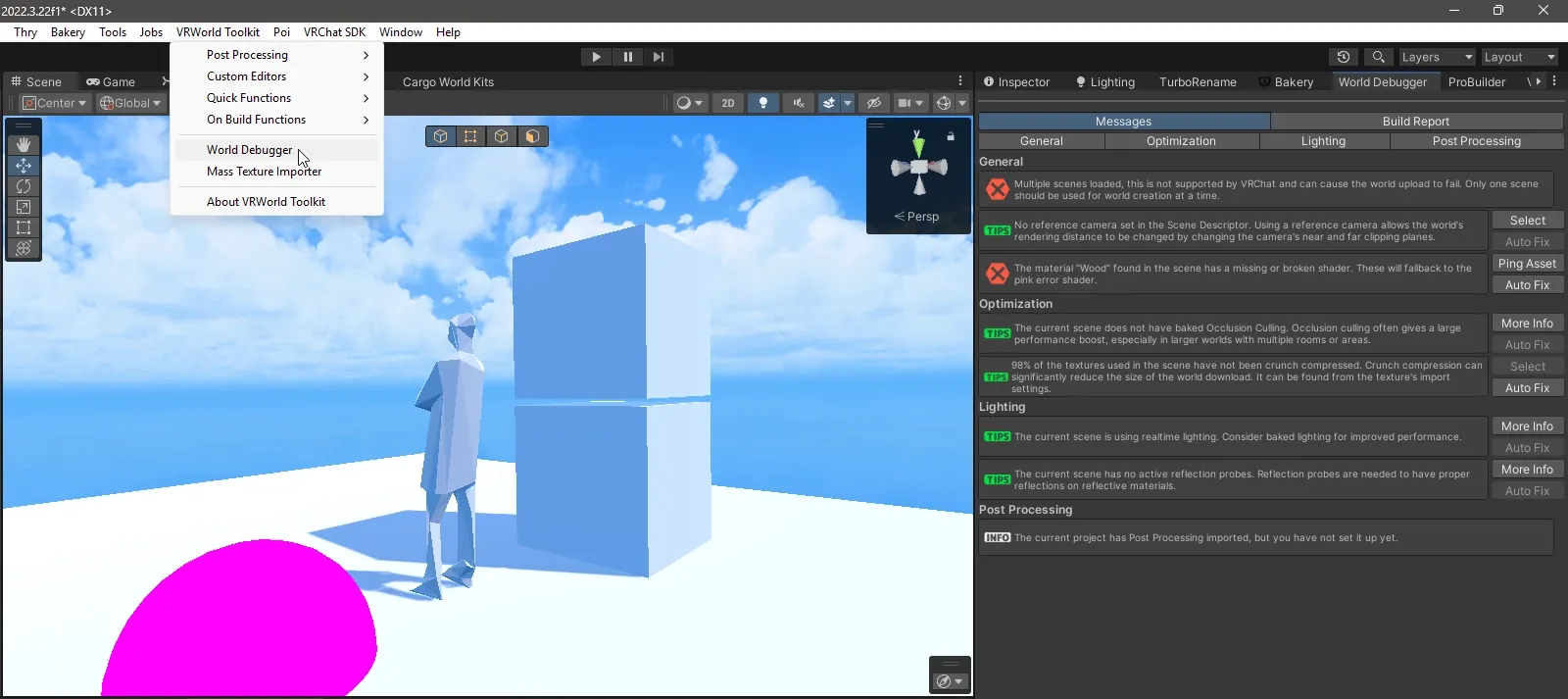
Here, a lot of different checks are done on your VR World. Try to avoid any red Errors and yellow Warnings. These really mess up visitors’ experiences. This debugger helps avoid those common mistakes before they become a problem.
Unity: Uploading
To upload a world to VRChat, you must open the VRChat Control Panel. It lives under the VRChat SDK menu in the toolbox. This’ll open the VRChat SDK menu in the Inspector (right panel).
Log in to your own personal VRChat account and grab the 2FA code sent to your email address. Then, give your world a name, a description, user capacity, and a preview image. You can review any alerts under step 2. Often an auto-fix button lets you breeze through this bit.
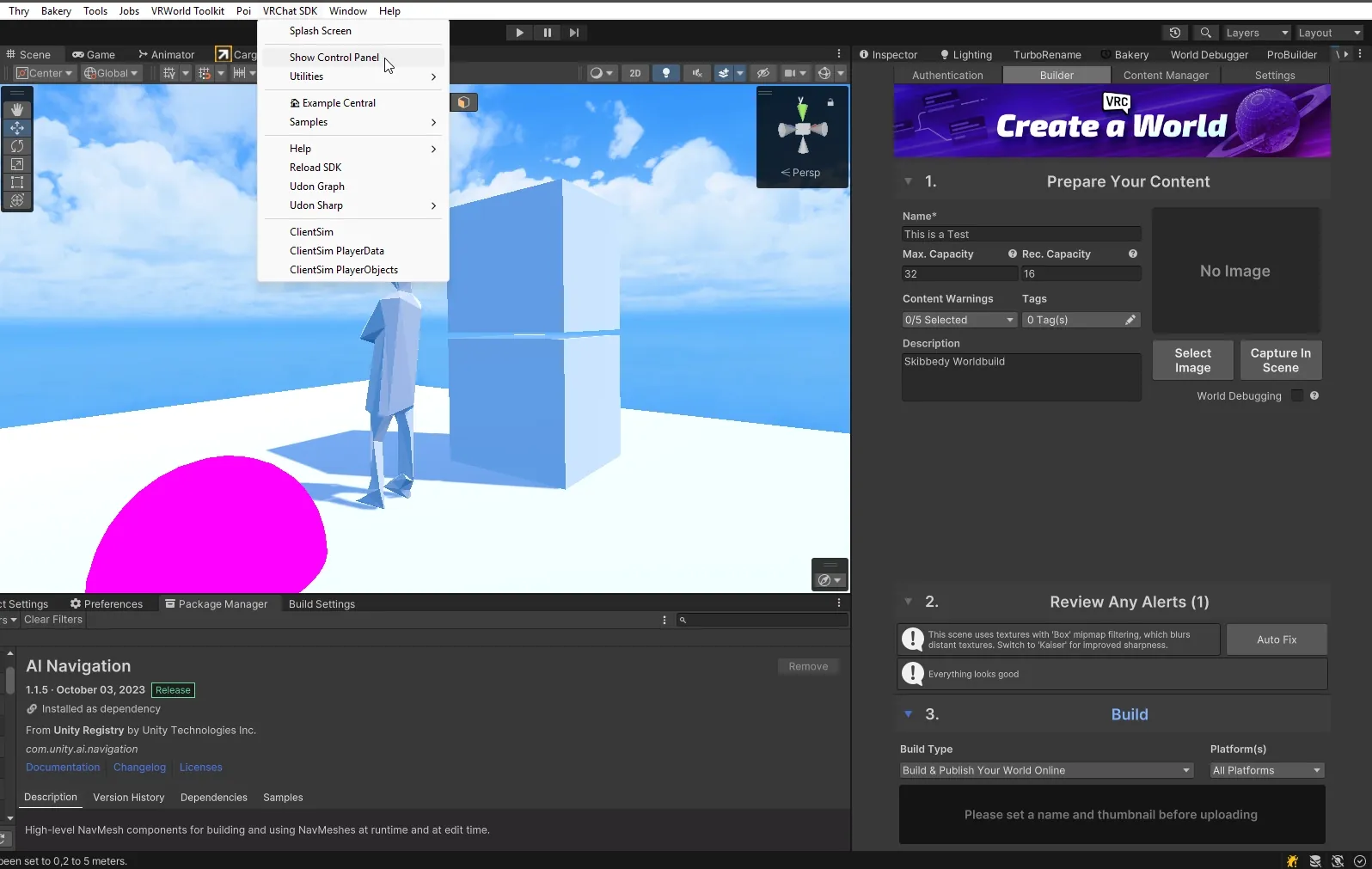
Finally, you select a build type:
- Public: Build & Publish Your World Online
- Private: Build & Test Your World
- Private: Build & Reload Your World
- Update: Reload Your Last Build
- Test: Test Your Last Build
Available platforms include Windows (Desktop & PCVR), Android (Meta & Mobile), and iOS (Mobile).
NB: Not all platforms are the same. There are many things that the Windows builds can handle that the mobile platforms cant. You can learn more about that here: https://deepwiki.com/vrchat-community/creator-docs/6.2-cross-platform-content
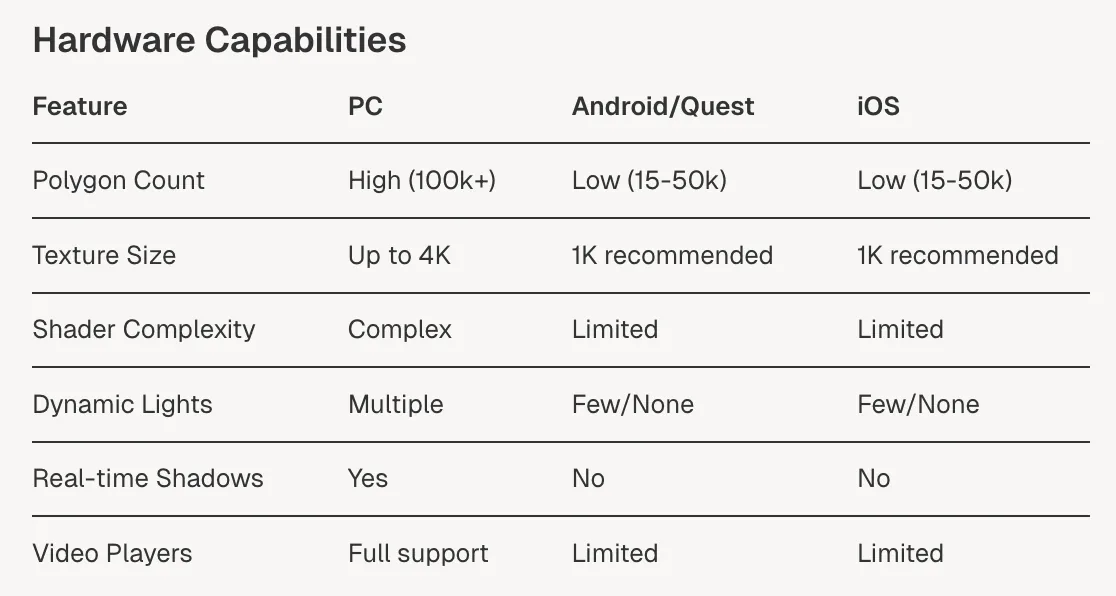
Be sure to build, then test, then build, then test, then build, then test, etc. until all your glitches are fixed. This can be a long and tedious step, but it’s so, so, so important.
Once you’re happy with the final product, you can hit publish. Remember, you have to have achieved the User trust level to publish worlds and the New User trust level to publish avatars. This takes some time, but just by exploring VRChat and testing your work, you’ll earn that rank fairly quickly. It really depends on how much time you spend in VRChat, but it can take a few weeks to get to.
Be patient with yourself, take your time, and enjoy the journey.
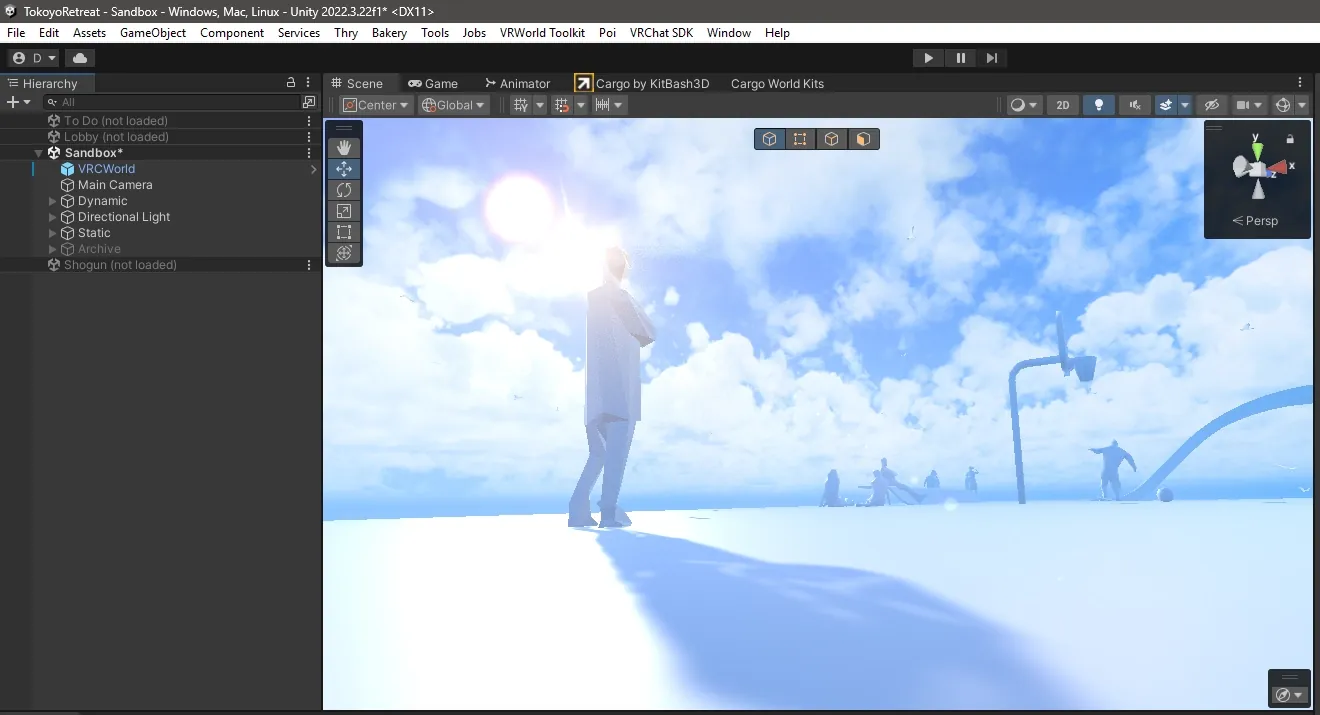
One final word on Unity & VRChat worldbuilding as a technical artistic practice, remember: like any artform, it takes time to master. Nobody picks this stuff right away and has everything figured out. These are tools that have been developed over decades and each toolset has its own quirks that you’ve got to come to grips with. Just be patient. If you get stuck, take the time to figure out the right way to do something and really master the skill. Or don’t. Sometimes a quick-fix is all you need because you’re enjoying the momentum of creation. Either way, have fun with it. A lot of the joy of art is in the process of creation, not always in its resolution and sales.
Ok, that’s it for the basics of VRChat worldbuilding.
Part 3: Insider Tips & Tricks
Over the years, I’ve picked up some neat tricks that save time and improve quality, so here is a short list of hidden gems that might be helpful.
Unity Asset Store
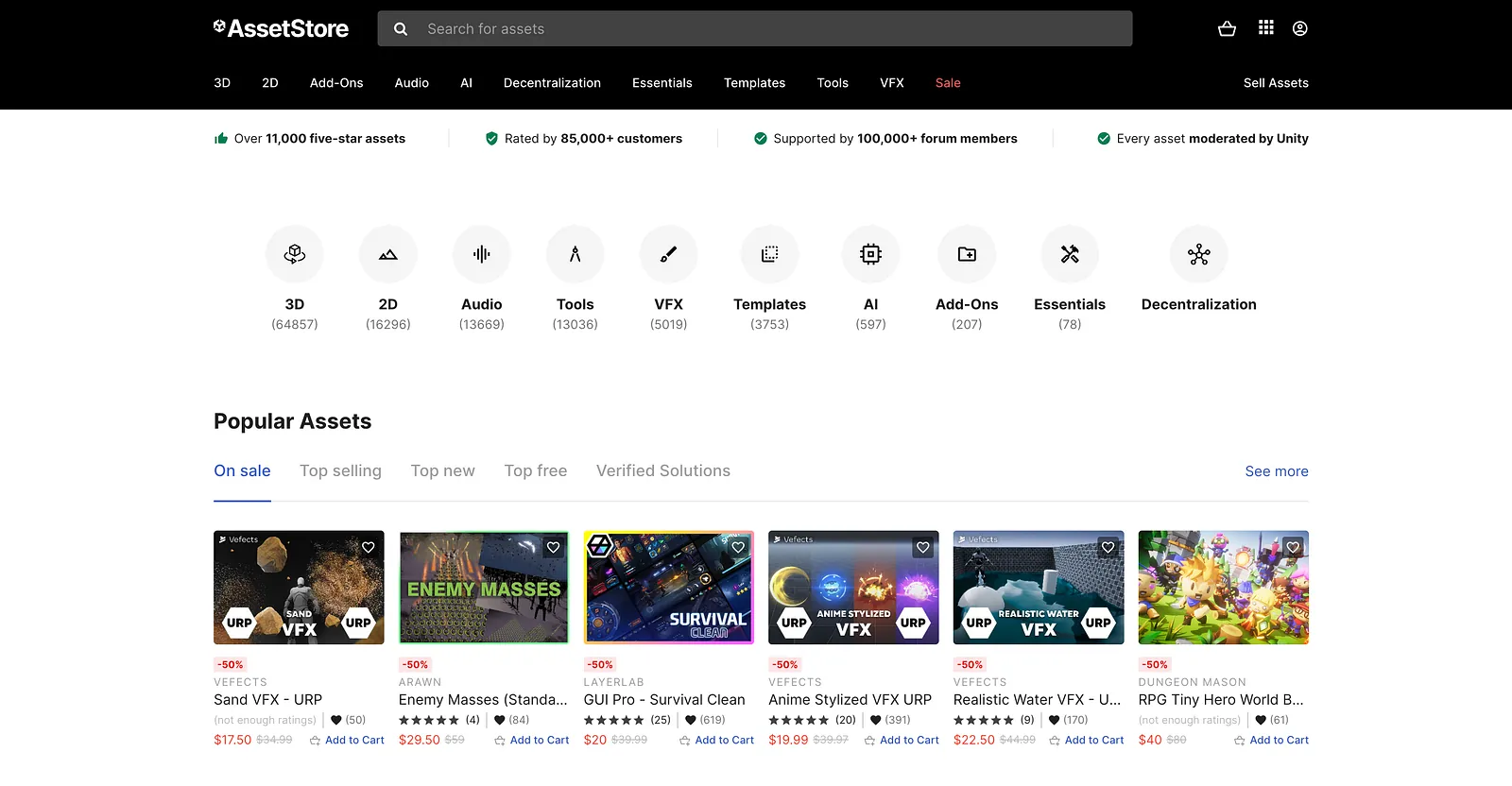
The Unity Asset Store has been around for ages. Its great. There are a lot of really interesting tools and assets. Many are worth paying for, imo. Be careful, though. Not all assets are supported by the Unity version we use for VRChat. Also, not all assets themselves are compatible with VRChat. So take the time to verify if something will work before splashing the cash.
Sketchfab
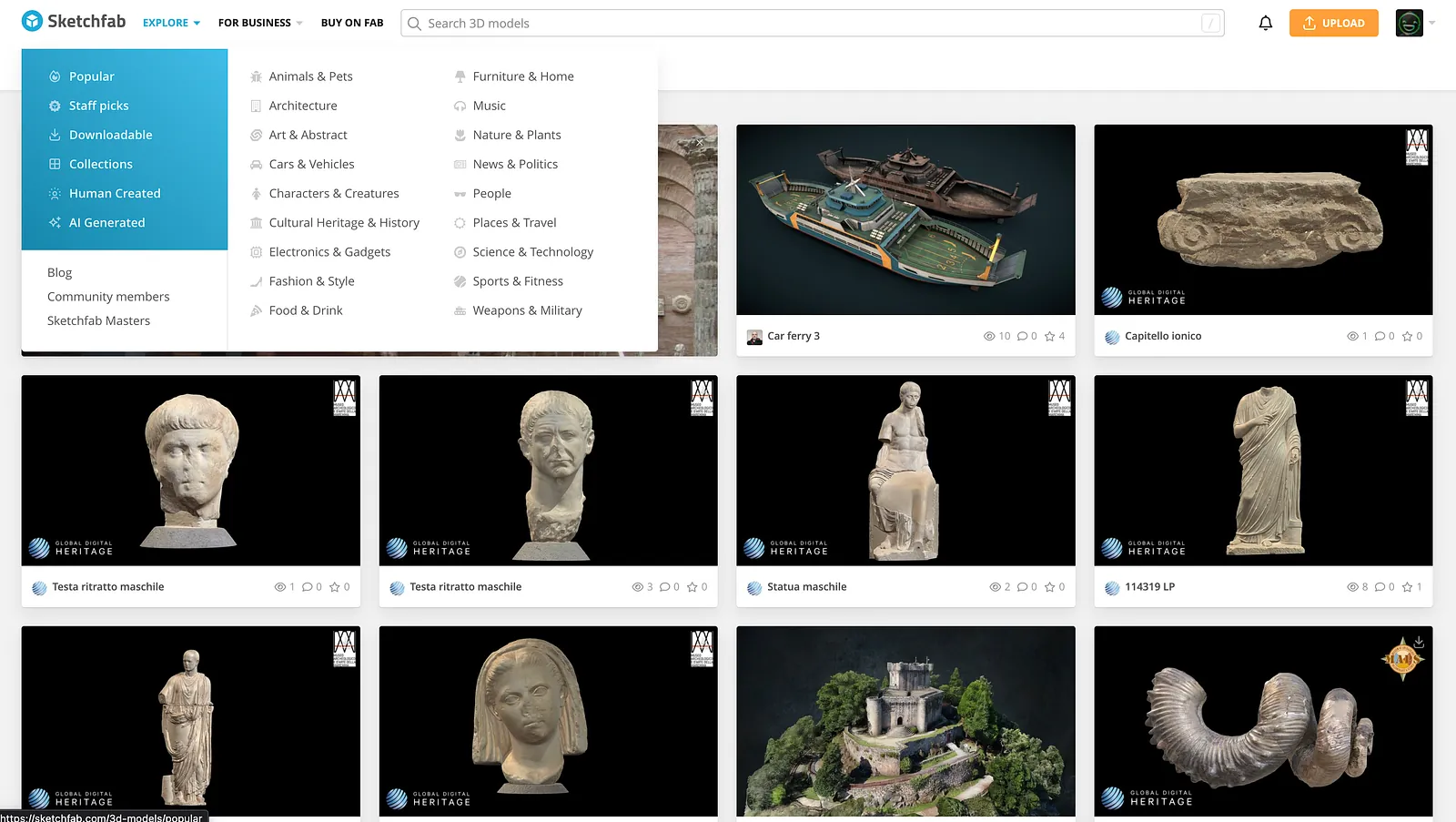
This is an old favourite. Sketchfab has so many 3D models, it still blows my mind. It can be tricky to find the exact right asset for what you’re building, but it’s always worth a quick look. Be sure to check the licenses of each model you use, and give credit where its due.
The Old Prefabs Spreadsheet
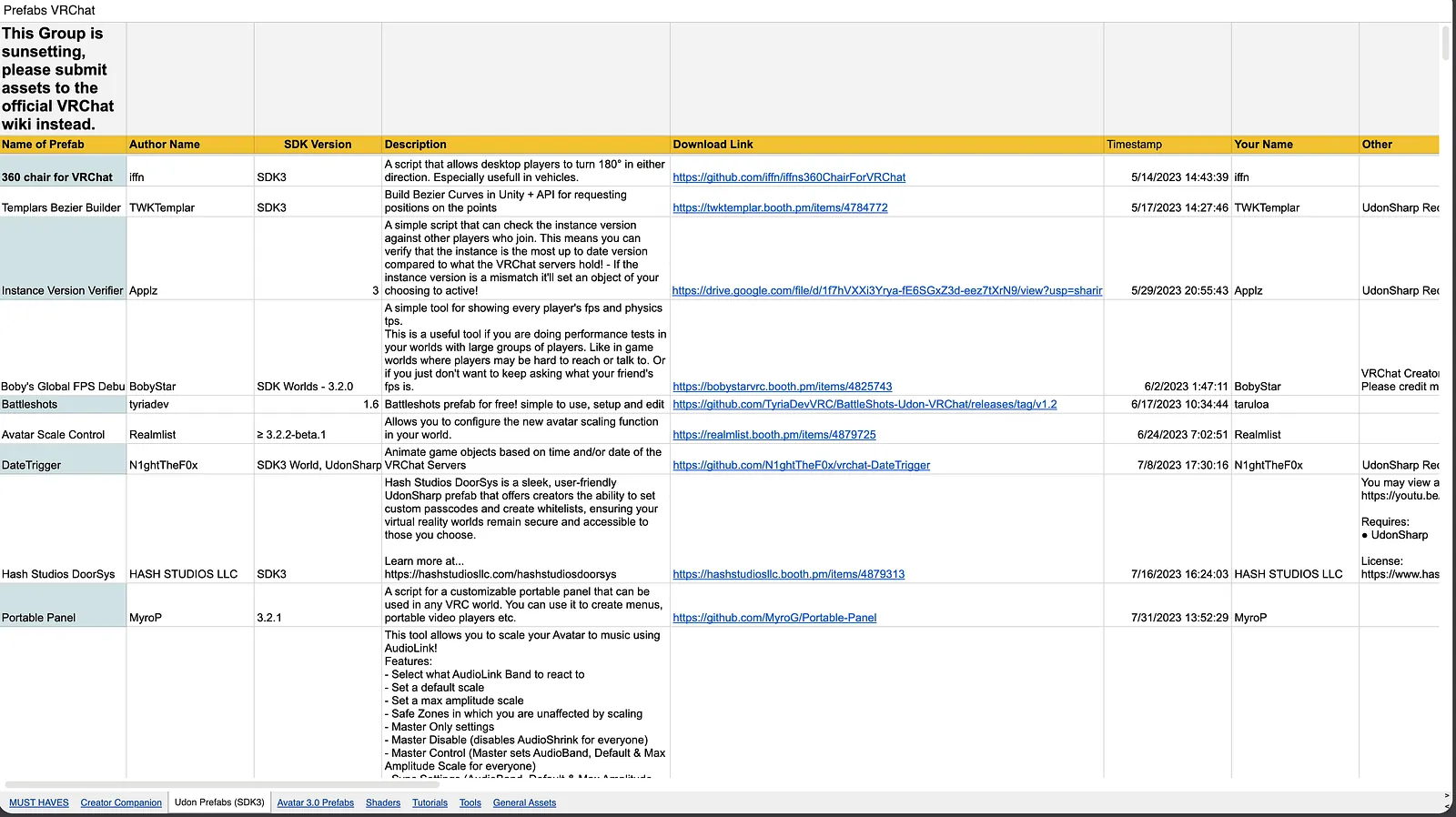
This old spreadsheet has been around for a while, but it’s being deprecated. Before it does, check it out. There are some really cool links here to different prefabs (prefabricated features) from shaders, materials, tools and more.
The authors advise checking out the new VRChat wiki for updated resources: https://wiki.vrchat.com/wiki/Category:Resources
ProTV by Architechanon
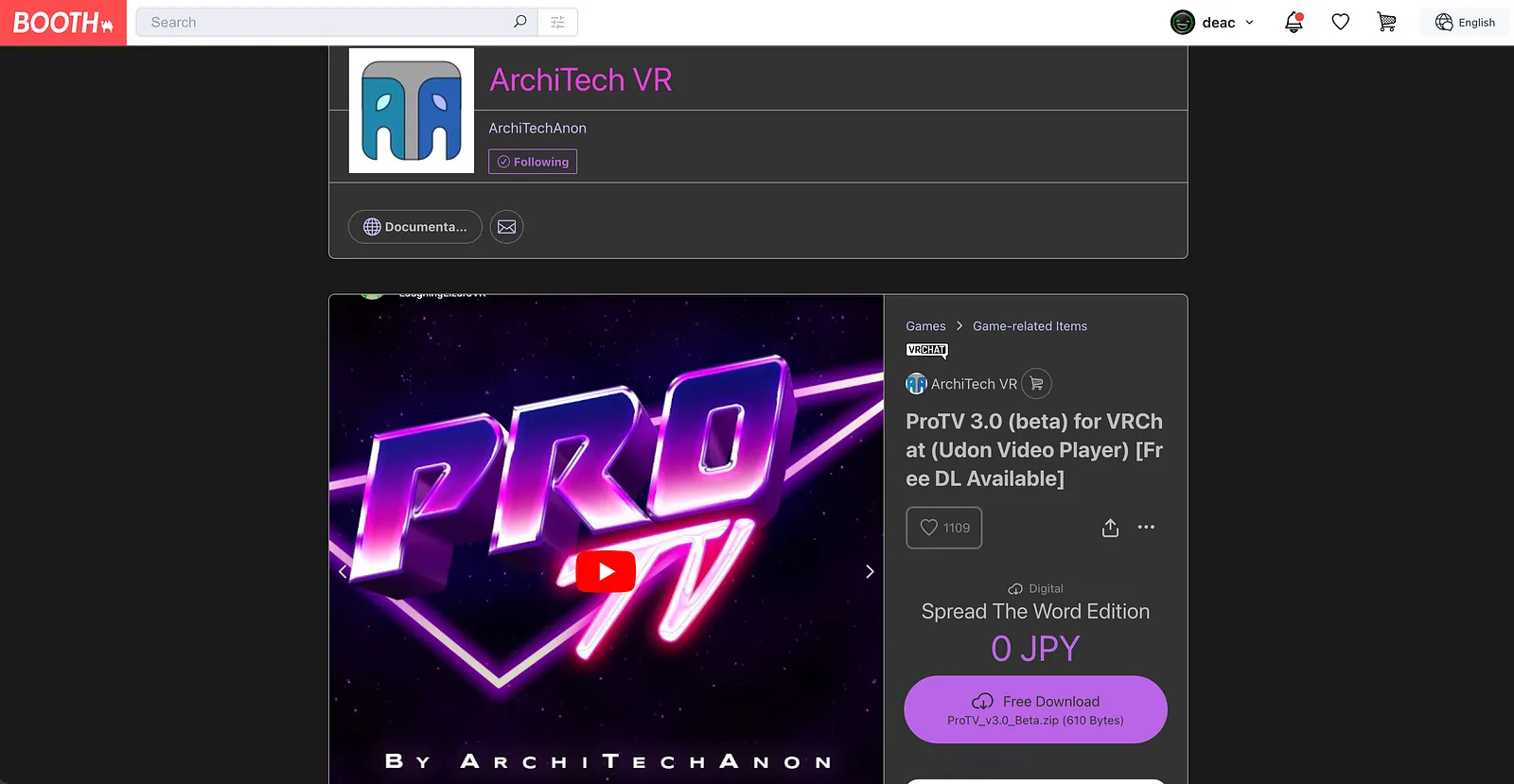
ProTV handles most of my video & audio management. Primarily, the media player itself, the video queue, and the various video playlists. There are other video players out there, but this one is my favourite.
VCC Link: https://vpm.techanon.dev/index.json
Cursor
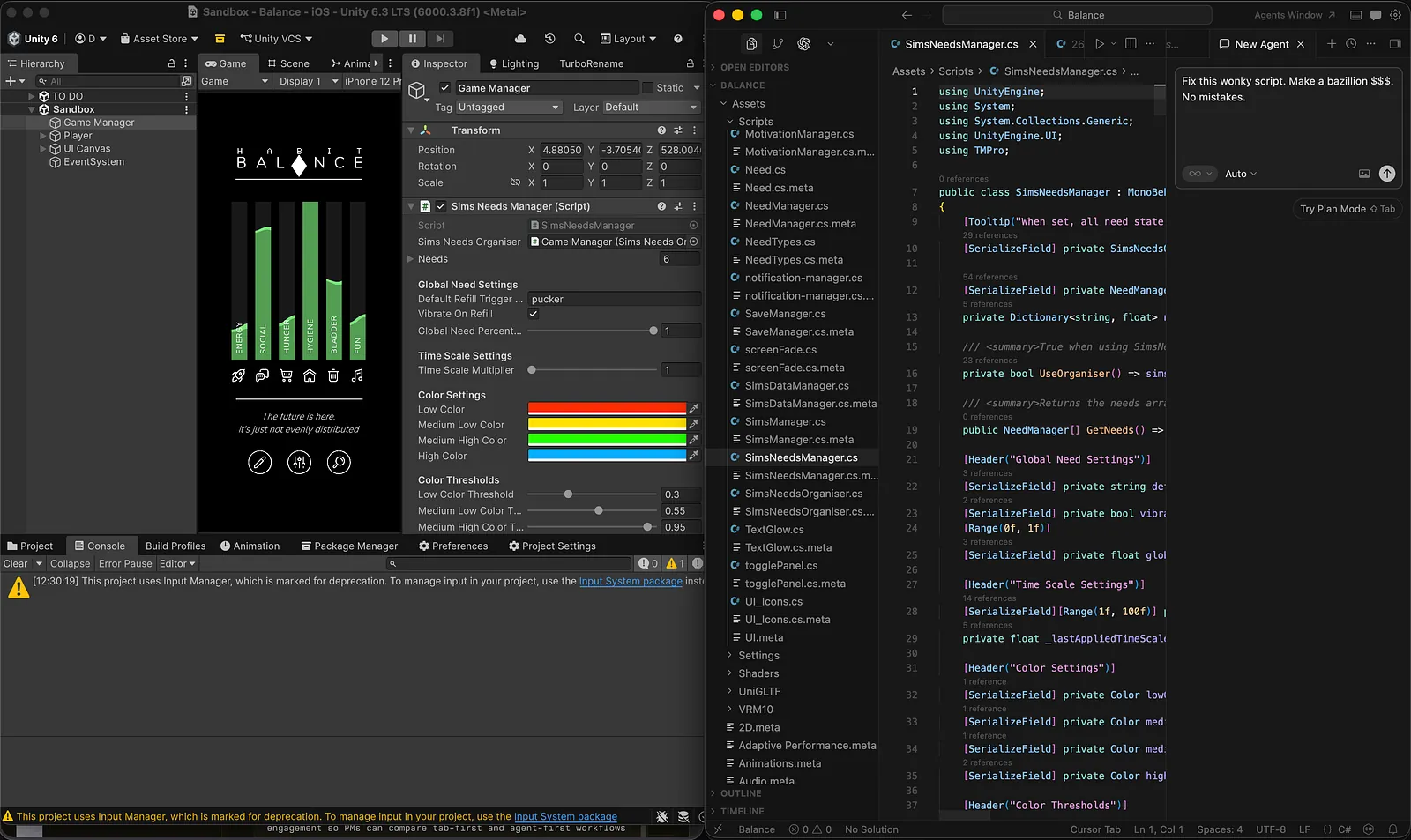
If you snuck into my office and took a peek over my shoulder, odds are, this is what you’d see. Unity on one half of the screen, and Cursor on the other.
I used to use VSCode, but today Cursor is my IDE of choice. At any given moment, I can ask Cursor to send OpenAI’s Codex, Claude’s Sonnet, or Cursor’s Composer to write code for me or fix a bug. It’s been a game changer, and I hardly program anything by hand anymore. I’ve promoted myself to head of quality assurance and outsourced most of my programming to bots. It’s far from perfect, but it saves me time and the results have been pretty good so far.
Udon & UdonSharp (U#)
https://github.com/MerlinVR/UdonSharp
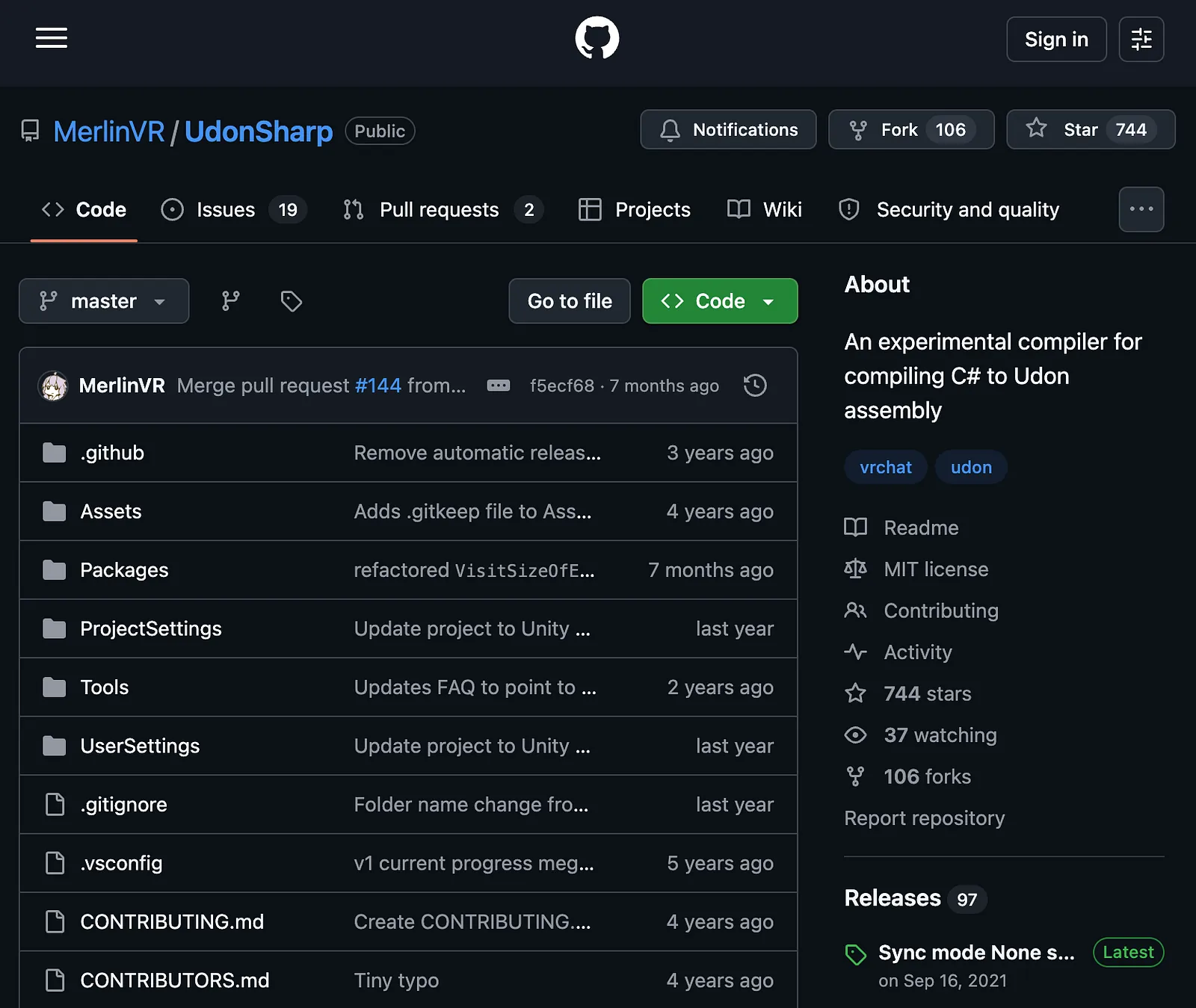
Udon is VRChat’s own programming language. It’s very closely related to C#, which is Unity’s primary language. UdonSharp (U#) is the bridge between them, so using Cursor, I whip up small U# scripts that handle most of my interactive logic for VRChat. I think it may have been incorporated to some extent into the SDK, but I’ll need to double check that.
CyanTriggers
https://cyanlaser.github.io/CyanTrigger/
Before Cursor, this was my favorite way to build custom logic and functionality for VRChat. Its not quite scripting (although C# experience certainly helps), and it’s not quite node-based scripting either. Its somewhere in between. There’s a slight learning curve, but the documentation is pretty good and there are creators who are making more and more tutorials and prefabs that use this tool.
Eleven Labs
AI is a very controversial topic in April 2026, but this tool does some interesting things. It allows me to make custom sound effects and audio quickly and easily. I’m sure there are some great opensource alternatives out there, and who knows how long this tool will be around for, but in the meantime, its easy to use and effective.
BOOTH
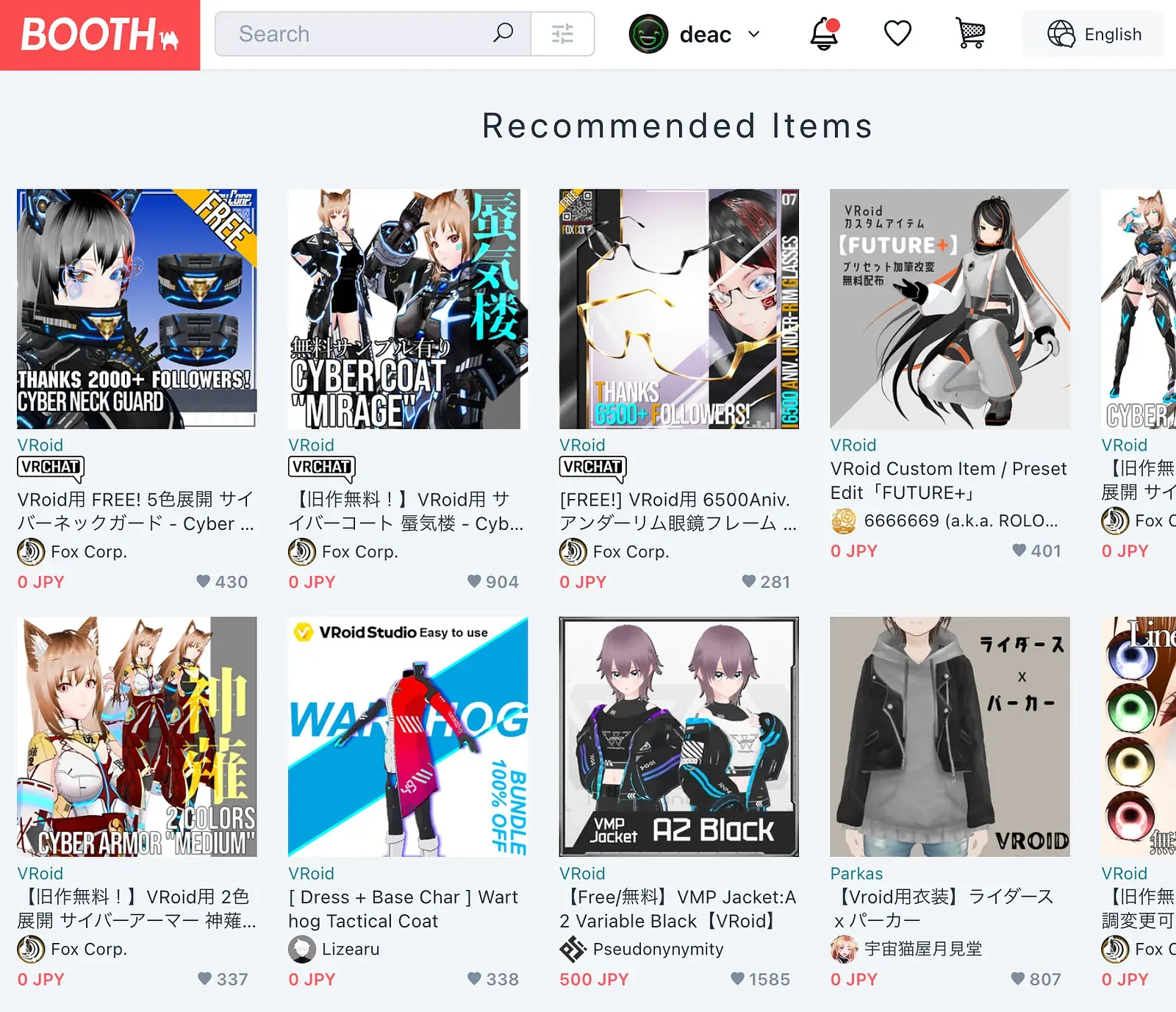
Booth is awesome. Because VRChat is really big in Japan, it is populated by a lot of Japanese content by Japanese creators, but they are so talented. Its a window into the storefronts of the future. I strongly recommend checking it out if you’re into the avatar scene, but there are also a lot of amazing worldbuilding tools here too.
GumRoad

Gumroad is like BOOTH’s American cousin. It’s a lot more English-oriented, but it has a lot less content. Still though, there are incredibly talented creators here with some fascinating content.
Virtual Desktop
Virtual Desktop lets you turn your Meta Quest into a channel through which you can stream your PC’s content through. Its fast and easy to use.
XS Overlay
https://store.steampowered.com/app/1173510/XSOverlay/
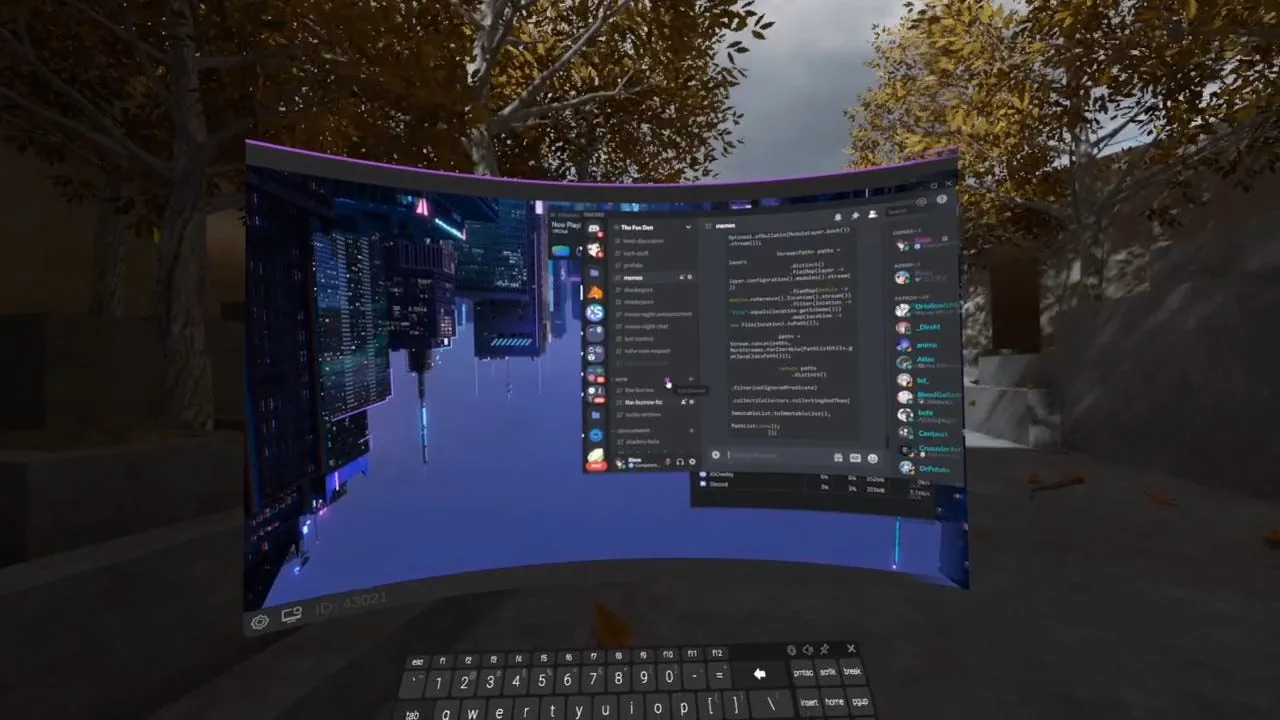
XS Overlay, created by the legendary VRChat creator, Xiexe, allows you to open up a virtual desktop from within VR & VRChat. While I’m in VRChat, I can open up my desktop, and have it float in-world so I can work on my PC while immersed in a VR environment. There’s something quite magical about programming a VR world, while inside a VR world, and dynamically updating your surroundings.
My Resources Folder
This one seems obvious, but it’s easily overlooked and underappreciated. I store and catalogue my VR tools and assets. You might use something and think “hey, its just a once-off thing” and not worry about backing it up, but I try to backup as many of these tools as I can. I have my favourites, for sure, but there are some that I’m sure I’ll tap into at a later stage.
- 2D Sprites: Noise maps, normal maps, color swatches, simple shapes, gradients, I backup a lot of things that would be quick to make from scratch or pick up from google, but it can save some time when you have the perfect tool for the job saved in a local folder.
- 3D Models: This one is tricky. Models take up a lot of space. Im a bit more picky, but certain tools like an inverted sphere come in handy all the time. For a non 3D modeller like me, this is invaluable.
- Audio Files: Another folder that can take up a lot of space, but I really like little pops and buzzes for interactions. Its a good standard practice, I picked up from mobile app development, to give the audience an audio cue to let them know they’ve initiated or completed an interaction.
- My Packages: Sometimes I create something really useful that I’ll use again in the future. I created a tool that loads images from the internet via a URL a while before VRChat did it. I’m quite proud of that fact. Save the stuff you make. Share it with the community.
- VRChat Packages: Some packages last forever. I have a bird-sprite particle effect from Noriben that I’ll treasure forever. :)
- Shaders & Materials: Aside from the Poiyomi shaders, I have picked up some really cool shader code in my travels. I don’t use it much, but it’s nice to hang on to, just in case. These days however, it’s tempting to use Cursor to whip up my own shaders, although that can be a trying process, tbh.
- Design Tools: I have some cool templates I’ve made. Things like a rule of thirds layover png, or a golden spiral tool. They’re basically just design theory cheatsheets. I should probably make one for color theory now that I think about it…
Inspiration & Community: BluSky, X, YouTube, Discord
Outside of VR, there is a thriving ecosystem of creators. Blusky has a lot of VR art and social communities that are pushing the boundaries of what we can do with VR. X.com, for all its faults, is a hub for technically minded VR programmers and developers. The V-Tuber trend seems to be coming along nicely too, although it’s still finding its feet on YouTube at least. I assume TikTok’s also experimenting with this new format too. And Discord ties it all together with a litany of different human and bot communities.
That’s All, Folks
I don’t know about you, but the Metaverse reminds me a lot of the early days of the Internet.
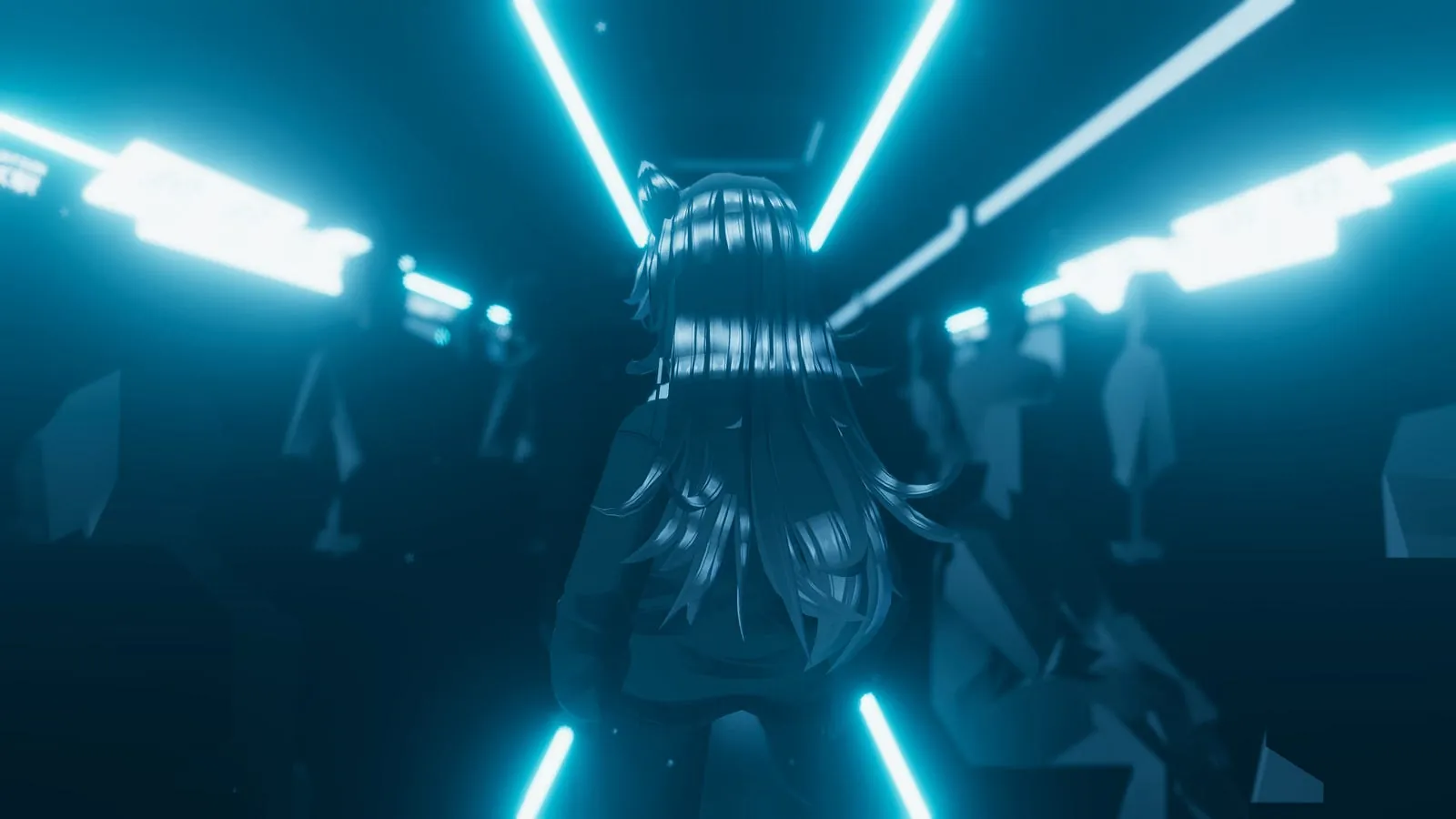
Optimistic, edgy, scary, inspiring, awful, awesome, and everything in between. Its the wild west of the internet where anything goes. That comes with some serious downsides, but it also comes with a lot of potential.
I don’t want to echo the naive Techno-Utopianism of some of Silicon Valley’s richest man-childs, but I do think that there are many analogous lessons that we can learn from that time.
While the media may continually announce that “VR is Dead” for many years to come, I suspect theres a lot more to it than that. Let’s call it a hunch.

I hope you’ve enjoyed this tutorial, and I hope I managed to share some info you find useful. Let me know if that’s the case or if there’s anything I could improve in this tut. I’m happy to learn and adapt as much as I’m happy to share what I’ve learned.
Please feel free to check out more of my worlds on VRChat: https://vrchat.com/home/user/usr_04a52932-b6a2-4b2b-8191-728f7152f3f6
If you’re one of the few people who still read, you can sign up to this blog where I occasionally share some insights on techie things: https://medium.com/@deaconline
I also share a few work & community related things on LinkedIn: https://www.linkedin.com/in/daledeacon/
And now that I’m getting back in VRChat in a serious way, I’ll be sharing more on X & Blusky soon: https://bsky.app/profile/deac.bsky.social & https://x.com/deac_online
Thanks for taking the time to learn and feel free to share what you make with the world. We’re all in this together.
Yours Virtually,
— Deac